I am receiving a CC-501error code as I try and download my account

Biguy4357
Biguy4357 Quicken Windows Subscription Member

Each time I try to download my account information at Purdue Federal Credit Union, I receive an error code of CC-501. This has gone on for around 10 days. Can someone help me wth this?

Answers

  • Quicken Alyssa
    Quicken Alyssa Quicken Windows Subscription Moderator mod
    edited 8:15AM

    Hello @Biguy4357,

    Thank you for reporting the issues you are seeing. I am happy to help!

    Sometimes the CC-501 error can act as a sort of "catch-all" error. After reviewing your connections internally, it appears your last attempt to connect to this financial institution was on 12/9/25, and I am seeing a CC-506 error from my end.

    This error indicates that Quicken is unable to identify the account to which your downloaded information belongs. This could be because the account at your financial institution is closed, or because the account number or nickname was changed on the financial institution's website. This error also occurs if there is an older account still activated in the file that is no longer available at the financial institution.

    To resolve this, please go through the steps below.

    Update to the latest release of Quicken

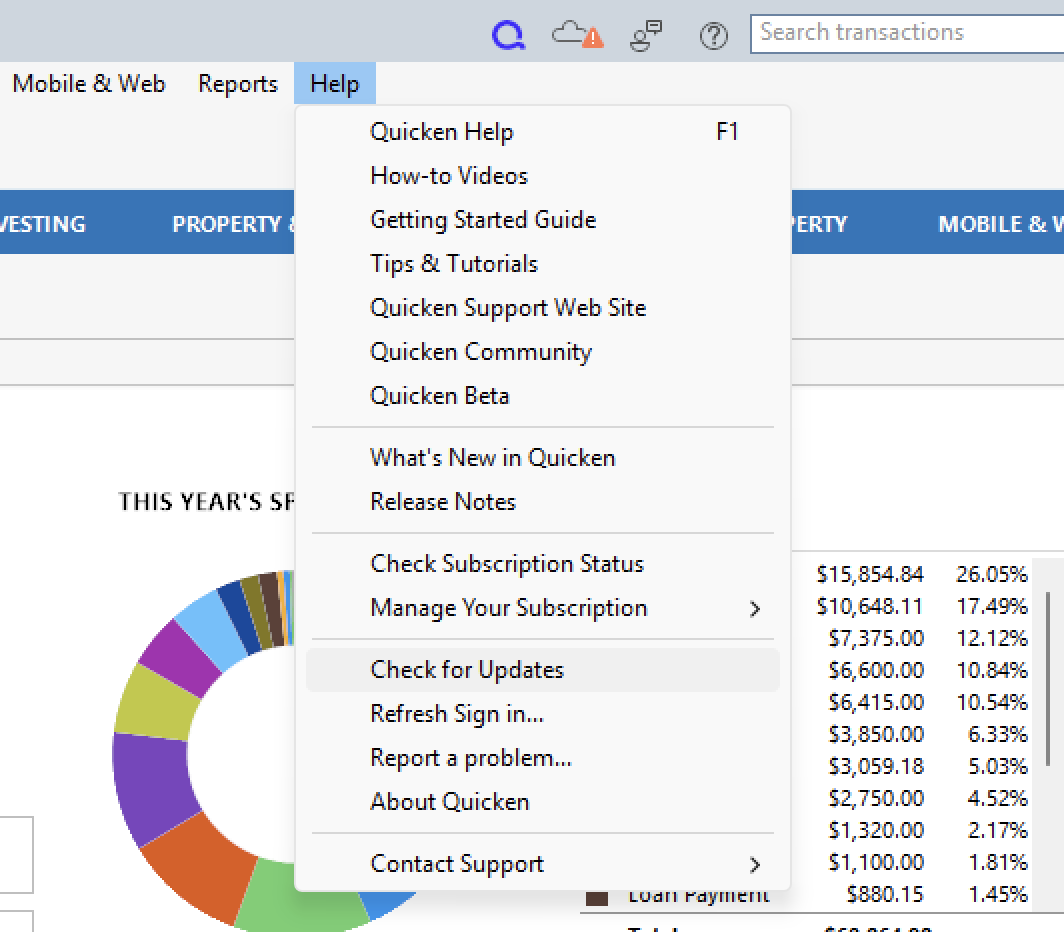
    1. Choose Help menu > Check for updates. Screenshot 2025-12-11 at 8.54.54 AM.png
    2. If an update is available, follow the on-screen prompts to update to the latest release.
    3. Try updating your accounts again. If the problem persists, continue with the procedures below.

    Refresh your account information

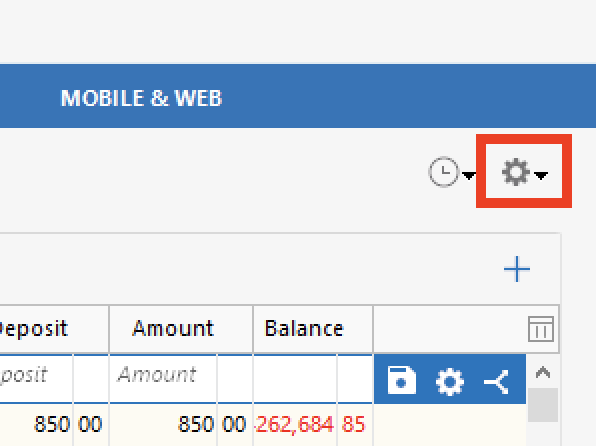
    1. From your account register, select the Actions gear icon at the very top of your register. Screenshot 2025-12-11 at 8.57.07 AM.png
    2. Then select Update Now.
    3. Follow the on-screen instructions to complete the update.
    4. If the problem persists, continue with the procedures below.

    Deactivate all accounts for this financial institution, then force Quicken to "discover" all available accounts:

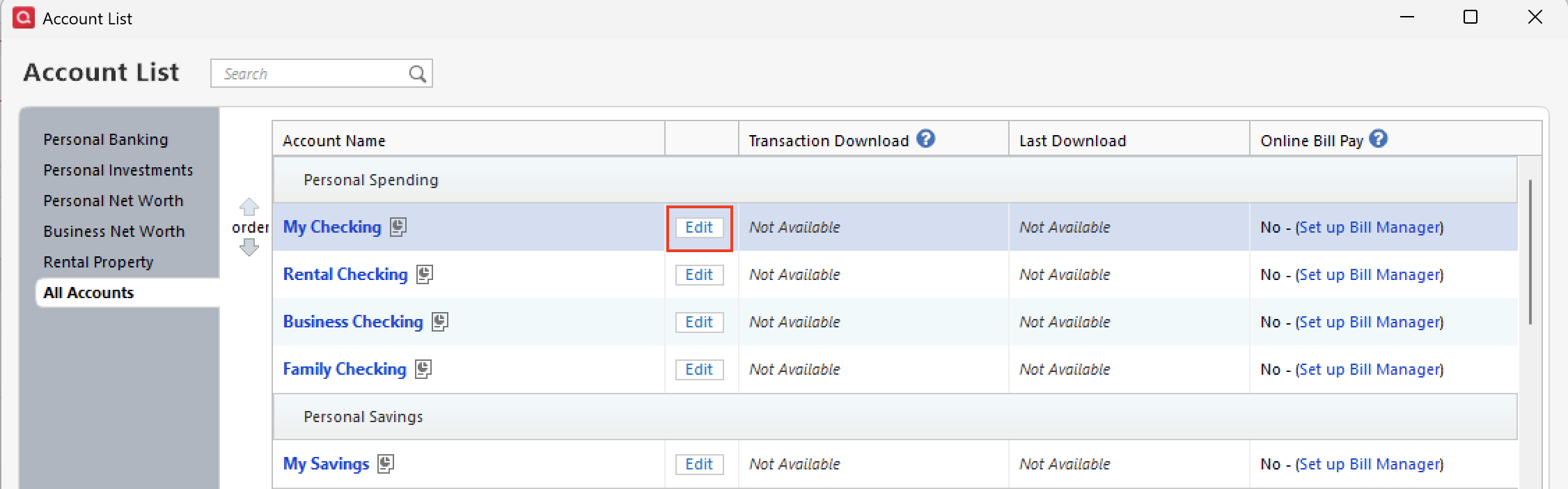
    1. Open the Account List in Quicken (Tools>Account List).
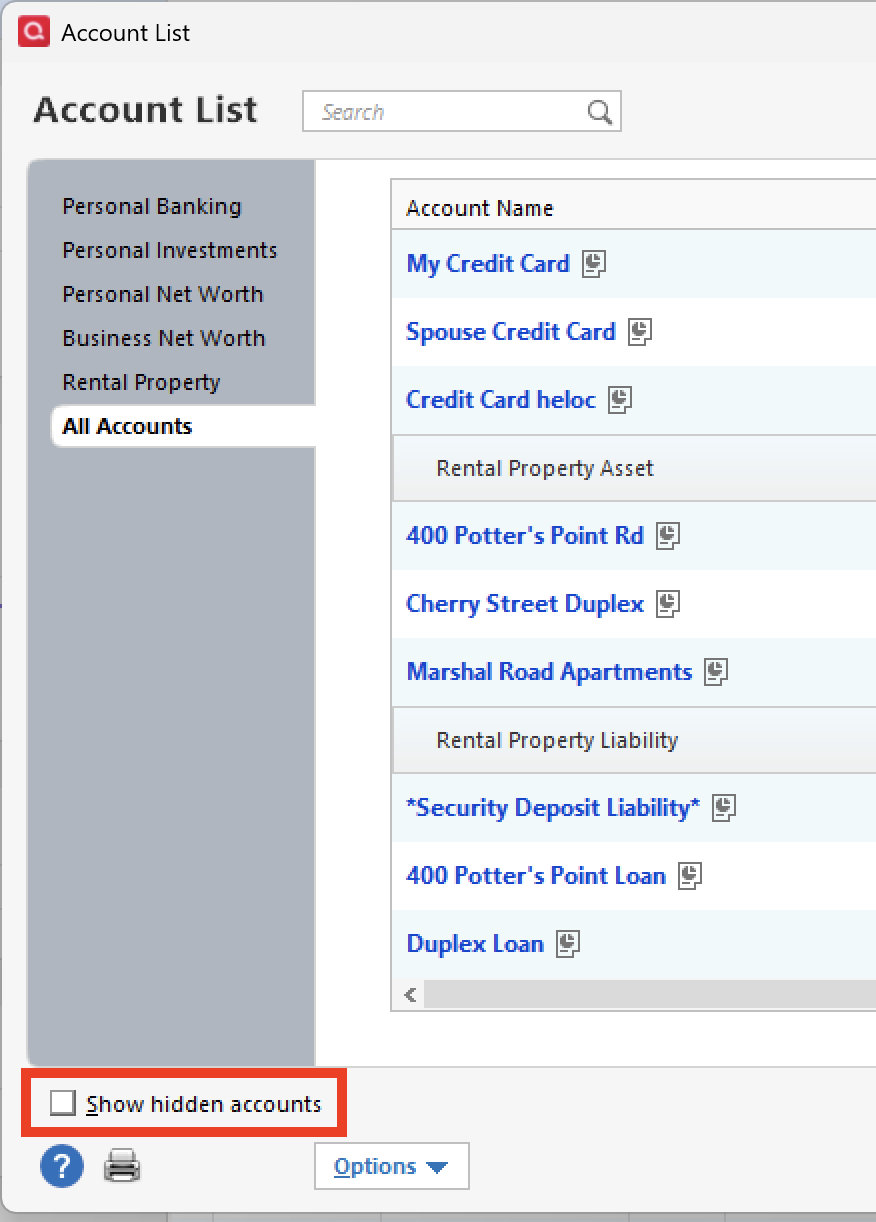
    2. If present, select the Show Hidden Accounts checkbox at the bottom of the Account List. acct list>show hidden accts.png
    3. Edit each account with this financial institution to Deactivate on the Online Services tab.
    4. When finished, close the Account List.
    5. Close, then re-open Quicken.
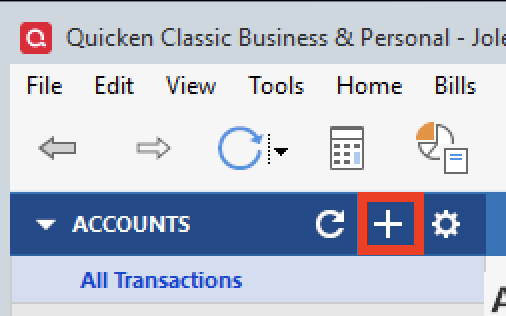
    6. Click the Add Account button. Screenshot 2025-12-11 at 9.01.29 AM.png
    7. Walk through this process as if you were going to add a new account, selecting a financial institution, providing the login credentials, and answering any security questions/processes presented, UNTIL you reach the screen where Quicken displays the Accounts Discovered at the financial institution.
    8. Very carefully LINK each of the found accounts to the appropriate account you already have set up in Quicken.

    If the account was closed, deactivate it from future online updates

    1. Choose Tools menu > Account List.
    2. Click the Edit button next to the account you want to deactivate. acct list-edit.png
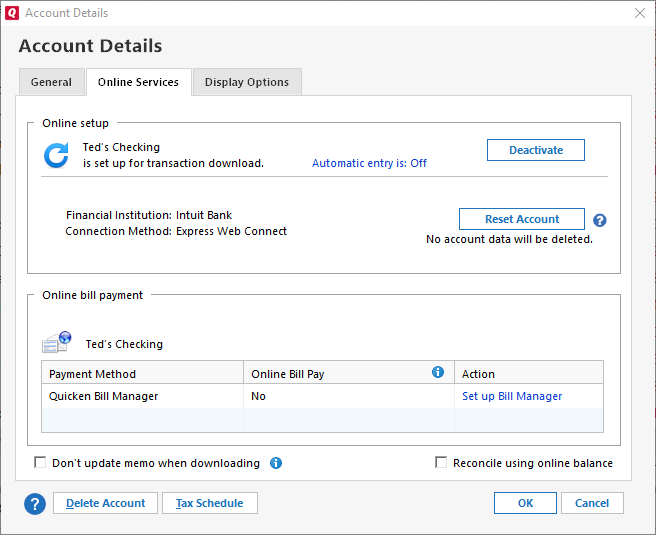
    3. In the Account Details dialog, click the Online Services tab. image.png
    4. Click Deactivate to stop downloading transactions for this account.

    If the steps above do not resolve the issue, please contact Quicken Support directly for further assistance. They can take a closer look and escalate the issue if needed.

    Thank you!

    Quicken Alyssa

    Make sure to sign up for the email digest to see a round up of your top posts.