Southeast Toyota Finance not downloading transactions
Comments
-
Hello @agcgonz,
Thank you for sharing your experience and reporting the issue you are running into.
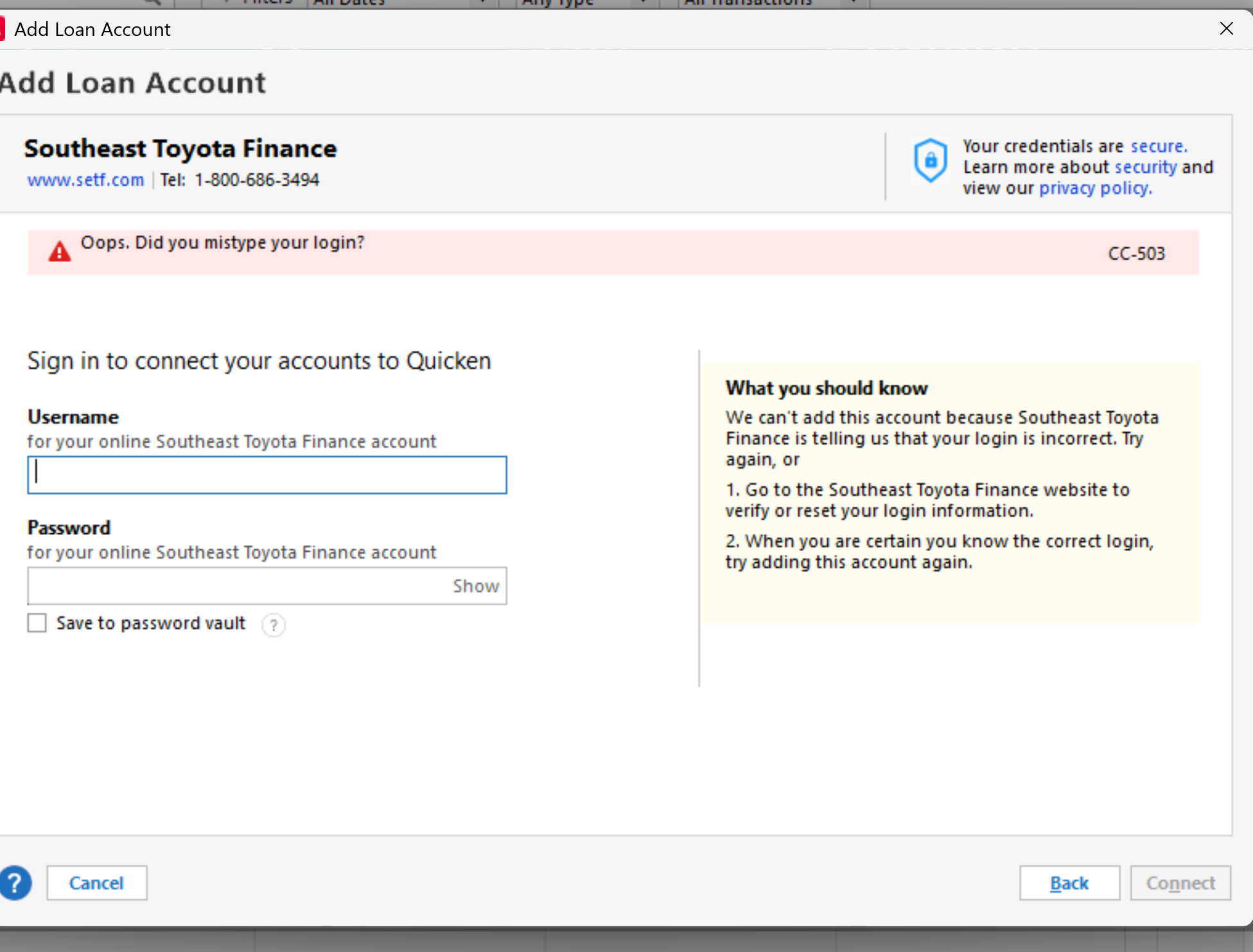
A CC-503 error occurs when your financial institution tells Quicken that your login credentials are incorrect. To resolve this:
Step One: Verify your bank login information
- Type your password/PIN into a text application, such as Notepad, WordPad, or other text/word application.
- Note: This is a way of confirming you don't have typographical errors in this field.
- Highlight the "confirmed" password and then copy it (Ctrl + C) and paste it (Ctrl + V) into the appropriate fields in Quicken.
Step Two: Verify your bank login at the bank's website
- Go to your bank's website and confirm that you're able to log in with the expected username and password.
- Once you are logged in, review your account at the website for notifications (such as pending messages in a mailbox or message center) to confirm if further action is required to grant Quicken access.
- Some banks will require a separate login, password, or both to access accounts on third-party software. Also note, you may need to go to your settings at the website to access these prompts for new credentials.
New passwords: If you are required to make a new password, be aware that some special characters may cause errors in Quicken. These special characters are the ampersand (&), left carat (<), right carat (>), backslash (\), and forward slash (/). Additionally, while Quicken does not have a character limit, your bank may have one.
Step Three: Update your password(s) in Quicken
- Launch Quicken and go to Tools > Password Vault > Add/Edit Passwords.
- Click on the account in the Password Vault.
- Choose Delete Password for the account.
- Complete a One Step Update, you will be prompted to enter the password manually.
- Type in the password (the same one used on the bank's website) and check in the box marked Save next to the password field.
- Click Update Now.
If there is no option to delete and update the password, or if the login ID/username also needs to be changed:
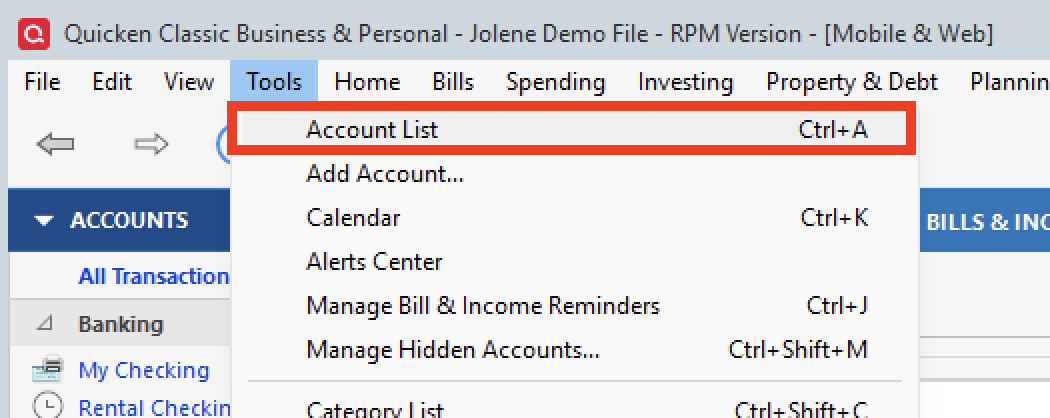
- Choose Tools > Account List.
- Click the Edit button next to the account you want to change the login ID for.
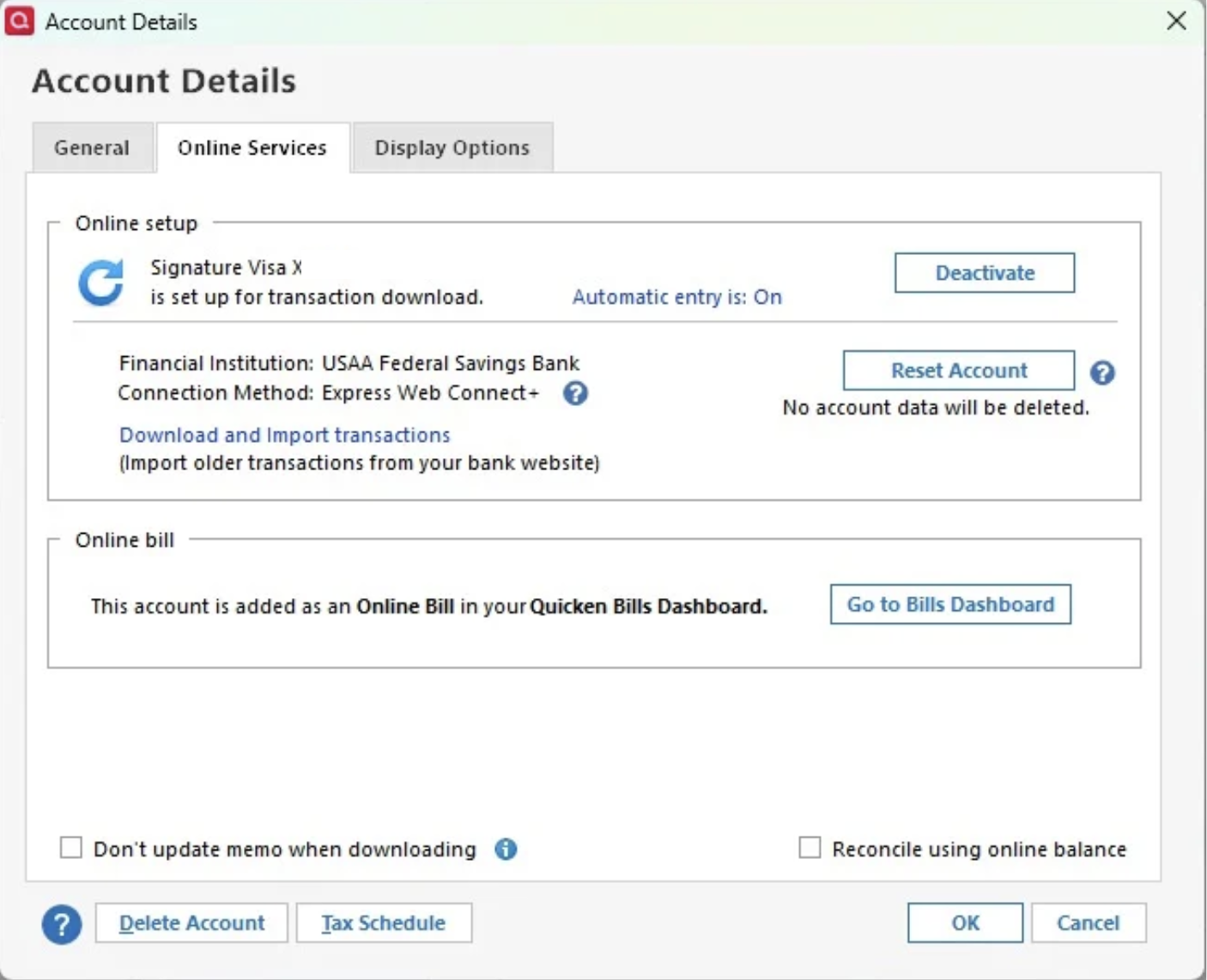
- In the Account Details window, click the Online Services tab.
- Click Reset Account.
- Enter the correct login ID and follow the on-screen prompts to complete the reset.
- If prompted, carefully LINK the accounts found to the existing accounts in Quicken.
After the reset process is complete, attempt your online session again. If these steps do not resolve the issue, please contact Quicken Support directly so they can collect more information from you and process an escalation if needed.
Hope this helps!
Quicken Alyssa
Make sure to sign up for the email digest to see a round up of your top posts.
0 - Type your password/PIN into a text application, such as Notepad, WordPad, or other text/word application.
Categories
- All Categories
- 42 Product Ideas
- 36 Announcements
- 225 Alerts, Online Banking & Known Product Issues
- 21 Product Alerts
- 497 Welcome to the Community!
- 676 Before you Buy
- 1.3K Product Ideas
- 54.4K Quicken Classic for Windows
- 16.5K Quicken Classic for Mac
- 1K Quicken Mobile
- 814 Quicken on the Web
- 115 Quicken LifeHub