Credit card activity downloaded and transaction automatically categorized to checking account
For the past few months when I download my credit card statement, random transactions/payees are being automatically categorized to my checking account rather than an expense at which point I manually correct the error in my credit card activity which then puts my bank reconciliations off by a like amount. I have to manually post an entry in my check register to correct the posting error.
I have been importing credit card statements for years with no issues until recently.
I have eliminated all memorized auto categories to my checking account and thought that would solve things but nope.
I cannot be the only one, help!
Comments
-
Hi @jcannella,
Thank you for sharing what you're experiencing. I’m happy to help you troubleshoot this.
To better understand what may be causing the issue, could you please clarify a few things?
- When you say “Credit card activity downloaded and transaction automatically categorized to checking account,” do you mean:
- The credit card transactions are downloading directly into your checking account register instead of the credit card register?
OR - The transactions are downloading into the correct credit card account, but are being categorized as a transfer to your checking account (for example,
[Checking])?
- The credit card transactions are downloading directly into your checking account register instead of the credit card register?
- When did this problem begin?
- Where is your data file currently located?
To check:- Open Quicken.
- Click File.
- At the bottom under Recent Files, the file with the check mark is the one currently open.
Please let me know the full file path shown there.
Your answers will help narrow down the cause and determine the next steps.
I look forward to your response!
Quicken Laura
Make sure to sign up for the email digest to see a round up of your top posts.
0 - When you say “Credit card activity downloaded and transaction automatically categorized to checking account,” do you mean:
-
The second scenario is what is happening (The transactions are downloading into the correct credit card account, but are being categorized as a transfer to your checking account (for example,
[Checking]) and has been going on since last year.File path is (and has always been): c: \users\josep\onedrive\qdata
Hope this helps
0 -
Hi @jcannella,
Thank you for following up and for answering the questions—I appreciate the additional details.
There are a couple of settings that may be contributing to the issue. First, please check your global preferences:
- Go to Edit > Preferences.
- Select Transfer detection.
- Enable Confirm possible transfers before entering in the register so you can review potential transfers before Quicken assigns them automatically.
Next, in the same Preferences window:
- Select Data entry and QuickFill on the left.
- Uncheck Automatically memorize new payees to help prevent transactions from being memorized with incorrect categories.
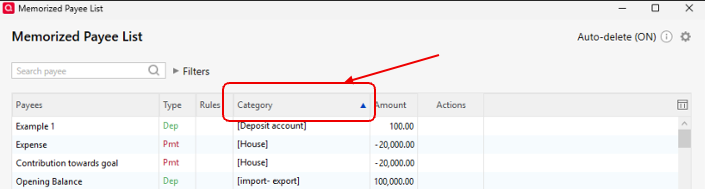
After reviewing those settings, I recommend checking your Memorized Payee List. Since you mentioned that some transactions are being categorized randomly, there may be memorized payees assigning transfer categories (for example,
[Checking]).To review the Memorized Payee List:
- Go to Tools > Memorized Payee List.
- Click the Category column to sort by category.
- Look for any payees assigned to transfer categories (such as
[Checking]) and remove the affected entries. Deleting them will not affect existing transactions.
Recommended file location
We don’t recommend storing the data file on an external drive, network location, or cloud-synced folder, as this can sometimes lead to file corruption over time. While this may not necessarily be the cause of the current issue, it’s best to store the file outside of OneDrive.
The default and recommended location is:
C:\Users\username\Documents\Quicken
Steps to change the file location:
- Close Quicken if it is open.
- Open File Explorer and locate your current Quicken data file (.QDF).
- Right-click the file and select Copy (or Cut, if you prefer to move it).
- Navigate to C:\Users\username\Documents\Quicken.
- Right-click inside the folder and select Paste.
- Once copied, double-click the file from this new location to open it in Quicken
After completing these steps, please monitor the behavior and let me know if the issue continues.
Quicken Laura
Make sure to sign up for the email digest to see a round up of your top posts.
0
Categories
- All Categories
- 52 Product Ideas
- 34 Announcements
- 247 Alerts, Online Banking & Known Product Issues
- 20 Product Alerts
- 514 Welcome to the Community!
- 680 Before you Buy
- 1.5K Product Ideas
- 55.6K Quicken Classic for Windows
- 16.8K Quicken Classic for Mac
- 1K Quicken Mobile
- 832 Quicken on the Web
- 126 Quicken LifeHub