Online banking with Chase

JayCornell
JayCornell Quicken Windows Subscription Member ✭✭

Hello - can you please help me? I use Quicken Classic Premier (R66.23) on Windows 11 Home.

I have several Chase accounts.

One account (credit card) hasn't downloaded transactions since early Jan. I just noticed, because I don't use that card very much. All of my other Chase accounts have been downloading correctly. For the impacted account, I tried to Reset Account in the Account Settings/Online Services. The screen hung and I closed the window. Now the Online Services/Online Setup says Setup Now - which is hanging as well. I waited at least 10 minutes for the screen to complete before closing quicken and trying to again. I also tried going to one of my other Chase Accounts and when i tried Reset Account, it also hung, and now says Setup Now.

Please advise

Thank you

Tagged:

Comments

  • Quicken Laura
    Quicken Laura Quicken Windows Subscription Moderator mod

    Hi @JayCornell,

    Thank you for sharing what you're experiencing. I’m happy to help you troubleshoot.

    I recommend validating your data file, but first, we’ll want to confirm the file is stored locally on your computer and not syncing with a cloud service (such as OneDrive, Dropbox, etc.), as that can cause unexpected issues.

    Check File Location

    1. Open Quicken.
    2. Click File.
    3. At the bottom under Recent Files, the file with the check mark next to it is the one currently open.
    4. Please let me know the full file path shown there.

    Default recommended location

    • C:\Users\username\Documents\Quicken

    If the File Is Not Stored Locally

    Follow these steps to move it:

    1. Close Quicken if it is open.
    2. Open File Explorer and locate your current Quicken data file (.QDF).
    3. Right-click the file and select Copy (or Cut, if you prefer to move it).
    4. Navigate to C:\Users\username\Documents\Quicken.
    5. Right-click inside the folder and select Paste.
    6. Once copied, double-click the file from this new location to open it in Quicken.

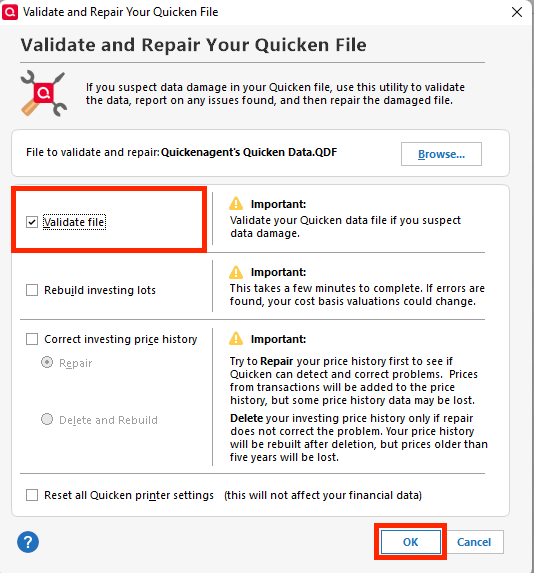
    Once the file is in the right place, please validate it with the following steps (make sure to save a backup first):

    1. Go to File.
    2. Click Validate and Repair File.
    3. Select Validate File.
    4. Click OK. image.png

    And finally, please try to reactivate the account with the steps below:

    Reactivate account:

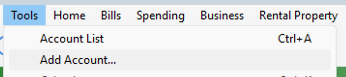
    1. Go to Tools > Add Account. Screenshot 2026-03-03 at 3.13.41 PM.png
    2. Search for and select your financial institution.
    3. If prompted, choose the appropriate connection method.
    4. Follow the on-screen instructions.
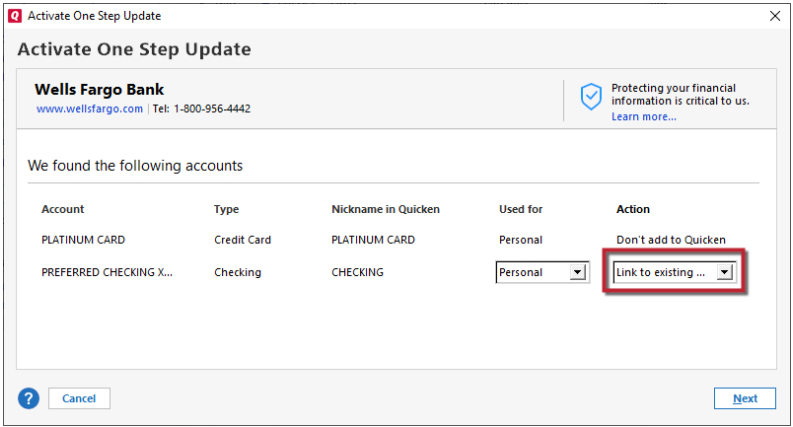
    5. When the list of found accounts appears, be sure to select Link to connect them to your existing accounts (do not add duplicates). Link to Existing.png

    Please let me know how it goes!

    Quicken Laura

    Make sure to sign up for the email digest to see a round up of your top posts.