Bank of America and Vanguard accounts not updating

Scott Smith
Scott Smith Quicken Windows Subscription Member ✭✭

I have Quicken Deluxe for Windows 11, build 27.1.66.23 (866.23). When I run One Step Update, two of my financial institutions do not update: Vanguard and Bank of America. I have tried resetting Bank of America, got no errors, but it is still not updating. For BOA, I'm using "Express Web Connect". For Vanguard, I'm using "Direct Connect." Everything worked fine until yesterday. Are there any known issues? All the institutions show up when I start One Step Update. But BOA and Vanguard accounts are not in the One Step Update summary. And they don't have "Last Downloaded" below their name, as my other accounts do.

[Edited - Readability]

Comments

  • Quicken Laura
    Quicken Laura Quicken Windows Subscription Moderator mod

    Hi @Scott Smith,

    Thank you for sharing the details of what you're experiencing. I’d be happy to help you troubleshoot this issue.

    At the moment, we do have ongoing issues reported with both financial institutions you mentioned; however, neither appears to apply in your case. I checked the Bank of America connection, and it is not currently returning any errors. Unfortunately, I’m unable to verify the Vanguard connection because it uses Direct Connect, which means we don’t have visibility into the bank’s server.

    With that said, I recommend trying the following troubleshooting steps, as they often help resolve this type of issue:

    1.Check the Sort Order

    1. Open the affected account register.
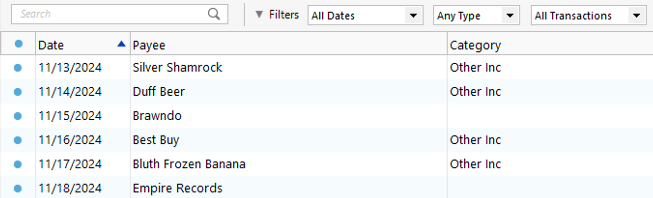
    2. Click the top of the Date column to ensure it’s sorted by date.

    Sometimes transactions are present but appear out of order due to sorting changes.

    Screenshot 2026-03-05 at 7.03.18 AM.png

    2. Reset Register Filters

    • Click the Reset button at the top of the register.

    This ensures no filters are hiding transactions.

    3. Try refreshing your login session

    • Go to Help > Refresh Sign In.
    • Complete the login process.
    • Run One Step Update again.

    4. Check for Incorrectly Matched Transactions

    It’s possible the missing transaction was matched to an existing one in the register. This commonly happens with recurring payments made to the same payee for the same amount.

    5. Confirm No Backup Was Restored
    If an older backup file was restored after accepting downloaded transactions, the restored file may not include those newer transactions.

    6. Check if the Transactions Are Still Pending
    Please check whether the transactions are still marked as pending on your bank’s website. Pending transactions have been authorized but have not yet cleared the bank. Most financial institutions do not allow transactions to download into Quicken until they have fully cleared.

    Please let me know how it goes or if you notice anything unusual while going through these steps. I’ll be happy to continue assisting you.

    Quicken Laura

    Make sure to sign up for the email digest to see a round up of your top posts.