"Sync to cloud on closing Quicken" no longer is automatic
I have chosen "Sync to cloud on closing Quicken". It is no longer automatic and requires me to do a manual sync before I close. I have followed Quicken Jasmine's 2024 instructions to re-enable, but it does not correct the problem. This just recently started, so I do not know what has caused this issue. Quicken Premier Windows R66.28 Build 27.1.66.28.
Answers
-
Hi @tbone100,
Thank you for sharing what you’re experiencing. I’d be happy to help.
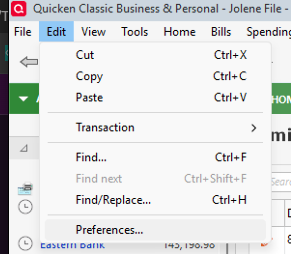
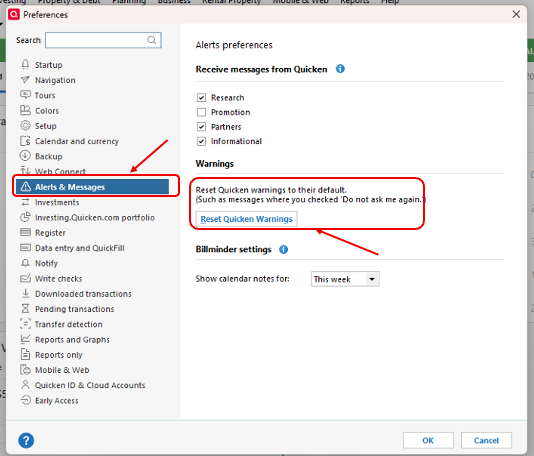
It’s possible that the pop-up window was previously set to “Don’t remind me to sync.” We can reset that setting by following the steps below:
- Go to Edit
- Select Preferences
- In the left panel, choose Alerts & Messages
- Click Reset Quicken Warnings
After completing these steps, please close and reopen Quicken to test if the pop-up appears again.
Let me know how it goes. I’m here to help if you need anything further!
Quicken Laura
Make sure to sign up for the email digest to see a round up of your top posts.
0 -
That was the first thing that I tried. But no, that has not corrected the problem. So far, all previous solutions have not worked.
0 -
Hi @tbone100,
I’m sorry to hear that the issue persists.
Have you had a chance to install the latest Quicken patch or try uninstalling and reinstalling the program? If not, I recommend starting with installing the manual patch update:
- Download the US Manual Patch Update
- In the upper right corner of your browser, click Open file when the download is complete.
- Follow the on-screen instructions to install the update.
- When finished, you can verify the release version of Quicken by selecting the Help menu in the software and choosing About Quicken.
Afterward, please ensure that sync is still enabled and check whether Quicken displays the sync pop-up when closing the application.
Please let me know how it goes or if you need further assistance!
Quicken Laura
Make sure to sign up for the email digest to see a round up of your top posts.
0 -
Did the patch with no luck. Then deleted and reinstalled Quicken. Still no automatic sync to the cloud upon closing. I do manual syncs now. This started occurring after my last program update. Maybe it is related.
[Edited]
1 -
Hi @tbone100,
Thank you for trying that. I’m sorry to hear it didn’t resolve the issue. I have a few additional questions that will help narrow this down:
- Is this affecting all Quicken alerts, or only the sync pop-up window?
- Where is your Quicken data file located? To check, open Quicken and go to File. At the bottom of the menu under the recent files list, the file with the check mark next to it is the one currently open—please let me know the full file path shown there.
- Is your file being backed up or synced by any third-party services (such as Carbonite, OneDrive, or Backblaze)?
- Are you using a VPN, firewall, or antivirus software? If so, please let me know which one(s).
- Do you have any pending Windows updates, or did you install any updates around the time the issue began?
- Have you tried restoring a backup from a date prior to when the issue started?
- Have you created a new test data file to see if the same behavior occurs there?
Once I have this information, I’ll be able to better guide you with the next steps. I look forward to your response.
Quicken Laura
Make sure to sign up for the email digest to see a round up of your top posts.
0 -
- It is affecting only the sync pop-up window.
- c:\users\kent\documents\quicken\datafilename
- No
- No VPN. Only the stock Windows 11 Defender program
- No pending updates. Last Windows update was installed on 3/22/26 which Windows pushes out.
- I did restore a backup. It worked properly for one time where the sync pop-up windows appeared . When I closed the program and restarted, the sync pop-up again quit appearing.
- I created a new test data file and the sync pop-up windows appears. It continues to work properly on the test file, but when I switch back to my production data file the sync window again stops appearing. I then do a manual sync with no problems.
- I performed a super validate and repair and found no errors. That didn't correct sync pop-up window issue.
Thanks for your help. This must be something related to my production data file.
0 -
Thank you for taking the time to answer those questions; I appreciate the details.
Yes, it looks like file corruption. I suggest creating a copy of your file or new data, then exporting and importing it to preserve the historical information. Make sure you save a backup first.
Note: This process will not transfer budgets or reports. It will also disconnect your accounts from automatic downloads and may change opening balances.
Steps to create a copy of your file
- Go to File > Copy or Backup File
- In the Backup or Copy File window, select Create a copy or template under Advanced Options
- Click Next
- Choose a name and location for the copied file
- Use Browse if needed
- Do not include the .QDF extension (Quicken will add it automatically)
- Avoid special characters: * ? < > | " : \ /**
- Click Save Copy
- When prompted, select New copy to open it
Steps to export and import a QXF file
- Go to File > File Export > Quicken Transfer Format (.QXF)
- Choose:
- All Accounts (exports everything), or
- Selected Accounts (choose specific accounts)
- (Optional) Select accounts if using the second option
- Check Export all categories, even if unused
- Click OK, then confirm the file name and location
- Click OK to complete the export
- Open the new data file
- Go to File > File Import > Quicken Transfer Format (.QXF)
- Select or browse to your QXF file
- Click Continue to begin the import
Feel free to reach out if you have additional questions.
Quicken Laura
Make sure to sign up for the email digest to see a round up of your top posts.
0 -
Laura, So after determining that my data was corrupted, I went back 4 days to a backup that was created before the sync pop-up problem started. I then downloaded all my account transactions from the past 4 days and then reset up the cloud sync. It now works properly. Thanks for your assistance.
0 -
Hi @tbone100,
That’s great news! I’m glad to hear the issue has been resolved. It was a pleasure working with you; please don’t hesitate to reach out if you need anything further.
Quicken Laura
Make sure to sign up for the email digest to see a round up of your top posts.
0
Categories
- All Categories
- 6 Product Ideas
- 34 Announcements
- 248 Alerts, Online Banking & Known Product Issues
- 19 Product Alerts
- 265 Welcome to the Community!
- 301 Before you Buy
- 1.5K Product Ideas
- 55.8K Quicken Classic for Windows
- 16.9K Quicken Classic for Mac
- 1K Quicken Mobile
- 834 Quicken on the Web
- 129 Quicken LifeHub