Amazon CC-503 error / No transaction downloads (Edited)

simoirai
simoirai Quicken Windows Other Member

Yes, it is tax season, and some of us are trying to download from our Amazon accounts. Good luck with that. I was getting nowhere.

After spending two hours on my own and getting left on the hook while talking with Synchrony, I sorta kinda gave up. I did the "Deactivate" thing, and when I tried to "Reactivate" thing I didn't make any headway. I couldn't reactivate the same account. Then I noticed the URL that Quicken Classic was using (synchronybank.com) was different than Synchrony was using on a login (syncbank.com). So then I activated a completely "new" account (linked to my existing account), and it went to Syncbank -not Synchronybank. Voila, I could download my last months Amazon transactions.

Unfortunately, Synchrony doesn't appear to download anything beyond the last month. I could swear that at some point in the past, there was a workaround to that as well, a way of logging into Synchrony without the Amazon "front-end" that supported downloading for more than the past month, but the last time I used that was over a year ago, and I don't remember how I got there.

Anyway, a pox on Amazon for using Synchrony and a pox on Quicken for its own shortfalls in supporting what downloads are possible.

[Edited-Readability]

Comments

  • Quicken Carlos
    Quicken Carlos Quicken Mac Subscription Member, Moderator mod
    edited March 24

    Hi @simoirai,

    Thank you for reaching out to the Quicken Community.

    The amount of transaction history Quicken can download depends on each financial institution. Some institutions provide 60–90 days of data, while others may allow access to 1–2 years of history.

    Many financial institutions offer the option to download a QFX (Web Connect) file. Here’s how you can do that:

    Download a QFX file from your financial institution's website:

    While we can provide general instructions, websites may vary.

    • Sign in to your financial institution’s website.
    • Navigate to the account you want to download transactions for.
    • Look for a Download or Export option (usually found on the transactions page and represented by a down arrow icon).
    image-20241104-185246.png
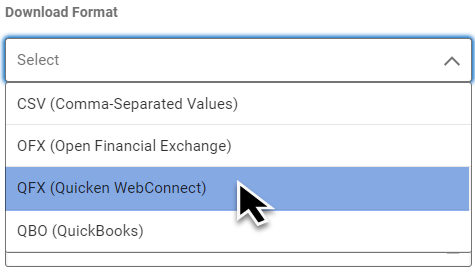
    • Select the download format as QFX or Web Connect.
    image-20241104-185259.png

    • Choose the desired date range (start and end dates).
    • Click Download, Export, or Start to generate the file.
    • The file will typically be saved in your browser’s default Downloads folder.

    Before we import the QFX file, I recommend creating a backup file.

    Importing a QFX file

    • Go to the File menu and select Import > Bank or Brokerage File (OFX, QFX). The file selection screen will appear.
    • Use the Browse button to find and select the file you want to import.
    • Click Open or double-click the file to import.
    • The Choose Your Accounts screen will appear. Select the account you want to import transactions to.
    • Review the account register to verify the transactions have been added.

    Please let me know how it goes.

    Quicken Carlos

    Make sure to sign up for the email digest to see a round up of your top posts.