Stuck transactions

RickQuick
RickQuick Quicken Windows Subscription Member ✭✭✭

Recently I experienced an issue, likely related to a Microsoft update, which led me to do a Windows System Restore. After that, I noticed some of my accounts in Quicken had red transaction flags. I found no transactions, but then after some research went into the Online Center and found them stuck. I have tried the following:

  • Deactivate or Reset the account - cannot due to transactions pending.
  • Restore a backup - all the flags are gone, first download puts them back and same issue.
  • Restore a backup, deactivate account, then reactivate it. Downloads result in same issue.
  • Fix or repair file - did nothing different.
  • Created a copy of the file, which removes all electronic connections, then setup new connection, which results in stuck transactions.
  • Found that DSTART is set to 1/1/1970. On one set of accounts (bank), reset it to 3/23/26. Fixed nothing.

Ideas?

Frequently frustrated Quicken user since 1996

Comments

  • Quicken Alyssa
    Quicken Alyssa Quicken Windows Subscription Moderator mod

    Hello @RickQuick,

    Thank you for reporting the issues you are seeing and letting us know what troubleshooting steps you have tried so far.

    In some cases, Quicken will tell you that you have downloaded transactions to accept, but you do not see any transactions that can be accepted. We do have a Support Article with additional steps you can try.

    Here are the first steps from the linked article:

    Before you begin

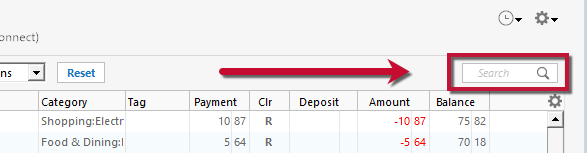
    Ensure the Search bar above the register is cleared. Text in the Search bar will adjust the register to only show transactions that match that text.

    WinClearSearchBar_support

    First, turn automatic entry off

    1. Press Ctrl+A on the keyboard to bring up the Account List, then click the Edit button next to the affected account in the list.

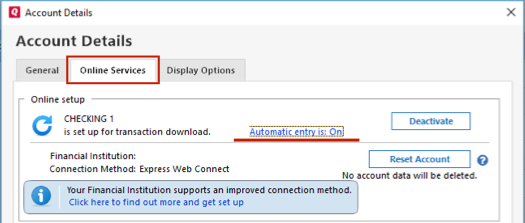
    2. In the Account Details window, click on the Online Services tab then click Automatic entry is.

    WinAutoEntryAccountDetails_support

    3. Select No on the next dialog box and click OK. Automatic entry should show as "Off" now.

    4. Click OK to close the Account Details window, then click Done on the Account List.

    5. Close Quicken, wait a few seconds, then re-open it. The transactions should appear upon re-opening Quicken.

    Note: If you have multiple accounts affected by this issue, you can make the change outlined above to all the accounts at once by going to Edit > Preferences, then going to Downloaded transactions and unchecking the box next to Automatically add to banking registers.

    Please review the article and follow the remaining steps. If the steps do not resolve the issue, please contact Quicken Support.

    Hope this helps!

    Quicken Alyssa

    Make sure to sign up for the email digest to see a round up of your top posts.

  • RickQuick
    RickQuick Quicken Windows Subscription Member ✭✭✭

    In my case, automatic entry was never on…

    Support had me turn it on, then sign in and out, then turn it back off. Of course that means I have duplicate transactions to delete in each account. Just started the process, remains to be seen if this fixes the issue.

    Frequently frustrated Quicken user since 1996
  • Quicken Alyssa
    Quicken Alyssa Quicken Windows Subscription Moderator mod

    @RickQuick,

    Thank you for following up with this additional information.

    Sorry to hear you have duplicates to clear up, but I hope the steps you took with support resolve the issue.

    Let us know if the issue returns!

    Quicken Alyssa

    Make sure to sign up for the email digest to see a round up of your top posts.