How to correctly set Category when importing "balance adjustment" transactions using a .CSV file

rcstevensonaz
rcstevensonaz Quicken Windows Subscription Member ✭✭

Context: I want to shadow-track the outstanding balance of a loan so that it is reflected in my net worth calculation. The actual loan payments are from an account that is not tracked in Quicken, so those payments will not (and should not) show up in the income / expense reports.

Approach: Create a liability account with the initial outstanding loan balance. And then periodically import a .csv file with a set of "Loan Principal Adjustments" to true-up the tracked balance within the liability account.

Problem: The category, which should be the account itself, is not imported correctly.

Instead of setting the category to the account itself (e.g., [Loan - Honda Civic]), Quicken creates a new Personal Income category with the name "-Loan - Honda Civic-". The same issue happens even if I use surrounding quotes. Further, the issue even happens if I try to show it as a transfer from another account (e.g., Petty Cash, which is also a existing account).

Here are a few lines from the import file showing these different use cases. Thanks for your help.

date,payee,fipayee-unused,amount,debit/credit,category,account,tag,memo,chknum
01/19/26,Loan Principal Adjustment,,273.72,,[Loan - Honda Civic],Loan - Honda Civic,,,
02/19/26,Loan Principal Adjustment,,275.35,,"[Loan - Honda Civic]",Loan - Honda Civic,,,
03/19/26,Loan Principal Adjustment,,284.16,,[Petty Cash],Loan - Honda Civic,,,

Quicken version: R66.28 ; Build 27.1.66.28

Best Answer

  • Quicken Laura
    Quicken Laura Quicken Windows Subscription Moderator mod
    Answer ✓

    Hello @rcstevensonaz,

    Thank you for reaching out. Quicken’s CSV import doesn’t automatically detect or create transfer transactions, and it doesn’t recognize bracketed account names in the Category field as linked transfers. Even if the CSV file appears correct, Quicken will treat positive amounts as income and create new categories instead.

    However, you can manually recategorize a group of transactions as transfers. Be sure to save a backup first before making changes.

    Here’s how to categorize multiple transactions at once:

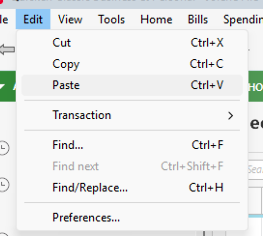
    1. Go to Edit in the upper-left corner.
    2. Select Find / Replace. Screenshot 2026-04-05 at 10.23.07 AM.png
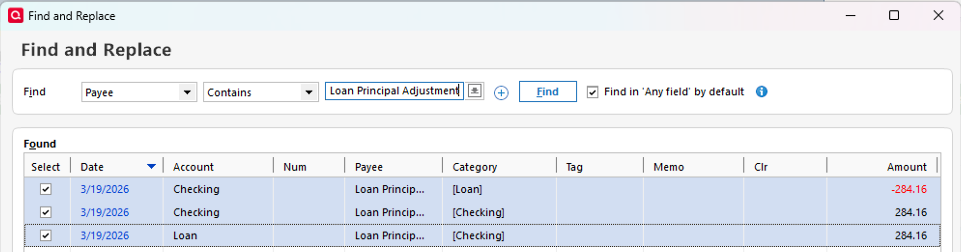
    3. Under Find, choose either the Payee or Category that includes the transactions.
    4. Select all the transactions you want to recategorize. Screenshot 2026-04-05 at 10.24.58 AM.png
    5. Replace the category and mark them as transfers.
    6. Click Replace All, then Done. Screenshot 2026-04-05 at 10.26.38 AM.png

    Once completed, review your transactions to ensure they are categorized correctly.

    I hope this helps!

    Quicken Laura

    Make sure to sign up for the email digest to see a round up of your top posts.

Answers

  • Quicken Laura
    Quicken Laura Quicken Windows Subscription Moderator mod
    Answer ✓

    Hello @rcstevensonaz,

    Thank you for reaching out. Quicken’s CSV import doesn’t automatically detect or create transfer transactions, and it doesn’t recognize bracketed account names in the Category field as linked transfers. Even if the CSV file appears correct, Quicken will treat positive amounts as income and create new categories instead.

    However, you can manually recategorize a group of transactions as transfers. Be sure to save a backup first before making changes.

    Here’s how to categorize multiple transactions at once:

    1. Go to Edit in the upper-left corner.
    2. Select Find / Replace. Screenshot 2026-04-05 at 10.23.07 AM.png
    3. Under Find, choose either the Payee or Category that includes the transactions.
    4. Select all the transactions you want to recategorize. Screenshot 2026-04-05 at 10.24.58 AM.png
    5. Replace the category and mark them as transfers.
    6. Click Replace All, then Done. Screenshot 2026-04-05 at 10.26.38 AM.png

    Once completed, review your transactions to ensure they are categorized correctly.

    I hope this helps!

    Quicken Laura

    Make sure to sign up for the email digest to see a round up of your top posts.

  • rcstevensonaz
    rcstevensonaz Quicken Windows Subscription Member ✭✭
    edited April 5

    Thank you!

    Good to know that is a known limitation, and thanks for noting the find/replace option (which I'm embarrassed to admit had not occurred to me). But I wish I knew about that limitation before wasting many hours trying all sorts of permutations.

    And just in case anyone from Quicken is reading this, that limitation might be a very useful thing to note on the Quicken Help page. ( https://info.quicken.com/win/import-transactions-from-csv-file )

    [Edited - Enabled Link]

  • Quicken Laura
    Quicken Laura Quicken Windows Subscription Moderator mod

    @rcstevensonaz,

    Thank you for pointing that out. I’ll make sure to forward it to the appropriate team so that the article can be updated.

    Please don’t hesitate to reach out if you have any further questions!

    Quicken Laura

    Make sure to sign up for the email digest to see a round up of your top posts.

  • rcstevensonaz
    rcstevensonaz Quicken Windows Subscription Member ✭✭

    Thanks for passing that on. It might also be worth having them note your find/replace option to easily rename the transactions back to a transfer after import.