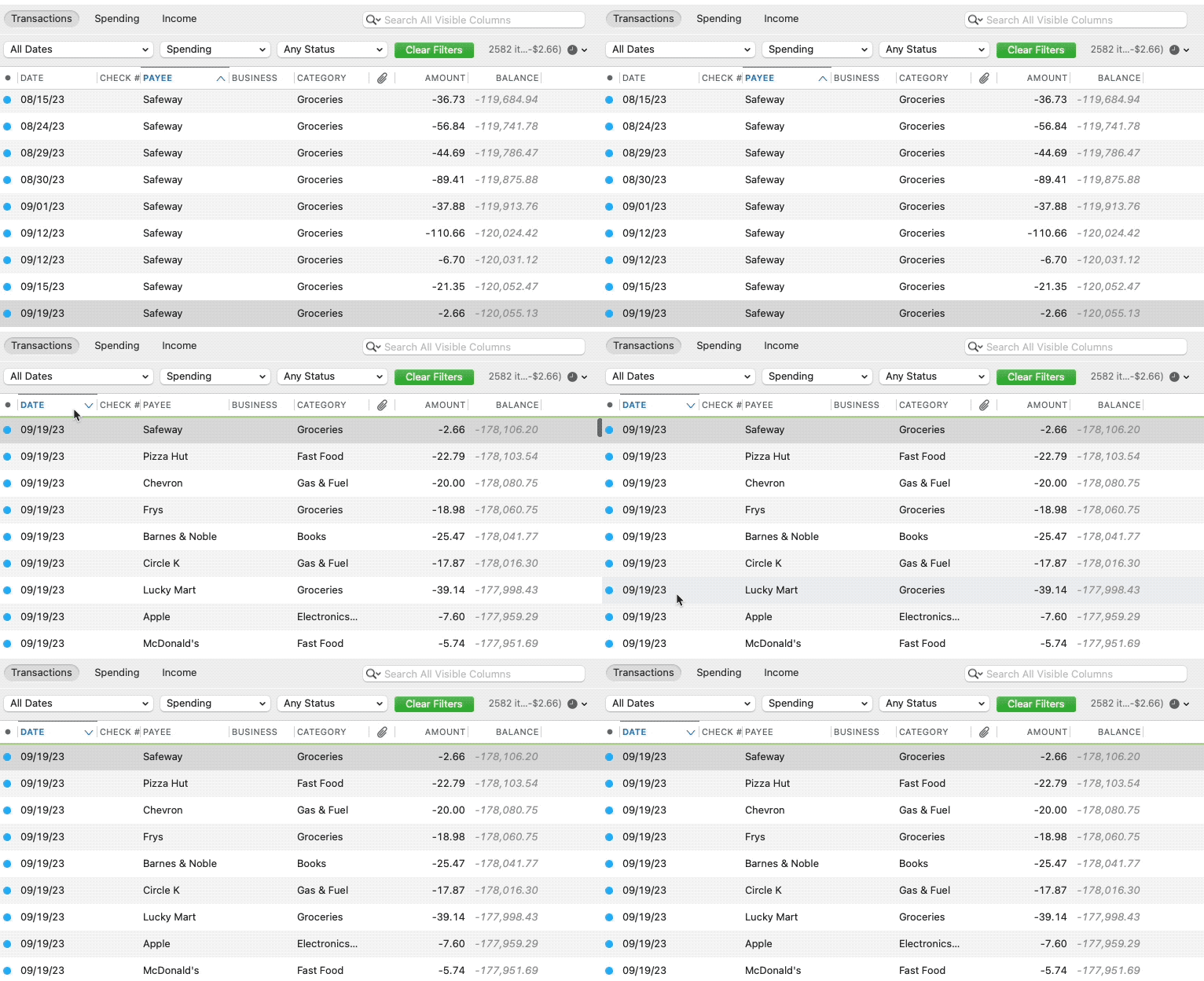
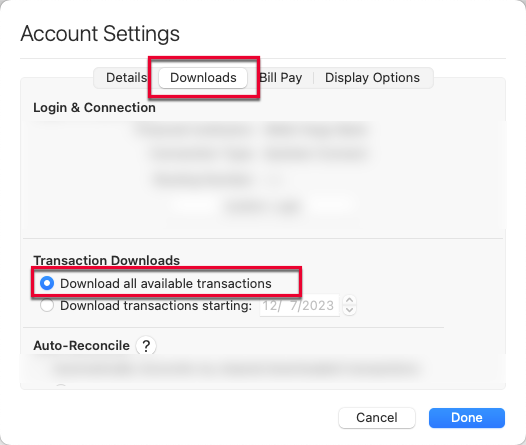
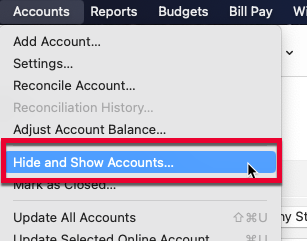
For about a month, my Capital One credit card account has not been downloading transactions into Quicken. When I do a One Step Update or just update that account separately, it says that it was successful, but no transactions were downloaded.
I attempted to reset the account. It brought up the screen that tells you it uses Intuit to connect, and I hit "Continue." It goes to the normal screen stating that "Capital One Card Services needs you to authorize your accounts." I click the "Sign In" button, and it immediately rolls to a screen that says the Sign In failed due to a timeout or connection error. It never actually tries and does the same thing, no matter how many times I press the "sign in" button. Note - the internet is fine. Have no issue with anything else. Not using a VPN or anything. After this issue, it made me cancel, and transaction download was no longer set up at all. When I try to "set up transaction download," it repeats this over and over, not even attempting to sign in, and says there is a connection error.
Next, I tried to "create" a new account at Capital One. This time, it signs into Capital One, gives me the screen telling me what type of data is collected… I choose my credit card account and it says that it is already authorized. I still click the authorize button. The first time it showed matching to my existing account and said it was authorized. Another try later, and it is giving me an HTTP Status 400 - Bad Request error. It is still not set up for transaction download. Set Up Transaction Download is still a menu option and it is not downloading transactions. I do get an email from Capital One stating that "you linked Quicken to your Capital One account."
I am only using Quicken on one computer and have not used any backups.
[Edited Readability]