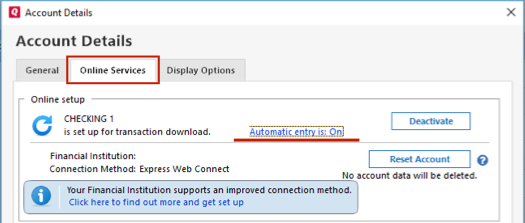
What if I redo the update? Automatic entry has always been off. This only occurs on accounts with Fidelity; no other institutions show this behavior.
[Edited - Readability]
Hi @hzaleznak, Thank you for sharing the details of your issue. If you haven't done this yet, I recommend following the steps outlined in our Support Article about when Quicken says there are transactions to accept, but you don't see any:
First, turn automatic entry on
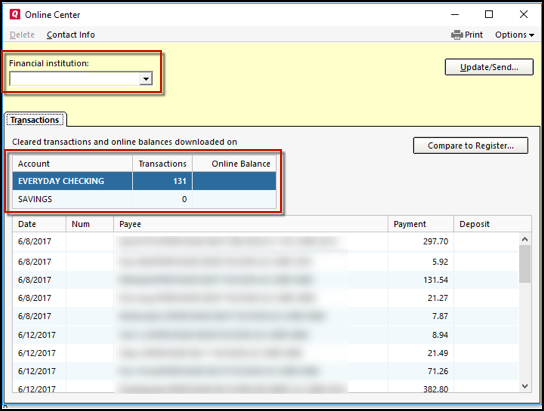
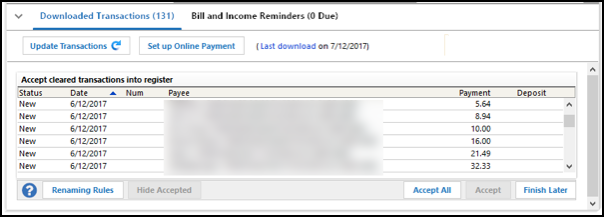
If multiple accounts are affected, you can enable this setting for all accounts by going to Edit > Preferences > Downloaded transactions and checking Automatically add to banking registers.Then, check the account register and Online Center
Quicken will show you downloaded transactions in multiple locations. The following information shows you how to check for downloaded transactions in the account register and Online Center.
Lastly, correct potential data issues
If you know when the issue began, the best option may be to restore a backup created before the issue started.
If you don't have a backup to restore, Quicken has a built-in Validate and Repair utility that can correct many data issues. Please note that it does not correct all issues. Before proceeding, make sure to create a backup of your Quicken file.
Depending on the size of your data file, the validation process may take some time. Please do not use Task Manager to close Quicken while the process is running.
Once the validation is complete, you will need to reactivate your accounts for transaction downloads in the new file copy:
Please let me know how it goes.
already done. no change
This has happened many times over the last few years. What always has work for me is to close and restart Quicken. Now when I open a Red Flagged Account the transactions are always displayed. Not an elegant or permanent solution, but it has worked every time!
No need to restart. When I do a second update the transactions appear. I am hoping for a solution not requiring a re-update or re-start
Hi both,
@JCMcCarter thank you for sharing what worked for you! Your solution may also help other users who are experiencing the same error.
@hzaleznak, since you’ve already completed the suggested troubleshooting steps, I recommend contacting Quicken Support for further assistance. They can help with additional troubleshooting and escalate the issue if needed.
You can find the Quicken Support phone number here: Support Home | Quicken. Phone support is available Monday through Friday, from 5:00 AM PT to 5:00 PM PT.
Please feel free to reach out if you have any additional questions. We’re happy to help!