Need help downloading only one of two accounts already set up with one step update.

I have Quicken Version R64.30 on Windows 10. I have two separate bank accounts, a checking account and a savings account, at USAA bank. Both were set up with One Step Update ever since I started using Quicken a few years ago. However, at this particular time I only need to update the savings account. After opening "Update" can I do this by clicking the "edit" button to uncheck the "Yes" box next to the checking account, download the savings account, and then go to Edit to re-check the "Yes" box next to Checking to enable downloading it again? I hope that makes sense, Thank you.
Best Answer
-
To download manually, you can go to One Step Update Settings and un-check the download box for the institution.
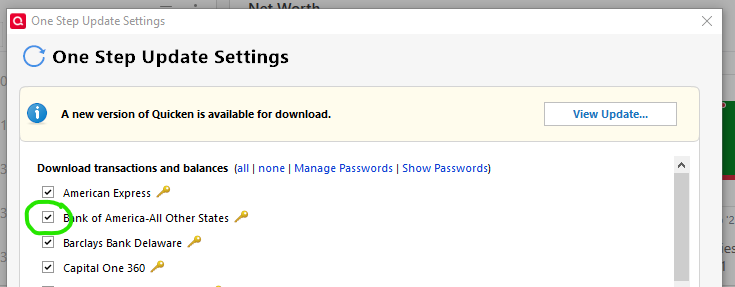
Then when you are ready, go to the individual account register, and under its settings gear on the right, select Update Now. Only that account will download.
Warning: I strongly suggest downloading the checking account at least weekly, even if it backlogs you, since if you wait too long between downloads the bank may simply not download "old" transactions, and "old" is a different cut-off for different banks.
1
Answers
-
In other words, you want to enable downloading, just one account, at a time?
thecreator-bTesting Quicken Subscription Beta B63.19 (Nov. 2023) Installed 24/7.
in Windows 10 Pro 64-Bit Build 19045.3693 Quicken Classic Business & Personal0 -
Not always. I can get my savings account downloaded and entered into quicken much faster than my checking because there are fewer monthly transactions. The downloads for my checking account get backlogged when I don't keep them up to date. I don't want to download anything else to my checking account until I get all the ones under "Finish Later" caught up. It gets to be a little overwhelming if I get backlogged more than usual. I'm pretty good about updating my checkbook for my checking account and keeping it balanced, but for the purposes of categorizing, etc. I like to download them into Quicken with One Step Update.
0 -
Edited Reply:
Actually you hit on something there. I don't know why I didn't think of looking at it that way. My mind has been a bit muddled lately. When I first started downloading both accounts at the same time I could keep up with them without much time elapsing. But, as life has a way of throwing us curve balls, I find it's not as easy to keep up with the checking account as it is with the savings account simply because there are a lot more entries in the checking account. Can you help me with downloading one account at a time? Thanks very much.
0 -
To download manually, you can go to One Step Update Settings and un-check the download box for the institution.
Then when you are ready, go to the individual account register, and under its settings gear on the right, select Update Now. Only that account will download.
Warning: I strongly suggest downloading the checking account at least weekly, even if it backlogs you, since if you wait too long between downloads the bank may simply not download "old" transactions, and "old" is a different cut-off for different banks.
1 -
That works! Thanks so much for your help.
0
Categories
- All Categories
- 18 Product Ideas
- 34 Announcements
- 246 Alerts, Online Banking & Known Product Issues
- 19 Product Alerts
- 518 Welcome to the Community!
- 682 Before you Buy
- 1.5K Product Ideas
- 55.7K Quicken Classic for Windows
- 16.8K Quicken Classic for Mac
- 1K Quicken Mobile
- 834 Quicken on the Web
- 127 Quicken LifeHub