I can't find how to add new transaction

I am on R60.16 win 11, screen resolution is 1360x780 monitor 32in. I recently upgraded from Quicken clasic delux on win7. I can't figure out how to add new transaction I tried cntr N the display shows an empty transaction w/field names. I change the setting to "Don't show reminders" but reminders still show and there is no empty field for a new transaction. How can I fix it?
Thanks, Ken
Answers
-
@kestas it sounds like you have multiple issues -
- What type of account are you trying to add the transaction to? What type of transaction?
- How are you changing the setting to "Don't show reminders"?
- Are you looking for the empty field at the bottom of the account register? For what type of account?
0 -
In a register, when it's properly sorted by Date with the newest date at the bottom, the highlighted in blue transaction is the new transaction entry line. The field titles, displayed in italics, are just background text, to guide you when filling out each field. Tabbing into or cursor selecting each field makes the background text go away.
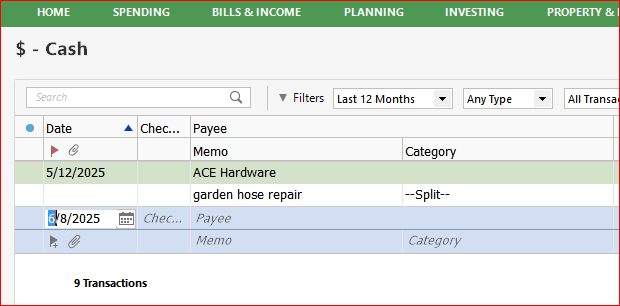
Make sure the register is properly sorted by Date. If not sorted properly, click the Date column title once or twice (slowly) until a black triangle appears next to the word Date, looking like ▴
0 -
That is what I always did…. No clicking on a named field does noting maybe my register in not set up right. I have very poor vision so I tend to make the text as large as I can and the fields as big as I can. I am stuck
0 -
@kestas when you open Quicken, what screen do you see? Is the Quicken window maximized? As I mentioned previously, you seem to have several unrelated issues, but maybe the real issue is that you are making your text and fields too large so you are not seeing the entire register.
1 -
Hi @kestas ,
My advice is to get Sight Core for your Eyes.
Get Eye Candy to help you see Quicken without enlarging Quicken. Get the latest version of Quicken. The reason is that Quicken is starting to help people with bad eyesight, not User's with older versions.
According to the Eye Doctor, I had a mini-stroke in my left eye. Making it hard to see the computer screen and Quicken.
What I recommended above, is what I am going to do.
thecreator-bTesting Quicken Subscription Beta B63.19 (Nov. 2023) Installed 24/7.
in Windows 10 Pro 64-Bit Build 19045.3693 Quicken Classic Business & Personal0 -
I have significant Macular degeneration so glasses do not help. What is this Eye Candy and how do I get it? What version of Quicken to I need to upgrade?
Thank you so much, I see a ray of hope…
Kestas
0 -
Very stupid of me, when I start quicken, the screen that pops up has several suggestions, one is to hide the list of accounts. I did that and magic, I can now use quicken. Sucks when you loose most of your vision. I still want to follow with ur suggestions re Eye Candy and perhaps try the Beta
Thanks for ur help, Kestas
0 -
@kestas have you used the Magnifier in Windows 11?
You can easily find detailed instructions on using the Magnifier in Windows 11 through Microsoft's official support resources. Here’s how you can access those instructions and get started:
- Microsoft Support Website:
Visit Microsoft’s official support page dedicated to Magnifier. Just search for “Use Magnifier in Windows 11” in your favorite search engine, or go directly to the Microsoft Support site. This page contains comprehensive details about activating Magnifier, adjusting zoom levels, and customizing settings throughout your experience. - Windows 11 Settings:
- Press Win + I to open the Settings app.
- Navigate to Accessibility > Magnifier.
- From here, you’ll see step-by-step options to turn Magnifier on/off, set the zoom level, and change the view modes (like full screen, docked, or lens).
- Keyboard Shortcuts:
- Win + Plus (+): Zoom in.
- Win + Minus (-): Zoom out.
- Win + Esc: Exit Magnifier.
The official support page also includes troubleshooting tips and customization options to make your screen easier to view -
0 - Microsoft Support Website:
