One Step Update Download transactions and balances not staying checked (Reopen prev closed topic)

Randy Wawrzyniak-Fry
Randy Wawrzyniak-Fry Quicken Windows Other Member ✭✭✭

Each time I want to do a download and update I have to go in and select the accounts from which I want to download. I try clicking apply, but not matter what I do the next time I'm ready to download none of the accounts are checked. The Online services stay checked.

The attached screenshot is deliberately banked out to protect my information.

The new version referenced on the screenshot (R63.21) will not install. I have reported this issue
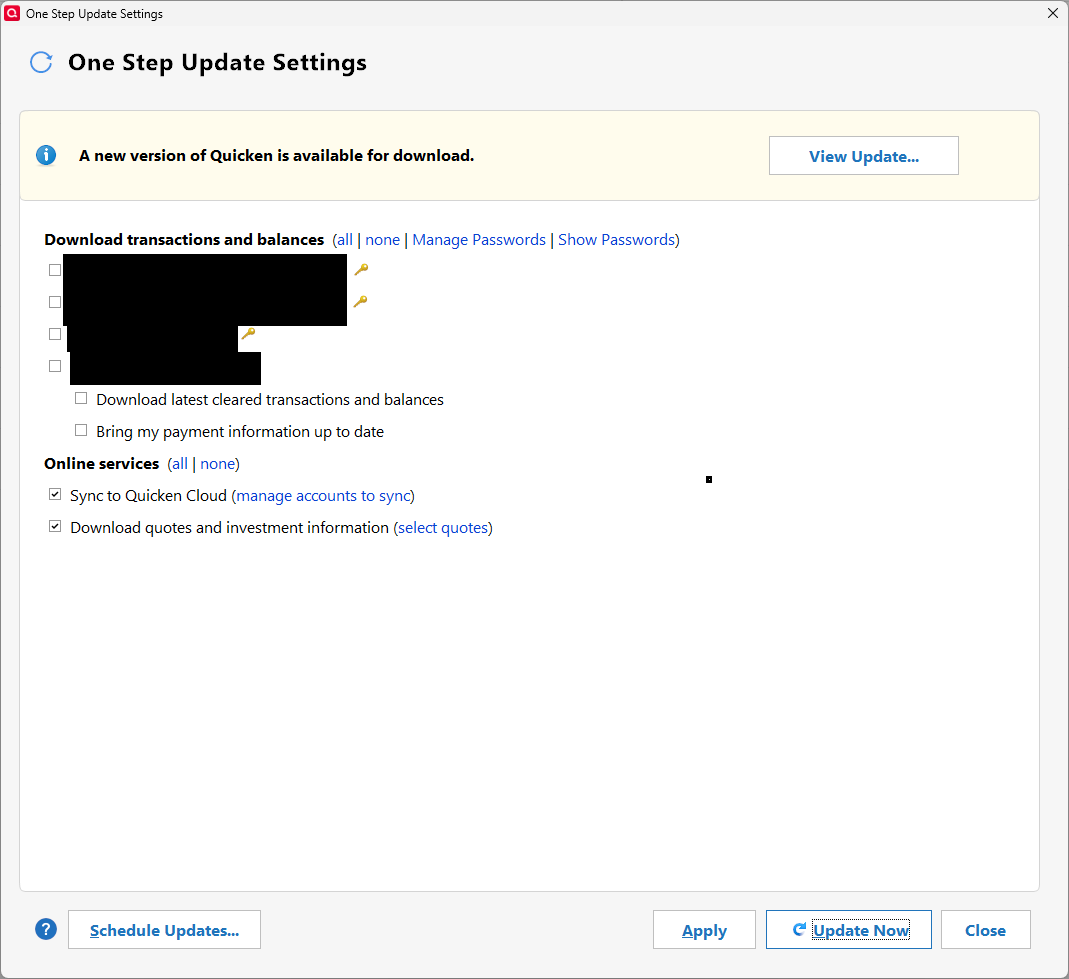
20250616 One Step Update Issue.png

Comments

  • Randy Wawrzyniak-Fry
    Randy Wawrzyniak-Fry Quicken Windows Other Member ✭✭✭

    I fixed the issue with R63.21. This issue still existed after the update. I also updated my notifications so I will be advised when there is a reply.

  • Quicken Jasmine
    Quicken Jasmine Quicken Mac Subscription Alumni ✭✭✭✭

    Hello @Randy Wawrzyniak-Fry,

    Thanks for reaching out!

    To clarify, are you still experiencing this issue, or did it resolve after updating to the latest version of Quicken?

    Let me know!

    -Quicken Jasmine

    Make sure to sign up for the email digest to see a round-up of your top posts.

  • [Deleted User]
    edited June 16

    Hi @Quicken Jasmine I think what Randy is saying is that he's fixed the issue with not being able to install the R63.21 release this morning, but he still has this issue with his OSU settings not "sticking". I hope you don't mind me stepping in here with a possible solution.

    @Randy Wawrzyniak-Fry I did a little research on your issue. I found a solution that worked for one other user with the same issue. I think if you do a Quicken copy file, it might solve your issue.

    It involves making a copy of your data file that will disconnect the online connections for all your accounts. The connections will need to be reestablished once the copy process is complete.

    1. Make a backup of your data file. Also, make backups during this process, just in case you need to go back a step.
    2. Validate your data file. Click on File→Validate and Repair File, then select "Validate". Click "OK". Review the "Validate & Repair log" for any messages that need to be acted upon.
    3. Super Validate your data file. Same as step #2, except hold Ctrl-Shift when clicking on "Validate and Repair File".
    4. Do a "Copy File" to create a copy of your data file. This process forces a rewrite of code and fixes some file corruption issues. It will also clear out online connection "remnants" for all accounts. Click on File→Copy or Backup File, and select "Create a copy or template", and then click Next.
    5. On the next screen, leave the defaults as is. You can change the new file name and location, if you wish. Click on "Save Copy".
    6. During the copy process, you will be asked to provide a password for the new file. If you don't want a password, hit ESC.
    7. When the process completes, switch over to the new file. For each account, on the General tab in Account Details, blank out the Financial Institution Name and Account Number.
    8. Reactivate online services for all accounts in the new data file, by using “Add Account” and carefully linking to existing accounts in Quicken. Do not use “Set up now” on the Online Services tab of Account Details.

    I know this is a lot of steps to take, but it seemed to be the only solution for another user with the same issue.

  • Quicken Jasmine
    Quicken Jasmine Quicken Mac Subscription Alumni ✭✭✭✭

    Thank you for the clarification! I do not mind one bit!

    @Randy Wawrzyniak-Fry, please let us know how it goes after attempting @CaliQkn's suggestion!

    Thanks again!

    -Quicken Jasmine

    Make sure to sign up for the email digest to see a round-up of your top posts.

  • Randy Wawrzyniak-Fry
    Randy Wawrzyniak-Fry Quicken Windows Other Member ✭✭✭

    CaliQkn is correct, I meant that the problem installing the R63.21 release was solved - user error.

    I will try the suggested 8 step fix when I have some time and will report back to see if it fixes the problem.

    Thanks

  • Randy Wawrzyniak-Fry
    Randy Wawrzyniak-Fry Quicken Windows Other Member ✭✭✭

    It looks like this process worked, although I will need to wait until I have data to download from my financial institutions to be sure everything is working right.

    Thank you both @CaliQkn and @Quicken Jasmine

    Randy

  • @Randy Wawrzyniak-Fry glad it worked. The Quicken copy file process comes in pretty handy sometimes. But certainly let us know if the issue returns.

  • Quicken Jasmine
    Quicken Jasmine Quicken Mac Subscription Alumni ✭✭✭✭

    Fantastic! Please don't hesitate to reach out if the issue returns!

    Thanks!

    -Quicken Jasmine

    Make sure to sign up for the email digest to see a round-up of your top posts.

This discussion has been closed.