Income Reminder Splits Deleted

BravoCharlie
BravoCharlie Quicken Windows Subscription Member ✭✭

I've searched but the closest problem I've seen addressed to this has been syncing with the cloud. I do not, never have synced with the cloud. Kinda the whole point of using Quicken.

I use two Income Reminders based on Memorized Payees to enter my paychecks; one mid-month, one end of month. I have been doing this, literally for decades. suddenly a month and a half ago, Quicken has started deleting the Categories and amounts from those two transactions after I run One Step Update. The transactions I have already entered are unchanged. The Memorized Payee split is unchanged. The Transfers within the transactions for some reason remain but all the Categories are deleted.

I edited both to reenter the categories. I tried deleting and recreating the transactions. I tried creating new transactions with a different Payee name. Locked or Unlocked. The "Remove memorized payees not used..." is unchecked. Validating and Super Validating the files does give any hints as to problems which would cause this. I have uninstalled/reinstalled Quicken R64.30 Build 27.164.30. I have restored multiple data files up to five months back. The splits are there when I restore the file but as soon as I run OSU, they disappear. Quicken support has been unhelpful. Have any suggestions?


Best Answer

  • markus1957
    markus1957 Quicken Windows Subscription SuperUser, Windows Beta Beta
    Answer ✓

    The issue is only happening with reminders that contain splits. Unfortunately, the cloud still gets involved for renaming rules and bill & income reminders (including paycheck reminders) whether Sync is On or Off. You can see this in the cloud sync log. The cloud is storing corrupted reminders and even after fixing them once you run OSU, it will corrupt them again.

    I was able to finally get mine straightened out but I do not know exactly what order of steps resolved the corruption. After repairing the reminders and before running OSU, did a super-validate and closed the file. The super-validate log indicated reminders were corrected. Then I deleted my cloud file (you need to do this while open in a different file) for the problem file. Then I opened the problem file and reset the cloud file. Sync has to be On for this but you can disable all accounts from syncing. Then I super-validated again to verify there was no more corruption in the reminders.

    Prior to doing all this, I could reliably corrupt my reminders after OSU. I know super-validate alone does not fix the issue. So getting rid of the cloud file and starting fresh seems to be the key.

Answers

  • Jim_Harman
    Jim_Harman Quicken Windows Subscription SuperUser ✭✭✭✭✭
    edited October 4

    I know you said that you don't sync to the cloud, but just to be sure, please go to Edit > Preferences > Mobile & Web and look at the setting there. Sometimes the setting gets changed when you install a new version of Quicken.

    Is the slider in the left (Off) position?

    If not, move it to the left, repair the splits in the Reminder, and see if the problem goes away.

    QWin Premier subscription
  • markus1957
    markus1957 Quicken Windows Subscription SuperUser, Windows Beta Beta
    Answer ✓

    The issue is only happening with reminders that contain splits. Unfortunately, the cloud still gets involved for renaming rules and bill & income reminders (including paycheck reminders) whether Sync is On or Off. You can see this in the cloud sync log. The cloud is storing corrupted reminders and even after fixing them once you run OSU, it will corrupt them again.

    I was able to finally get mine straightened out but I do not know exactly what order of steps resolved the corruption. After repairing the reminders and before running OSU, did a super-validate and closed the file. The super-validate log indicated reminders were corrected. Then I deleted my cloud file (you need to do this while open in a different file) for the problem file. Then I opened the problem file and reset the cloud file. Sync has to be On for this but you can disable all accounts from syncing. Then I super-validated again to verify there was no more corruption in the reminders.

    Prior to doing all this, I could reliably corrupt my reminders after OSU. I know super-validate alone does not fix the issue. So getting rid of the cloud file and starting fresh seems to be the key.

  • BravoCharlie
    BravoCharlie Quicken Windows Subscription Member ✭✭

    Many thanks Markus, I would have never got there on my own [or with Quicken Tech Support help]. I've read through the threads with cloud sync problems because they were somewhat similar to my issue. However I would never have thought it was the cloud sync causing my issue with it turned off. Yes it was, is, always will be turned off. So now my question is: I have it turned off to limit privacy/hacking issues in the cloud. How much of my info is being sent there without my consent? Also with the high cost of an annual subscription, why does Quicken plead ignorance with all the issues Cloud Sync is causing?

    Anyway after multiple iterations, here are the steps that cleared the problem:

    Bills & Income>Income & Transfers - edited splits in the problem reminders

    Edit > Preferences > Mobile & Web - selected Sync: On

    selected Troubleshooting: Reset your cloud data from lower options in window

    selected Sync: Off

    Exited Quicken

    Use File Manager [or other utility], go to file location Quicken data file is stored [the default is Documents>Quicken under your user name] and delete all files that end with synclog.dat or synclog1.dat.

    Then I opened Quicken, ran One Step Update and Shazam, when I checked my Income Reminders, the splits were still intact.

  • Voytek
    Voytek Member ✭✭✭

    When you enabled Sync, how long did Sync take for you? I'm working with a file that has over 15 years of data. I'm worried when I select Sync: On, it will take hours to initially sync with the cloud before I can disable all the accounts from syncing.

  • markus1957
    markus1957 Quicken Windows Subscription SuperUser, Windows Beta Beta

    Turning Sync On does not initiate a sync. You can disable all accounts first and the time spent on syncing will be that required for deleting any data for formerly enabled accounts in the cloud. Sync only goes back 3 years, so it would only sync that data.

    That does bring up the point that for each account, in the Opening Balance transaction you should record the current starting balance. Sync can alter the starting balance and lead the user to think something worse than changing the opening balance happened during the initial sync.

  • Voytek
    Voytek Member ✭✭✭

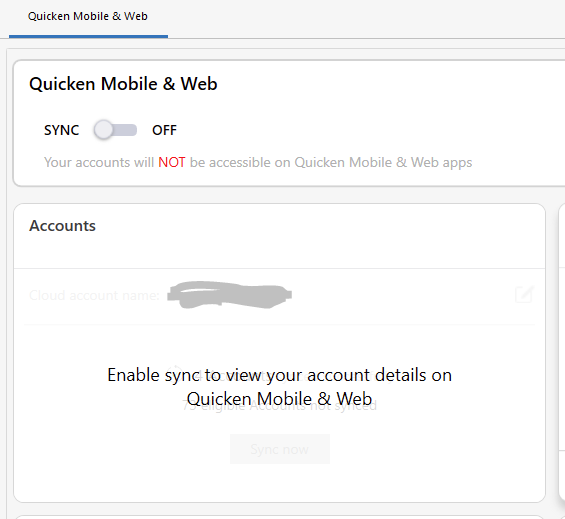
    @markus1957 this is what I see before I enable sync. It won't let me into the account selection. When I switch the toggle to ON, it starts doing some syncing operations which hang (or at least take minutes before I give up). Is there something I'm missing?

    image.png
This discussion has been closed.