Quicken opens only in task bar will not launch
I have followed all of the previous instructions to get Quicken to work and all failed. Finally I completely uninstalled and then reinstalled and have same issue. Launch Quicken it shows in task bar but will not open. Need assistance to resolve this. On brand new Dell with Win 11 Pro. Worked fine for past week just started doing this today.
Additionally I have Quicken Classic. Only way to close is to use task manager to end program.
Best Answer
-
Hello @HJalette,
Thanks for bringing this issue to our attention! A few things to help narrow down what’s happening:
- Where is your Quicken data file stored? Is it on your local hard drive (C: Drive) or a cloud-based/external drive (e.g., OneDrive, DropBox, USB, etc.)?
- When did this issue first start occurring?
- Were there any significant changes to your system or software before the issue began (updates, new installations, etc.)?
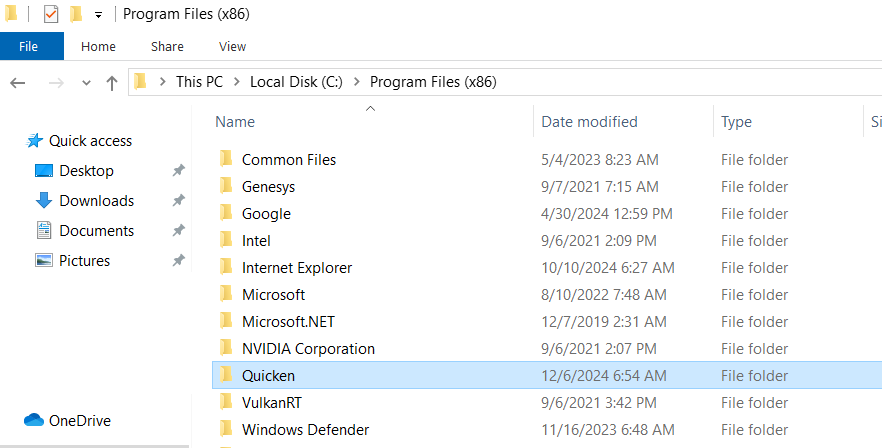
Regarding your uninstall/reinstall: you mentioned you’ve already tried this—can you clarify exactly what steps you took? For best results, after uninstalling Quicken, open Windows File Explorer and go to This PC > C: Drive > Program Files (x86), then delete the folder titled “Quicken” (this does not affect your data files).
After deleting the folder, reinstall Quicken and see if it opens normally.
This info will help pinpoint whether the issue is related to your installation or something else on your system.
Thank you!
-Quicken Anja
Make sure to sign up for the email digest to see a round up of your top posts.0
Answers
-
Additionally I have Quicken Classic. Only way to close is to use task manager to end program.

0 -
Hello @HJalette,
Thanks for bringing this issue to our attention! A few things to help narrow down what’s happening:
- Where is your Quicken data file stored? Is it on your local hard drive (C: Drive) or a cloud-based/external drive (e.g., OneDrive, DropBox, USB, etc.)?
- When did this issue first start occurring?
- Were there any significant changes to your system or software before the issue began (updates, new installations, etc.)?
Regarding your uninstall/reinstall: you mentioned you’ve already tried this—can you clarify exactly what steps you took? For best results, after uninstalling Quicken, open Windows File Explorer and go to This PC > C: Drive > Program Files (x86), then delete the folder titled “Quicken” (this does not affect your data files).
After deleting the folder, reinstall Quicken and see if it opens normally.
This info will help pinpoint whether the issue is related to your installation or something else on your system.
Thank you!
-Quicken Anja
Make sure to sign up for the email digest to see a round up of your top posts.0 -
Thanks for response. My quicken is backed up in several places but the active file is on local drive.
I decided to do a full uninstall including deleting the Quicken folder.
Rebooted and decided to roll back the last Windows update. Rebooted and then reinstalled Quicken. I am now back in business! I can only guess the Windows update had something to do with the issue. I have since updated Windows with the latest updates and have no issues. Thanks!
1
Categories
- All Categories
- 56 Product Ideas
- 36 Announcements
- 223 Alerts, Online Banking & Known Product Issues
- 22 Product Alerts
- 701 Welcome to the Community!
- 671 Before you Buy
- 1.2K Product Ideas
- 53.7K Quicken Classic for Windows
- 16.3K Quicken Classic for Mac
- 1K Quicken Mobile
- 813 Quicken on the Web
- 111 Quicken LifeHub