This discussion was created from comments split from:
Downloaded transactions available for review, but 'Downloaded Transactions' tab is not visible
.
What was the fix for this?
I have the same issue except my account is active and currently signed in to online services however there is a red flag showing there are downloaded transactions but I can't see them in the downloaded transaction tab. It's like the display is broken. I do have a couple accounts showing pending transactions ok so it is just the Downloaded Transactions tab.
Hello @Donger,
Thank you for letting us know you're seeing this issue. To start troubleshooting, please follow these steps from our article on when Quicken says there are downloaded transactions, but you don't see any:
1. Press Ctrl+A on the keyboard to bring up the Account List, then click the Edit button next to the affected account in the list.
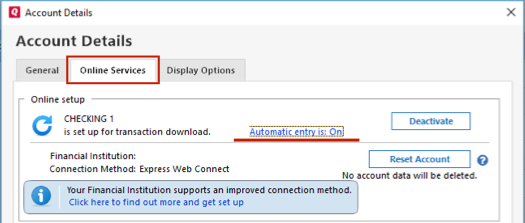
2. In the Account Details window, click on the Online Services tab then click Automatic entry is.
3. Select No on the next dialog box and click OK. Automatic entry should show as "Off" now. If you already have it turned off, Select Yes and click OK. Automatic entry should then show as "On"
4. Click OK to close the Account Details window, then click Done on the Account List.
5. Close Quicken, wait a few seconds, then re-open it. The transactions should appear upon re-opening Quicken.
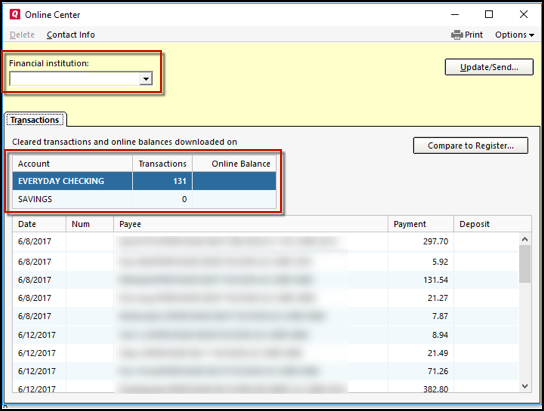
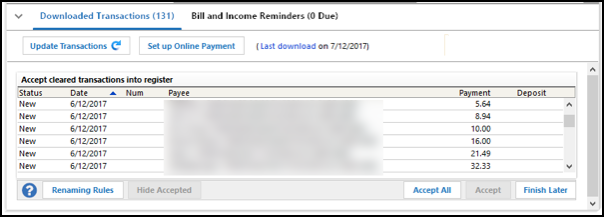
Quicken will show you downloaded transactions in multiple locations. The following information shows you how to check for downloaded transactions in the account register and Online Center.
4. Select Transactions.
If the Quicken data file is damaged, you might receive prompts about downloaded transactions when you don't have any downloaded transactions.
If you know when this issue began, the best solution is to restore a backup created before this issue began.
If you do not have a backup to restore, Quicken has a built-in utility, Validate, that will correct many data issues. Please note this does not correct all issues and these steps should be taken if the other steps outlined did not resolve the problem.
Note: Depending on the size of your data file, you may need to wait a while for the validation process to finish. Do not use the Task Manager to close Quicken. Quicken displays an error message if it cannot validate the file. If Quicken is able to validate the file and any errors are found, Quicken displays a message, "Data losses were found in your file." You can view the log file for more information.
When the validation process is complete, you will need to Reactivate your accounts for transaction download in the new file copy.
Please let me know how it goes!
I haven't seen a response from you. Do you still require assistance?
Thank you!
Hello again,
Checking in once more before this thread is closed. Let us know if you still need assistance.
Due to the lack of response, I went ahead and closed this post.
If you still require assistance, please feel free to start a new post.