Add Account Problems

Jmansdad
Jmansdad Quicken Windows Subscription Member ✭✭✭

I am running the current version of Q Premier for Windows. I opened two accounts yesterday with Citadel Federal Credit Union. When I selected it in the 'Add Account' dialogue, I was taken to a blank page. What is the issue?

Best Answer

  • Jmansdad
    Jmansdad Quicken Windows Subscription Member ✭✭✭
    Answer ✓

    Laura,

    Followed first four suggestions and then did a hard shut-down. Went to sleep to resume in morning. Following re-boot, all is well.

    Many thanks,

    Joe

Answers

  • Tom Young
    Tom Young Quicken Windows Subscription SuperUser ✭✭✭✭✭

    I just tried adding a new Account with Citadel Federal Credit Union in my current data file and I didn't experience what you've described here.

    Perhaps try again?

    If it doesn't work the second time then what I'd suggest is to create a new data file and attempt to add those Accounts in that file. If that works OK then that suggests your file has some "local to you" problems, at which point I'd then start a Validate & Repair of the file.

    Good luck.

  • Jmansdad
    Jmansdad Quicken Windows Subscription Member ✭✭✭

    Thanks Tom. I just attempted to add Citadel to a new, clean file. Same response. Also, no change after file validation. Citadel reports no issues on their end. I'm at a loss.

  • Jmansdad
    Jmansdad Quicken Windows Subscription Member ✭✭✭

    New information: Problem is not limited to Citadel. Get blank response for any account I try to add.

  • Tom Young
    Tom Young Quicken Windows Subscription SuperUser ✭✭✭✭✭

    Probably time to get Official Quicken Support involved. I'd say call them, not try to use chat. Allows for screen sharing so they can see what you're seeing.

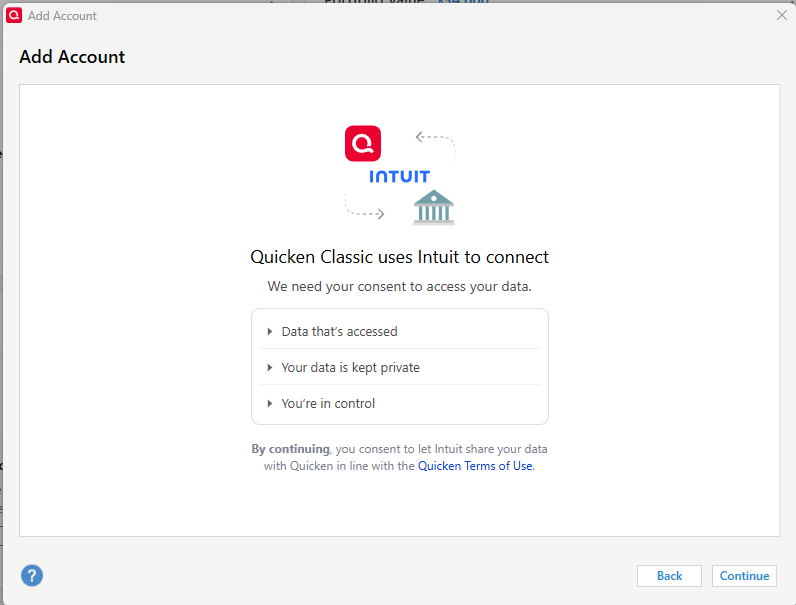
    You're referring to this page that comes up after entering the name of the financial institution?

    image.png

    Is it entirely blank, or is it just the financial institution area that's blank? If you are you seeing the "boarder" elements - Add Account, Back, etc. - does clicking on Continue do anything?

    I certainly have no idea as to what's going on.

  • Jmansdad
    Jmansdad Quicken Windows Subscription Member ✭✭✭
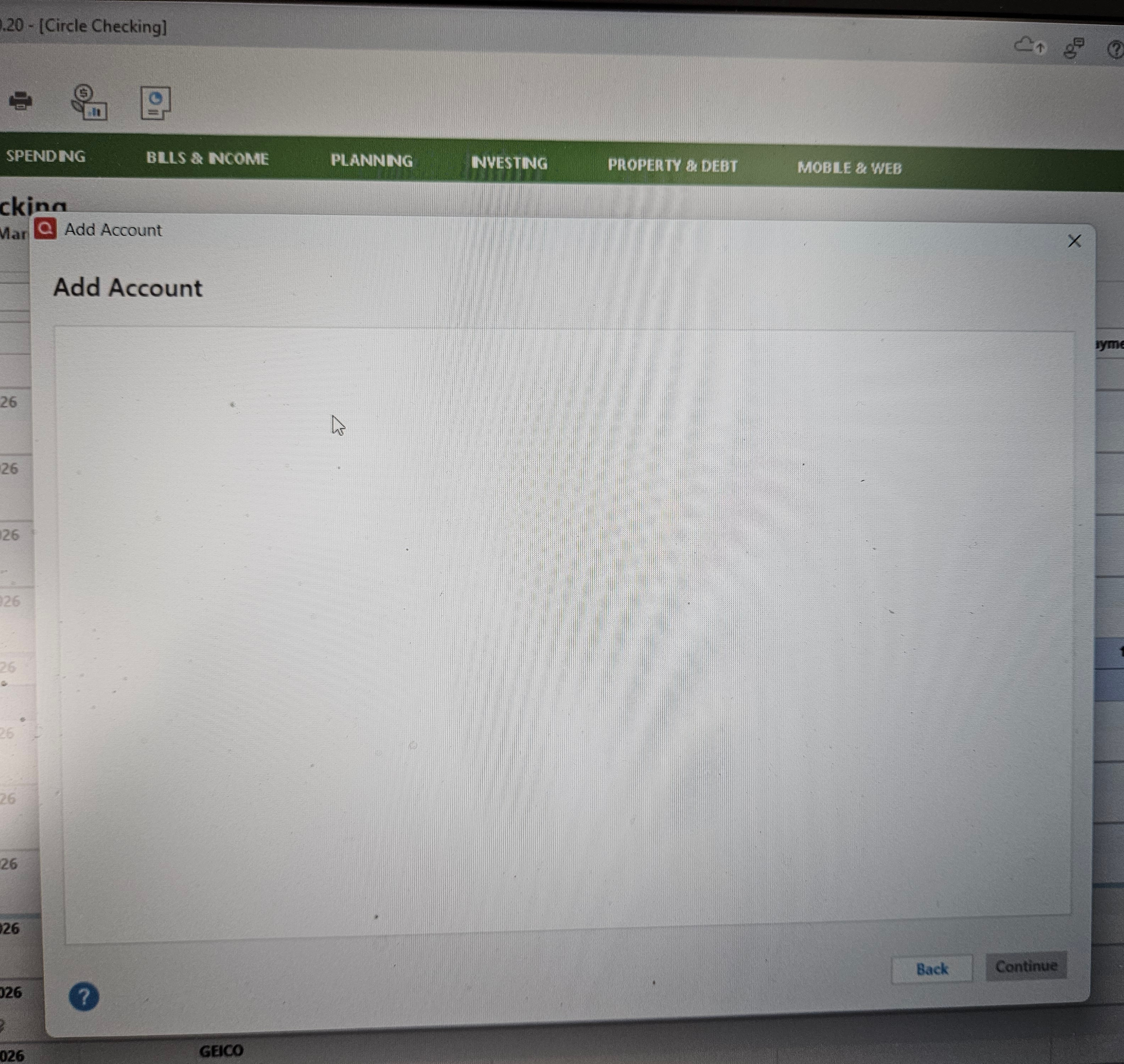
    AddFile.jpg

    This is what I get when I try to add any account

  • UKR
    UKR Quicken Windows Subscription SuperUser ✭✭✭✭✭

    Just firing a shot into the dark …
    Try changing View Menu to select "Classic Menus"

    Also try Help / Refresh Sign in then restart Quicken

  • Quicken Laura
    Quicken Laura Quicken Windows Subscription Moderator mod

    Hi @Jmansdad,

    Thank you so much for sharing this issue with us, and for all the extra information you sent.
    As well as the other great suggestions already given, I would also suggest running another validation, which would include the following:

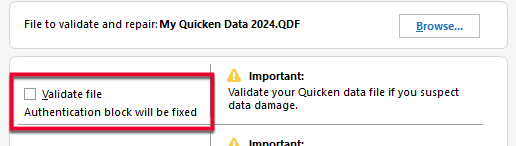
    1. Hold the Control key and select File menu > Validate & Repair File.
    2. Check the Validate file box and click OK.
    image.png

    If initiated correctly, the Validate file checkbox will also show the message "Authentication block will be fixed" as pictured above.

    When the Validate process is complete, try to sign in again.

    Next, sign out of Quicken and sign back in

    1. Go to Edit > Preferences > Quicken ID & Cloud Accounts. If you are unable to see your Edit > Preferences menu, continue to the next section.
    2. Click Sign in as a different user.
    3. Type "yes" to confirm and click Sign Out.
    4. After you sign out, sign back in with the same Quicken ID.

    Third, close Quicken and reopen it

    There are some instances in which Quicken simply needs to be closed and reopened for the Sign-in screen to load. Try this a few times before moving on to the next steps.

    Fourth, try connecting to the Quicken ID login website

    1. Close Quicken.
    2. Launch a web browser.
    3. Go to the Quicken My Account login page. If the webpage appears, then the system can connect to the Quicken ID server. If the webpage cannot be displayed, follow internet connectivity troubleshooting.

    Fifth, turn off the Firewall

    1. Open the Control Panel. The Control Panel is located in the Windows System folder in the Start menu.
    2. In the Control Panel, select System and Security.
    3. Now in System and Security select Windows Firewall.
    4. Select Turn Windows Firewall on or off.
    5. If you are given the option to turn off the Private and Public Firewalls, select to turn both off.
    6. Once turned off, click OK.

    Please let us know how it goes!

    Quicken Laura

    Make sure to sign up for the email digest to see a round up of your top posts.

  • Jmansdad
    Jmansdad Quicken Windows Subscription Member ✭✭✭
    Answer ✓

    Laura,

    Followed first four suggestions and then did a hard shut-down. Went to sleep to resume in morning. Following re-boot, all is well.

    Many thanks,

    Joe