This discussion was created from comments split from:
Quicken connection issues (not updating then duplicates).
I am having a similar problem. I have Windows Quicken Classic and LifeHub. It has been several weeks since Quicken has updated my accounts in QLH. I thought this was suppose to be an "automatic" process? There does not appear to be a way of updating my QLH accounts with Quicken manually.
Hello @cromaney,
Thank you for sharing your experience.
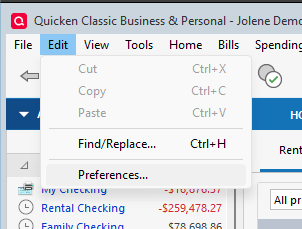
Yes, your accounts should ideally update automatically. However, if they don't, you can tell Quicken to send the information by going to Edit and selecting Preferences.
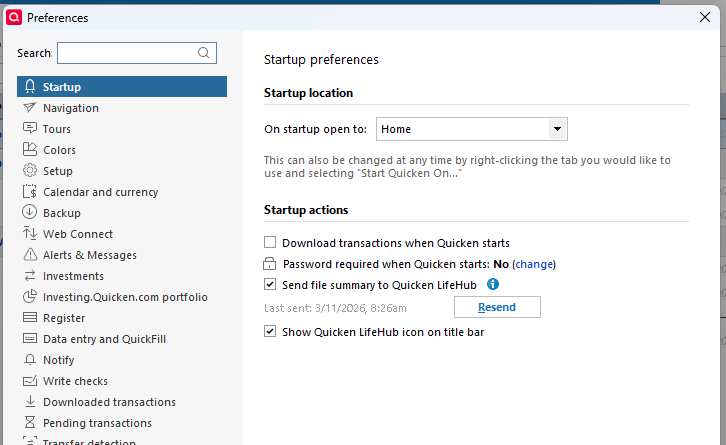
It should open on Startup, and to the right, you should see a Resend button.
Click that, and then log in to Quicken LifeHub.
Let us know how it goes!
I attempted the QLH "Resend" suggestion several times using Quicken, Edit, Preferences, Start UP, Resend. It DID NOT up date QLH!
Thank you for your reply,
Do you have a VPN, anti-virus, or firewall that may be blocking communication? If you do, please try pausing them and resend again.
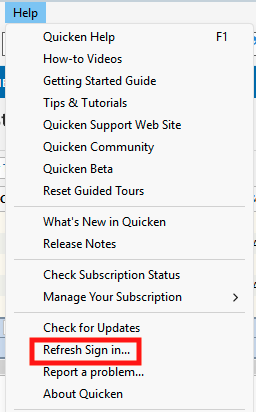
If the issue persists, please try refreshing your login in the Quicken application. To do that, in your Quicken for Windows file, navigate to Help>Refresh Sign in….
Follow the prompts, then test to see if the issue is resolved.
If you haven't restarted your computer since the issue began, I recommend restarting it.
I hope this helps!
This problem continues to persist after your suggestion of refresh sign-in and verifying that there is not VPN or anti virus preventing the QLH update. In addition, for the past several months Quicken has been "hanging up" and "not-responding" when performing a cloud sync. Since a cloud sync is what is used to update QLH, resolving this cloud sync issues needs to be addressed.
It is quite likely that the cloud sync issue is causing the problem you're seeing with Quicken LifeHub. To help troubleshoot the cloud sync issue, please provide more information:
Thank you!
@cromaney,
Just checking in, we haven't heard back from you in a while.
Do you still need assistance?
Hello again,
Checking in once more before this thread is closed.
Let us know if you still need assistance.
Due to the lack of response, I went ahead and closed this post.
If you still require assistance, please feel free to start a new post.