How do I verify that Quicken is not accessing any of my brokerage/bank accounts

I recently transitioned from Windows to Mac Quicken. I did have to redo several settings, but it appears to be working. The concerning part is I noticed on the stocks in my brokerage account all of the stock prices have been updated with the current stock price prices.

I was very careful not to authorize Quicken to access any of my accounts. This is important to me because my brokerage firm, like most/all others will void your fraud guarantees if you share passwords with a third-party. I tried to do the research on my own to see how to do this but many of the settings described did not work. This is often do to the fact that the software changes but documentation does not keep up.

It occurs to me that perhaps the stock prices can update without passwords because the price of a stock is public knowledge. But I never could find a setting or a switch that would shut off the sharing of this.

My research indicates that Quicken CAN access your account without providing passwords using EWC. To the best of my knowledge, I never authorized Express Web Connect (EWC).

What can I do to verify that Quicken is not accessing any of my banking or brokerage information?

Thank you for your assistance.

Answers

  • jacobs
    jacobs Quicken Mac Subscription SuperUser, Mac Beta Beta

    Security price updates come from two places: one is your brokerage, if you have transaction downloads enabled. The other is a third-party quote service, which doesn't require any passwords or access to your data; it simply updates the price of each of your holdings in Quicken. I do not have my investment accounts in Quicken set up to download, but I do allow Quicken to update security prices.

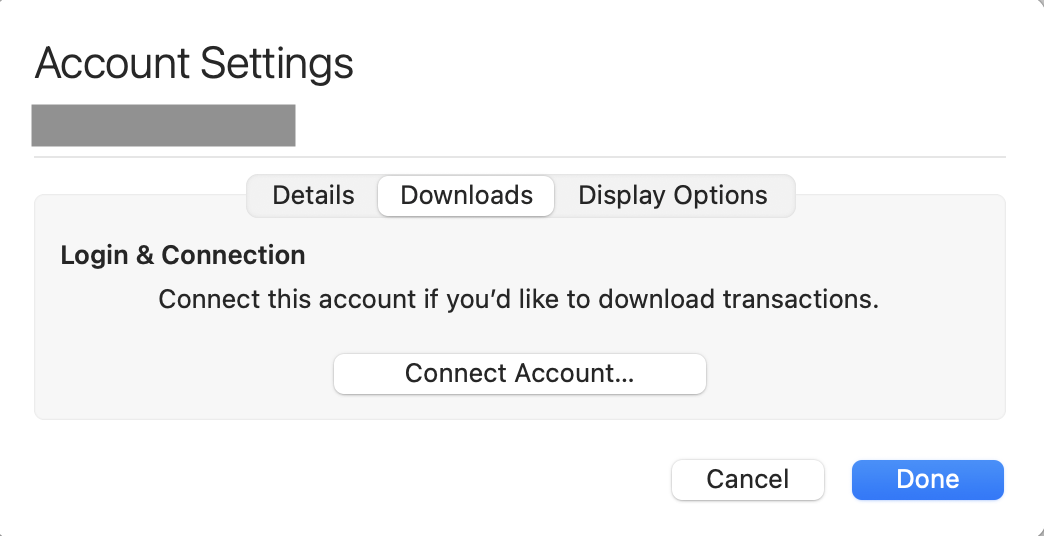
    Since you migrated from Quicken Windows to Quicken Mac, none of your account connectivity (if any) from Quicken Windows comes across to Quicken Mac. So if you haven't set up any of your accounts in Quicken Mac for downloading, Quicken doesn't have access to those accounts in Quicken Mac. You can verify this, if you wish, by selecting each account one at a time in the left sidebar, clicking Settings in the bottom right (or Accounts > Settings from the main menu), and clicking on the Downloads tab. If it shows this screen, the account is not connected:

    Screenshot 2026-03-20 at 11.35.32 AM.png

    If the account was connected, this screen would show details about your connection set-up.

    For security price updates, you can disable price updates if you wish. Go to Window > Securities. At the top of this window is a checkbox for "Download quotes only for Watchlist, indexes & securities held". When this box is checked (default), Quicken will download prices for the securities you hold whenever you click in one of several places to update your holdings. (This includes the main Account Update button — two arrows in a circle — in the upper left of the sidebar, the Refresh icon — one arrow in a circle — on any Portfolio screen or Investing Dashboard screen, Update Security Prices on a dropdown menu in the Watchlist screen, or Accounts > Update All Accounts or Update Selected Account from the main menu.) If this checkbox is unchecked, a Download Quotes column is visible in the Securities window. Here, you can unchecked one or all securities for Download Quotes. Most people won't want to do this, as the price updates are a convenience but not a security risk. (Alternatively, you could edit each security you hold to have a bogus Symbol — e.g. instead of "AAPL", change the symbol to something like "Z-APPL" so there is nothing for Quicken to look up and download.)

    Final place to check: have you ever, since starting with Quicken Mac, enabled syncing to Quicken Cloud to use the mobile app or web login? If so, the cloud servers can also connect to your financial accounts if they were ever connected. If you don't use the mobile app or web interface or any other online Quicken services which require online syncing, it's best to make sure Sync is turned off. To do this, go to Settings > Mobile Web & Alters and insure that the big Sync button is set to Off. If you might have ever had this on, then also go to Settings > Connected Services and click the Cloud Account Reset button; this will replaces the associated account tied to your desktop data file with a new one, with no account connectivity enabled.

    Quicken Mac Subscription • Quicken user since 1993