How do I download more than 30 days of Fidelity Transactions to Quicken?

Randy
Randy Member ✭✭✭

I need to download about one year of Fidelity transactions. When I use one-step update, only 30 days of transactions are downloading.

I found a post from 2021 explaining how to download up to 24 months of data from Fidelity. Below, I give the link and the instructions.

When I follow the instructions, I get a message saying 400+ days of transactions were downloaded, but in fact only 30 days of transactions were downloaded.

When I go back to repeat the process, I find that DTSTART is back to its original date, which is 1/1/1970.

Any suggestions would be appreciated.

The 2021 post instructions that did not work for me, and for which link is given below, are:

In Quicken...

1. Click "Tools"

2. Click "Online Center"

3. Press and hold the "Control" key while you click "Contact Info"

4. Choose the account to update from the dropdown menu

5. Click "Reset DTSTART"

6. Enter a date that is up to 24 months ago- if you enter a date that is more than 24 months ago, you will receive an error and will need to start over

7. Click "Refresh"

8. Click "Update/Send" in the top right of the Online Center window. If you receive another pop up, click the affirmative choice (yes, continue, update, etc.). You may be asked for your Quicken Vault password as well.

9. The transactions pull in 90 days at a time, so you have to hit the update transactions button 7 or 8 times in order to import the full 24 months10. The update process must be completed before you can accept any transactions. If you accept transactions before the whole timeframe has been imported you might receive an error and have to start over.

[Edited-Readability]

Comments

  • Quicken Alyssa
    Quicken Alyssa Quicken Windows Subscription Moderator mod

    Hello @Randy,

    Thank you for sharing your experience and letting us know what you have already tried.

    When adding an account, 90 days of transactions should come in. Sometimes more than that is available, depending on the financial institution.

    Outside of what automatically comes in, you would need to import the rest. Normally, I would suggest a QFX file. You download it from the bank's website. However, I think Fidelity may no longer offer this as an option. If that is the case, the next best option would be to download and import a CSV file.

    Before you begin

    The .CSV file must follow a strict format. The file must include all required columns, in the correct order, even if some columns have no data. A header row is optional, but if used, it must match the expected column structure.

    Import the file

    To import a properly formatted .CSV file:

    1. Open your Quicken data file.
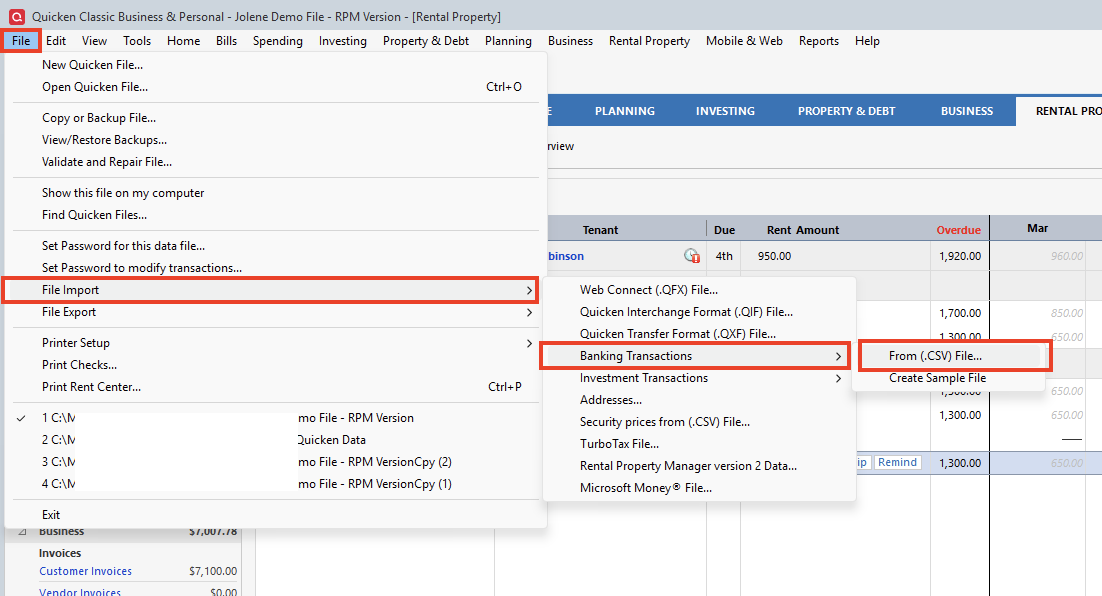
    2. Select File > File Import > Banking Transactions From (.CSV) File.
      Note: You can also Create Sample File for extra guidance. Screenshot 2026-03-23 at 1.26.58 PM.png
    3. In the Import transactions from .CSV file window, review the format requirements.
    4. Select Choose .CSV File to Import….
    5. Browse to your file and select it.
    6. Select OK.

    If the file does not meet the required structure, an error message will explain what needs to be fixed.

    *The steps I have provided are only some of the information available. Please review the linked articles above and follow all steps.

    Let us know how it goes!

    Quicken Alyssa

    Make sure to sign up for the email digest to see a round up of your top posts.

  • NotACPA
    NotACPA Quicken Windows Subscription SuperUser ✭✭✭✭✭

    @Randy I checked, just now, and Fidelity Investments DOES offer a "Download as CSV" option. I didn't actually try such, so I don't know if it's in the format that Q requires, as documented above.

    I'd suggest that you download a single account at a time to avoid possible issues with transactions going to inappropriate accounts.

    And take multiple backups, before and after each account import.

    Q user since February, 1990. DOS Version 4
    Now running Quicken Windows Subscription, Business & Personal
    Retired "Certified Information Systems Auditor" & Bank Audit VP

  • Quicken Alyssa
    Quicken Alyssa Quicken Windows Subscription Moderator mod

    @NotACPA,

    Thank you for checking that!

    And thank you for the suggestion to do one account at a time and save a backup first. Great advice!

    Thanks again!

    Quicken Alyssa

    Make sure to sign up for the email digest to see a round up of your top posts.