T Rowe Price not downloading transactions or updating and Discover problem

joeymon1
joeymon1 Quicken Windows Subscription Member ✭✭

Since the end of March, TRP has not been updating or downloading transactions. I get a OL-332-A code. All of my account history no longer shows in my registry. I can sign into my account via the website..

Also, each time I update, I have to go through the reauthorization process with my Discover Card.

Is this a Quicken or Discover problem?

Comments

  • Quicken Anja
    Quicken Anja Moderator mod

    Hello @joeymon1,

    Thanks for reaching out—let’s break this into the two issues you’re seeing.

    For the T. Rowe Price (OL-332 error):
    This error is typically related to a credential mismatch (Customer ID or password), even if you’re able to sign in successfully on the bank’s website.

    A few things to check:

    • Verify your Password/PIN
      • Make sure the password you entered is correct. Some banks have special requirements for the Quicken password including case-sensitivity, minimum length, or a mix of letters and numbers. Your password could be different from the one you use on the online banking website. Be sure to re-enter your password carefully.
      • Tip: Typing your username/customer ID and password/PIN into a text application, such as Notepad, Windows WordPad, or other text/word application, is a way of confirming you don't have typographical errors in these fields. The "confirmed" name/password can then be copied (Ctrl + C) and pasted (Ctrl + V) into the appropriate fields in Quicken.
      • Note: If you are setting up online services (such as transaction download) for this account, there may be additional information displayed in the dialog where you enter your customer ID and password/PIN that may tell you what should be entered.
    • Verify your Customer ID
      • Select the Tools menu > Account List
      • Select the account and click Edit.
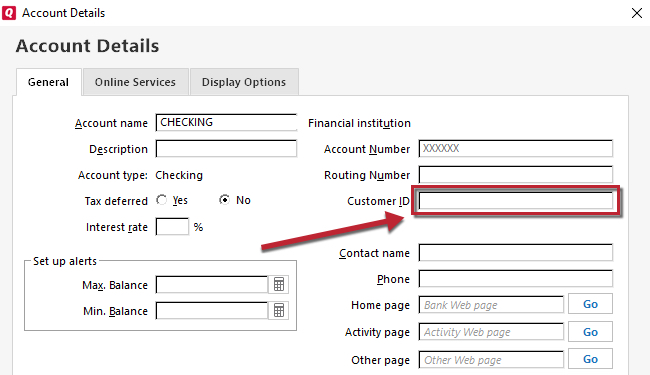
      • Verify that the Customer ID displayed under the General tab is correct. image.png
      • If the Customer ID is correct, review the financial institution name and account information (such as the account and routing number).
    • Check the Password Vault
      • If you use the Password Vault, it may have stored an incorrect password.
      • From the Tools menu, choose One Step Update.
      • At the Password Vault Password dialog click Skip.
      • Enter the password information manually for this financial institution.
      • If you connect successfully, then select Tools menu > Password Vault > Add or Edit Passwords.
      • Enter your Vault Password.
      • Select the account you want to update the password for and click Change Password.
      • Make the necessary changes and click Change.
    • If the Issue Persists
      • Try going to your bank's website and signing in. You may be prompted to unlock your account or complete Multi-Factor Authorization.
      • After signing in at the bank's website, try updating your accounts again in Quicken. 

    If everything checks out and the error continues, you’ll need to contact T. Rowe Price and ask for their online banking support/Tier 2 team, as they’ll need to review the connection on their end.

    For the Discover reauthorization issue:
    While I don't see any internal errors occurring for your connection on our end, it sounds like the authorization token may need to be reset. Please try the following:

    1. Create a backup of your Quicken file first.
    2. Deactivate all Discover accounts in Quicken.
      1. Select the Tools menu and select Account List....
      2. In the Account List, select the account you want to deactivate, and then click Edit.
      3. In the Account Details window, click the Online Services tab.
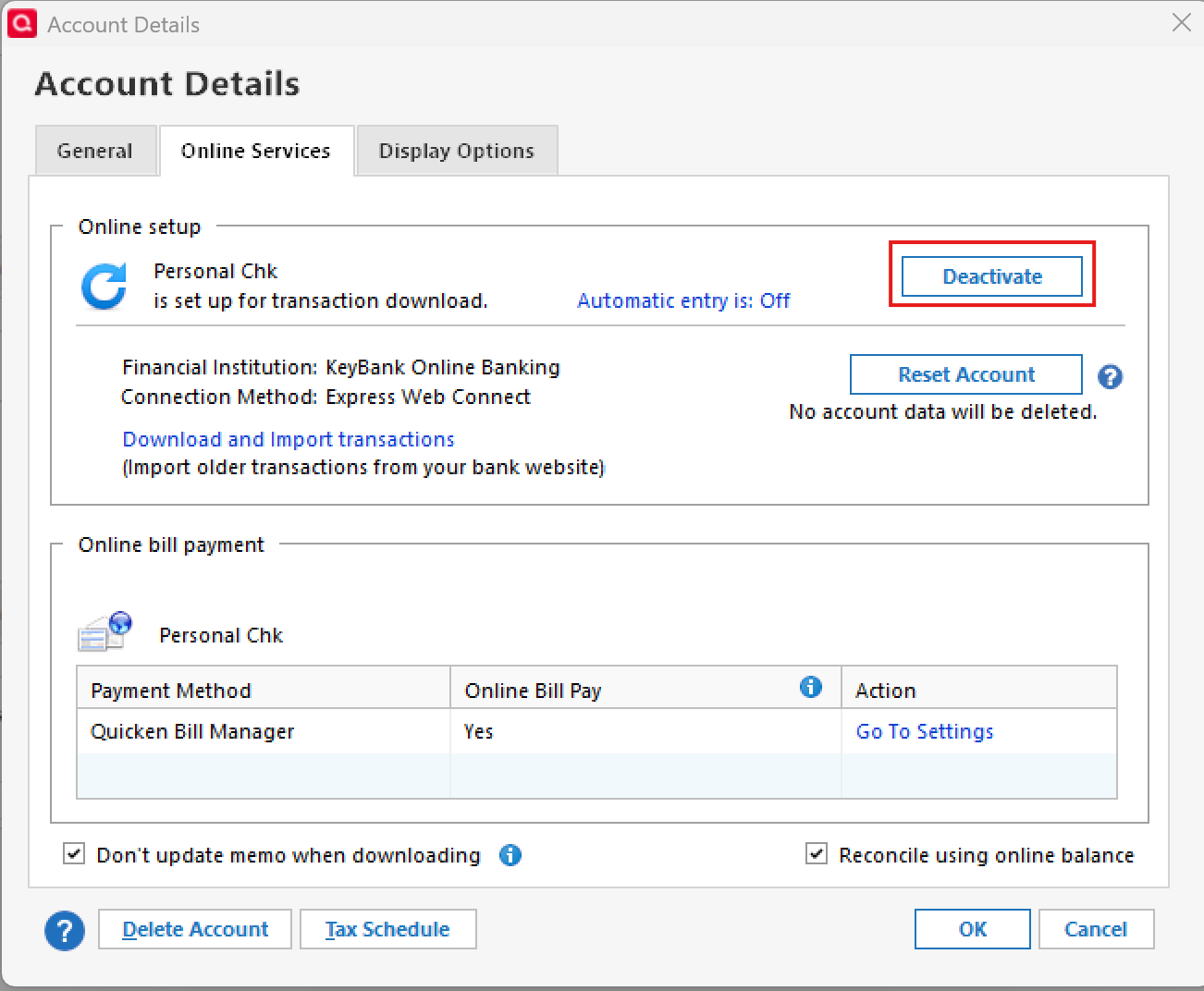
      4. Click Deactivate next to the service you want to disable. image.png
      5. Click Yes to the message confirming if you want to disable this service. Note: If you do not receive this message, additional information is available below.
      6. Click OK to the confirmation message.
      7. If you have an investment account that is linked to a cash account, you need to deactivate the online services from the investment account which will automatically deactivate the linked cash account.
      8. Important: If you are deactivating/reactivating an account to fix an issue, you'll need to deactivate all the accounts with the affected financial institution that you have activated in Quicken (including hidden ones). Once they're all deactivated, then you can follow the steps to reactivate.
    3. Revoke Quicken’s third-party access from your Discover account on their website.
    4. Reactivate the accounts in Quicken.
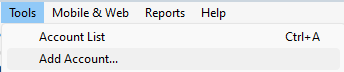
      1. Go to Tools > Add Account. image.png
      2. Select the bank for the deactivated account(s). If prompted, select the connection method.
      3. Enter your credentials and click Connect.
      4. When the list of located accounts appears, choose LINK next to each account you want to reactivate.
      5. Click Next then Done on the last prompt.

    Let us know how it goes!

    -Quicken Anja
    Make sure to sign up for the email digest to see a round up of your top posts.