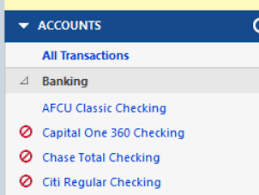
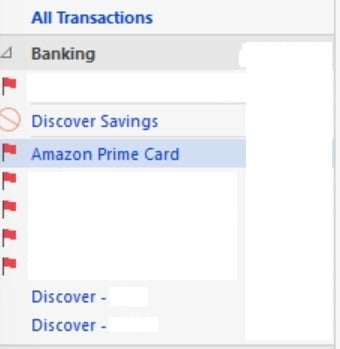
Red circle with slash icon
This suddenly appeared next to "More Accounts" in my account list pane, and when I did an update, the dialog box said the accounts next to the icon needed my attention. These were closed accounts. I deleted them, but the icon remains. Only now, when I click on the " More Accounts" dropdown, there are no accounts listed anymore.
How do I get rid of this, and why did it suddenly appear in the first place? Those closed accounts didn't cause any trouble before.
Thanks.

Comments
-
Hi @Ellary Kahan,
Thanks for reaching out to the Quicken Community!The red circle icon can appear in two different scenarios:
1. Closed Account in Quicken
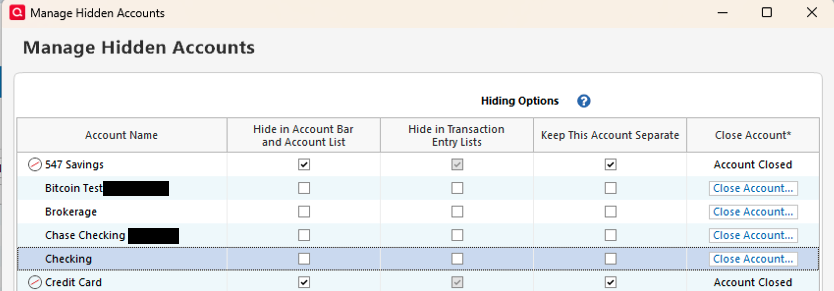
This appears when an account has been closed within Quicken and marked as closed. This action typically does not generate any error messages during transaction downloads (unless the account was still set up for online services at the time it was closed). Once an account is marked as closed, it cannot be reopened or have the icon removed.
2. Error During One Step Update (CC-800)
The red circle with a slash may also indicate an error during One Step Update, specifically an error code CC-800.Based on your description, it sounds like you may be experiencing the second scenario related to the CC-800 error. Could you please confirm which icon you are seeing? That will help me provide the most accurate troubleshooting steps.
I look forward to your reply!Quicken Carlos
Make sure to sign up for the email digest to see a round up of your top posts.
0 -
One step update does not give me an error. When I start it, the dialog is displayed, urging me to fix the red circle errors. I just continue the update.
0 -
Hi @Ellary Kahan,
Thank you for your reply and for providing more details.Before following any troubleshooting steps, I recommend creating a backup of your Quicken data file.
Then, please locate the accounts showing the red circle and follow these steps:
To deactivate an account1. Go to the Tools menu and select Account List…
2. In the Account List, select the account you want to deactivate, and then click Edit.
3. In the Account Details window, click the Online Services tab.
4. Click Deactivate next to the service you want to disable.5. Click Yes To the message confirming if you want to disable this service.
Once completed, please double-check that no accounts still show the red circle icon, then proceed with reactivating the accounts.
To Reactivate Account(s)- Go to Tools > Add Account.
- Select the bank for the deactivated account(s). If prompted, select the connection method.
- Enter your credentials and click Connect.
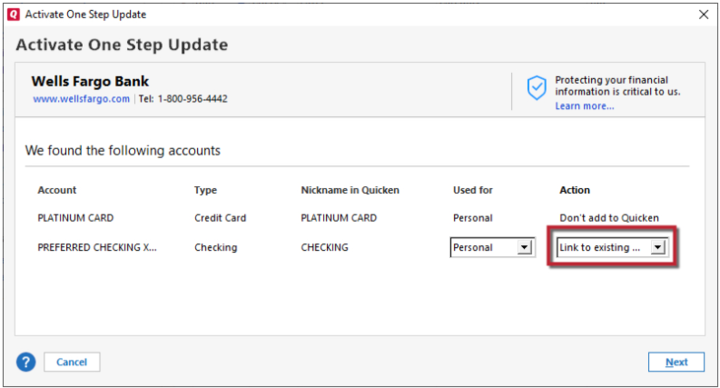
- When the list of located accounts appears, choose LINK next to each account you want to reactivate.
- Click Next, then Done on the last prompt.
Let me know how it goes!
Quicken Carlos
Make sure to sign up for the email digest to see a round up of your top posts.
0