Latest steps for conversion. I have the latest version Quicken Premier for Windows.
Hello @mdross171,
Thank you for reaching out! If you are looking for instructions on converting your file, I recommend reviewing these instructions from our article on converting from Windows to Mac:
Note: Make sure to hold onto a good copy of the Windows file. There is a risk that it won't convert perfectly, so having that good copy can help when correcting any discrepancies and can also be used to redo the conversion if necessary.
Here are some important bits of information before you start the conversion process:
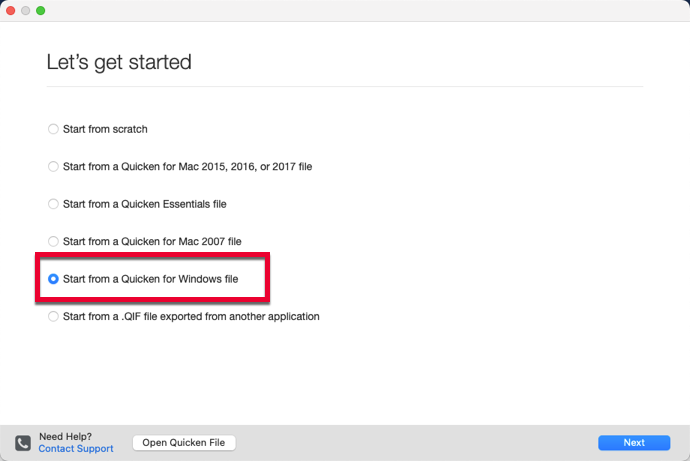
1. Open your new Quicken for Mac software on your Mac computer, select Start from a Quicken for Windows file and click Next.
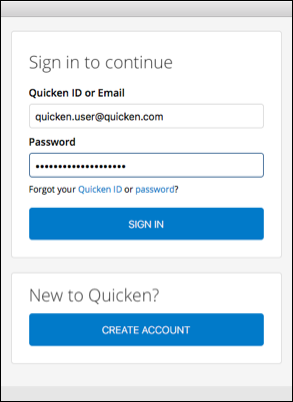
2. If prompted, sign in using your Quicken ID, or create a Quicken ID.
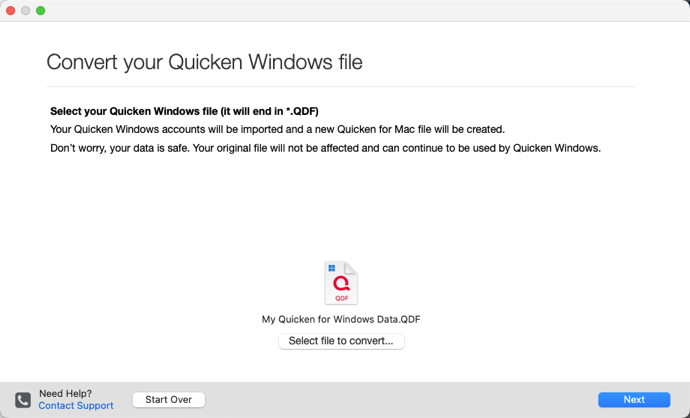
3. Click Select file to convert... and locate the Quicken for Windows data file (.QDF file) you wish to import into Quicken for Mac. Then, click Next.
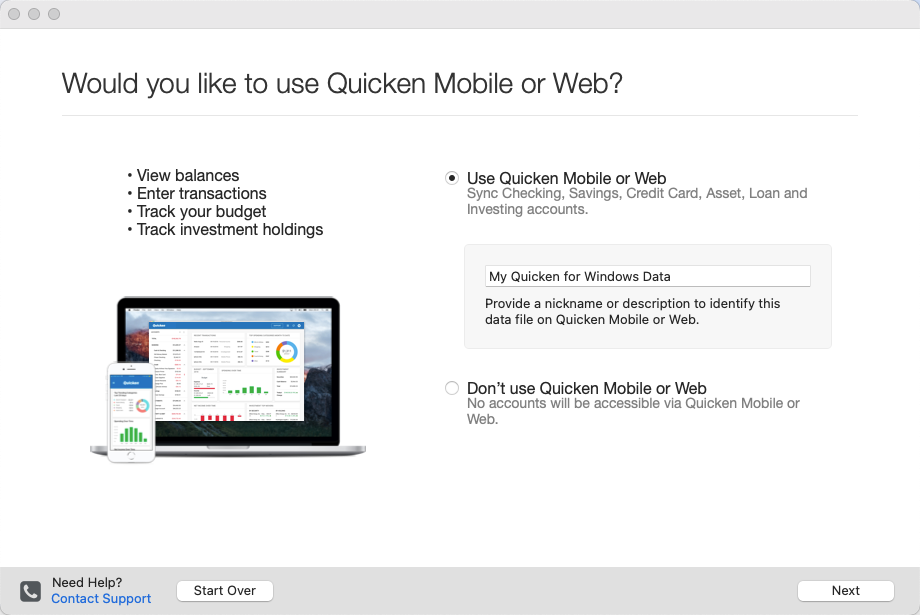
4. Select your Quicken Mobile & Web preferences.
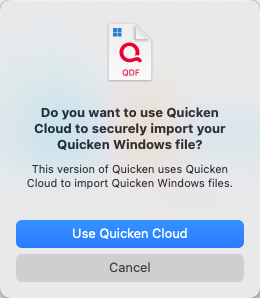
5. When prompted to confirm if you want to use the Quicken Cloud converter, click Use Quicken Cloud.
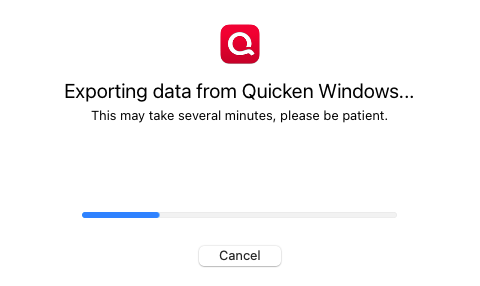
6. The process will continue automatically after you initiate the Quicken Cloud converter. Please note, the conversion may take several minutes depending on the size of the data file. In some cases, this process can take up to an hour.
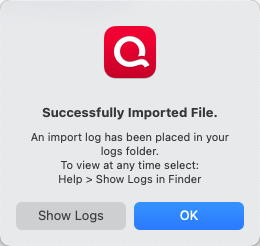
7. Lastly, you will see the "Successfully Imported File" message when the conversion is complete.
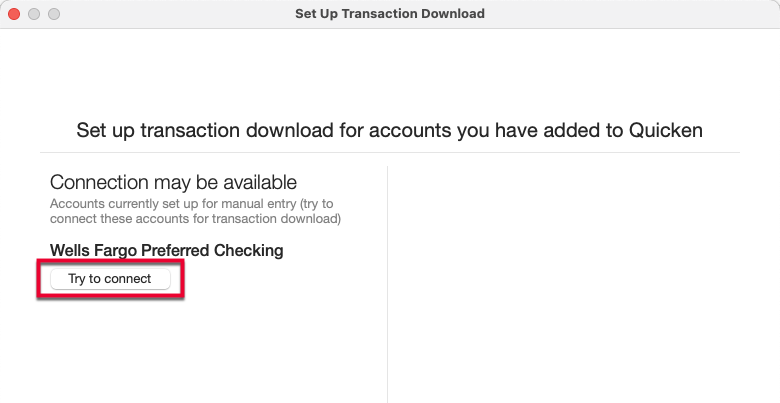
You may need to reconnect your accounts for transaction download in the new Mac file. You can start the reconnection process by clicking Try to connect.
Data file passwords: If you used a data file password before the conversion, you will need to set up a new password after converting to Mac. For instructions, click here.
I hope this helps!
Thank you so much for the info! Greatly appreciated.
Thank you for your reply,
I'm happy to help!
Please feel free to reach out if you need further assistance!