Can I automatically load old transactions from a backup file in my current qdata file?
I recently sync'd a credit card account with the bank's data. The action loaded the 2026 transactions into the credit card file and deleted 5+ years of credit card transactions from 2020 to 2025. I have a backup file with the 2020-2025 transactions. I restored the backup file with a new file name. I was able to copy the old transactions, but I cannot paste them back into the my current qdata file. Quicken Help says this cannot be done.
One option I considered was to use the restored backup file and then load the 2026 bank credit card data without doing the sync operation. This is not practical because I have several months of new data for other bank and investments accounts which would need to be updated in the restored backup file.
Any ideas on how I can keep reports and searches accurate when the old credit card data is important.
Answers
-
Hello @Greatdane1949,
Thank you for reaching out! Before copying transactions from another file, I recommend checking your existing file. The older transactions should not have been deleted. What most likely happened is that the account was added as a new account instead of being linked to the existing one.
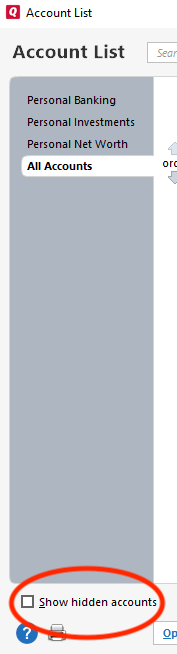
To check for this, go to Tools>Account List. If you see the option to Show hidden accounts (at the lower left corner of the window), select it.
Review your account list to confirm if there is a duplicate version of the problem account. If there is a duplicate version, you should be able to cut/paste the history from the original account into the newly added one.
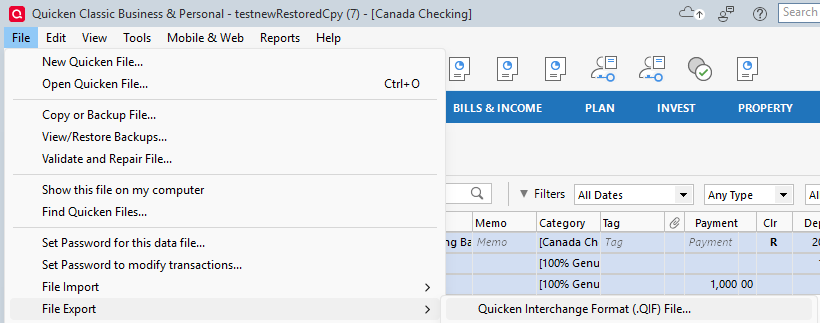
If there isn't a duplicate account, then the simplest way to bring those transactions into your current file is to navigate to File>File Export>Quicken Interchange Format (>QIF) File….
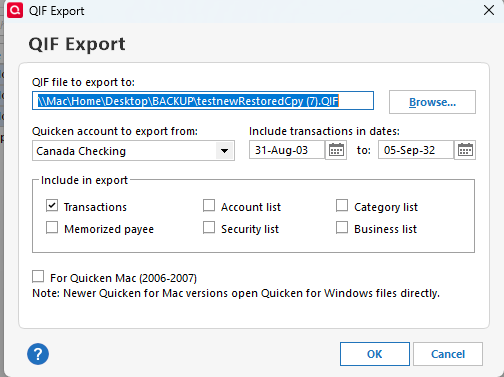
In the window that comes up, select the information for the account you want to export. Take note of what shows in the QIF file to export to textbox, since that's the file location you'll find the exported file at. You can click the Browse button to change where it gets saved.
Once you have created the export file, go to your current file, backup your file, and go to File> File Import, and select the appropriate options to import the file. It will import as a separate account, so once you import the account, you will need to cut/paste the data into the correct account.
I hope this helps!
Quicken Kristina
Make sure to sign up for the email digest to see a round up of your top posts.
0