Investment account value does not match the market value shown on account overview

Old Rabbit
Old Rabbit Quicken Windows Subscription Member ✭✭

An investment account's total value does not get updated correctly. When clicking on the account and drilling into the Account Overview pop-up, the total in the Market Value column at the bottom is shown correctly. But the value for that account on the account summary on the left panel shows a different number. I have this problem only with one of my investment accounts. I updated and reconciled the account several times, but the mismatch remains. Different values are shown for the same account on the account summary and on the account overview. Is there a way to correct this mismatch? Any advice would be appreciated.

[Edited-Readability]

Answers

  • Boatnmaniac
    Boatnmaniac Quicken Windows Subscription SuperUser ✭✭✭✭✭

    It sounds like you might have some Placeholder entries in the account register. Placeholders are generated when what is in the register does not match what the brokerage is reporting to Quicken during OSU so they are an attempt to get the register to match what the brokerage reported. The information in the account will include the values of the Placeholders but their values will not be included in most other areas of Quicken.

    There are a couple of ways to see if you might have Placeholders in the register:

    • Scroll through the register looking for shaded transactions that are labeled as Placeholders. If you do not see any, go to Edit > Preferences > Investments > make sure the box for Show Hidden Transactions is checked. If it wasn't checked, check it and then scroll through the register, again.
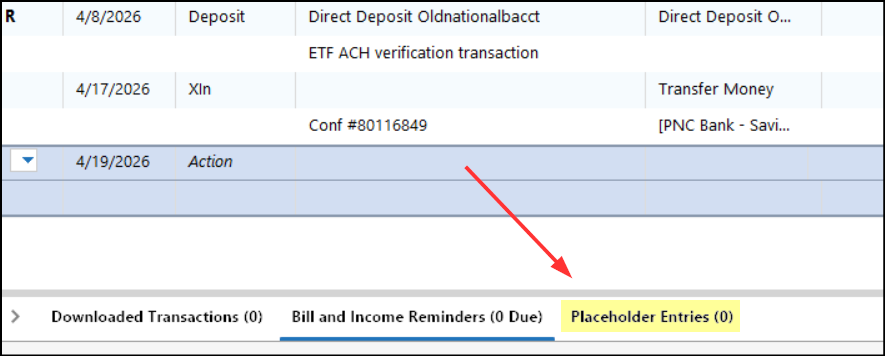
    • Below the register you should see some tabs, one of which says Placeholder Entries. If there is a number shown that says how many Placeholders you have, click on that tab to expand it and see the Placeholders. image.png
    • In the Account Register: Upper right Gear icon > Reconcile Shares. You will get a popup telling you whether or not the shares in your register match what the brokerage reported. When there is a difference, it will identify the security or securities in question as well as the number of shares difference. (It will not identify which specific lots might be causing the issue.)

    If any Placeholders are identified, they will need to be resolved. You can read more about Placeholders and how to resolve them in the following Help articles:

    Let me know if this helped to identify the cause of the issue and if it helped you resolve it.

    Quicken Classic Premier (US) Subscription: R67.7 on Windows 11 Home

  • gtgerbo
    gtgerbo Quicken Windows Subscription Member ✭✭✭
    edited April 19

    Old Rabbit 

    Is the "As of:" date (upper right-hand corner of the Account Overview screen) set to today? Or are you using an earlier date. This will cause a discrepancy with the amount shown in the account summary.

  • Old Rabbit
    Old Rabbit Quicken Windows Subscription Member ✭✭

    Thank you very much for your insightful answers. I removed all placeholders but the problem is still there. The problem is not that my account total does not match the broker. This is not an issue at the moment. The problem is that the account total does not match the same total shown on the "Holdings" display. This is happening only for one of my several investment accounts and has never happened before.

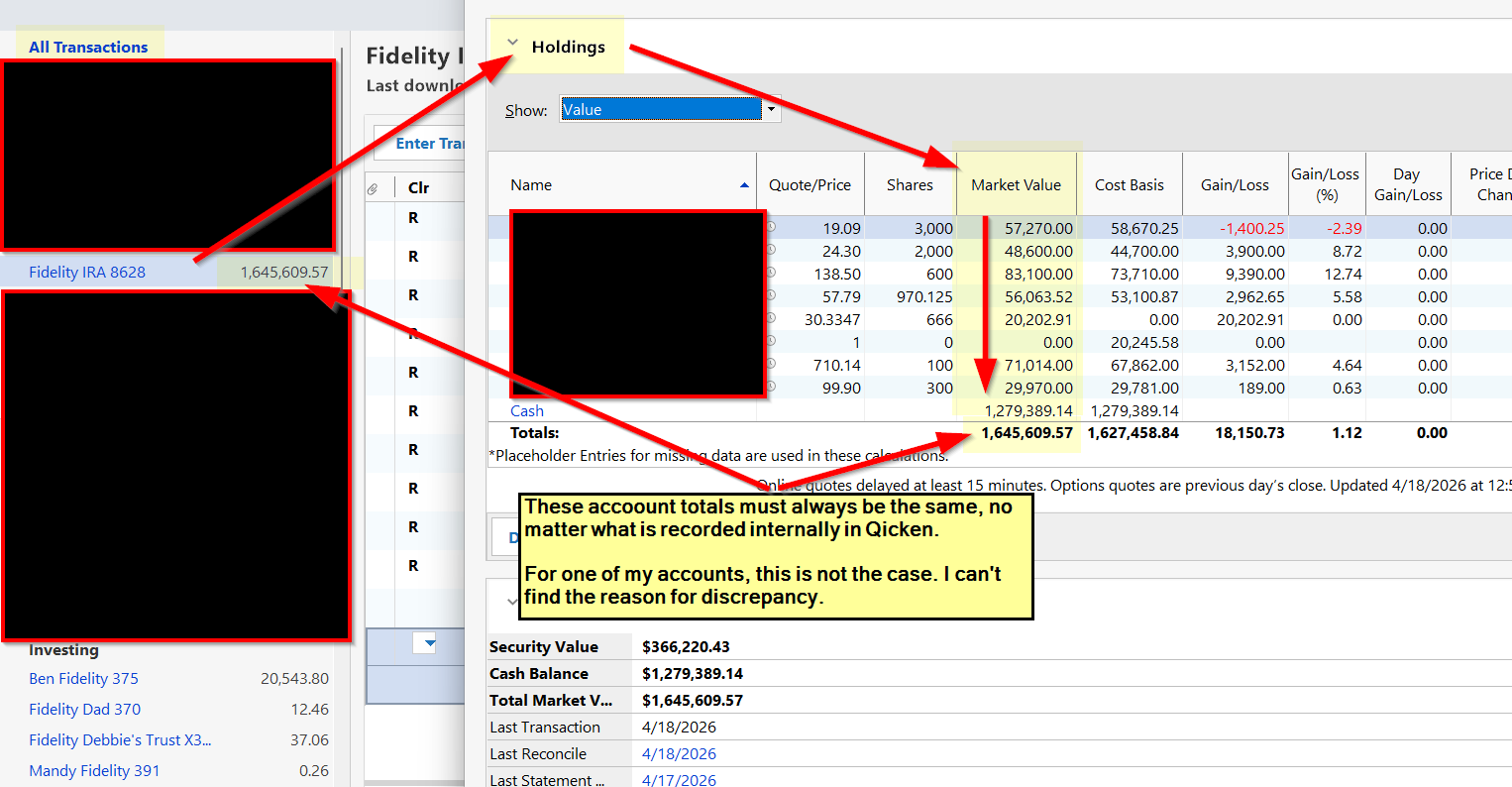
    All accounts with their totals are listed on the left panel in Quicken. When clicking on the selected account, Quicken opens the account register in the right panel. There is a "Holdings" button at the top. When you click the "Holdings" button, Quick opens the Account Overview display that lists all positions in the selected account. The total at the bottom of the "Market Value" column on "Account Overview" represents the total value of the investment account "As of" the date shown in the upper right corner. This total should equal the same one shown for the account on the Quicken Account panel on the left from where we drilled into "Account Overview".

    I tried to illustrate all this in a screenshot below that shows an account where I do not have a problem.

    In all the years I used Quicken (close to 25 now) I have never seen the difference because it should be the same single total value shown in two places in the application. No placeholders, internal transactions, errors, etc. can explain this difference. The total account value can be computed incorrectly in Quicken but it should the same incorrect value shown everywhere for that account.

    I am puzzled by this discrepancy and am starting to believe that I encountered an error in the underlying application. If you have any ideas or suggestions how to get the same consistent investment account value from Quicken, regardless of what screen you are looking at, I would appreciate it.

    Thank you again for your excellent suggestions.

    Old Rabbit

    Example.png
  • mshiggins
    mshiggins Quicken Windows 2017 SuperUser ✭✭✭✭✭

    @Old Rabbit can you show a similar picture for the account that has the problem? Also, do you use reminders in the problem account?

    Quicken user since Q1999. Currently using QW2017.
    Questions? Check out the Quicken Windows FAQ list

  • Old Rabbit
    Old Rabbit Quicken Windows Subscription Member ✭✭

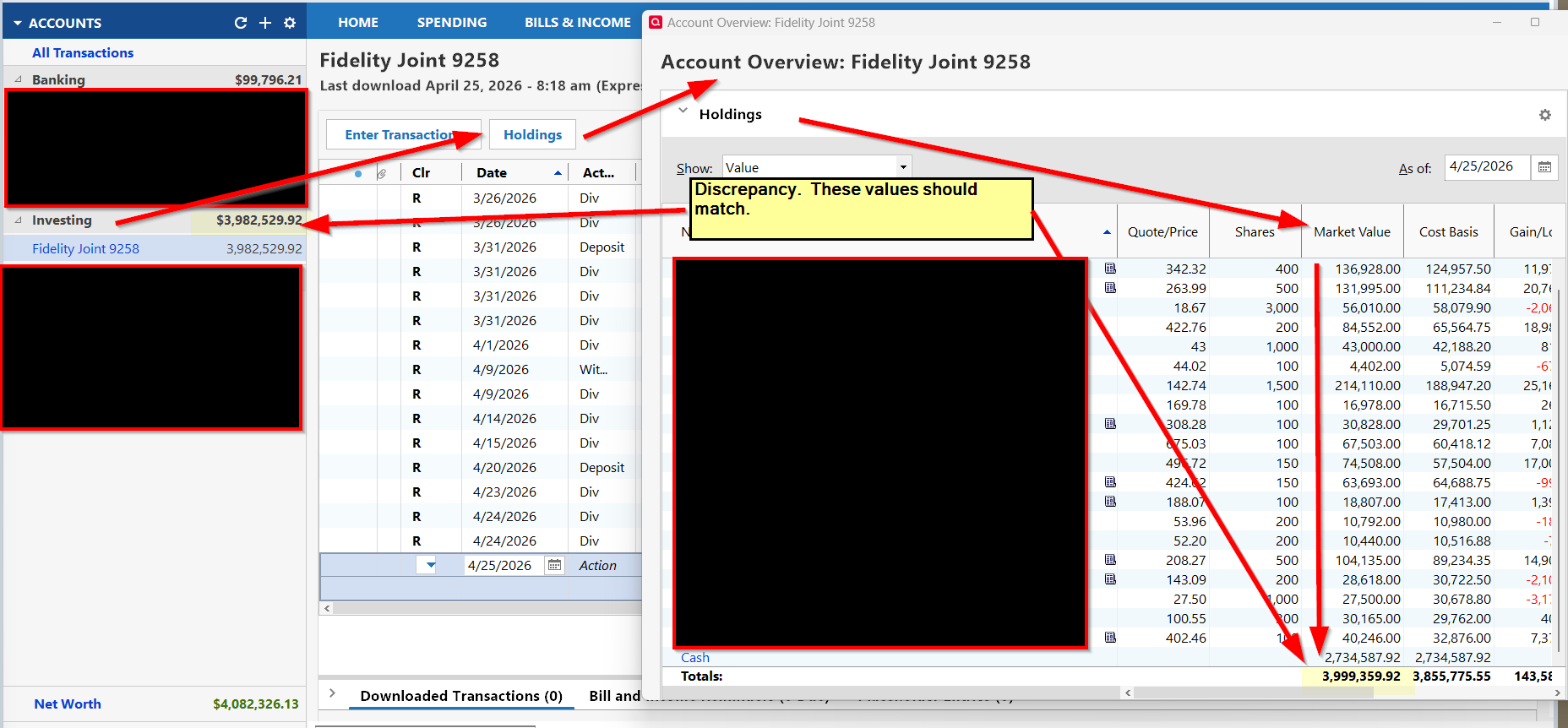
    There is about 4K difference between the total in Market Value column on Account Overview display and the amount shown on the Account Summary for that account. I do not use reminders. If I cannot find a solution, I will have to delete and recreate this account in Quicken to re-synchronize the totals. I will lose most of my transaction history but I can't find a better option. If you have any thoughts on the subject, please share them. Thank you.

  • Old Rabbit
    Old Rabbit Quicken Windows Subscription Member ✭✭

    Here is a specific example.

    image.png
  • Boatnmaniac
    Boatnmaniac Quicken Windows Subscription SuperUser ✭✭✭✭✭

    In the Account Register: Upper right Gear icon > Reconcile Shares. What does the resulting popup show?

    Click on the blue font Cash Balance on the right below the Account Register. What does the resulting popup show?

    Is there a money market fund in the account that the brokerage uses to hold Cash. If so:

    • What is that MMF?
    • Is that MMF listed in the Holdings view and, if so, how does that compare to the Cash Balance below the Account Register?

    Quicken Classic Premier (US) Subscription: R67.7 on Windows 11 Home

  • Old Rabbit
    Old Rabbit Quicken Windows Subscription Member ✭✭

    I found a way to correct the problem without understanding what the problem was in the first place. I believe that my empirical solution clearly proves that this discrepancy is an actual problem in Quicken and deserves a ticket for the development team.

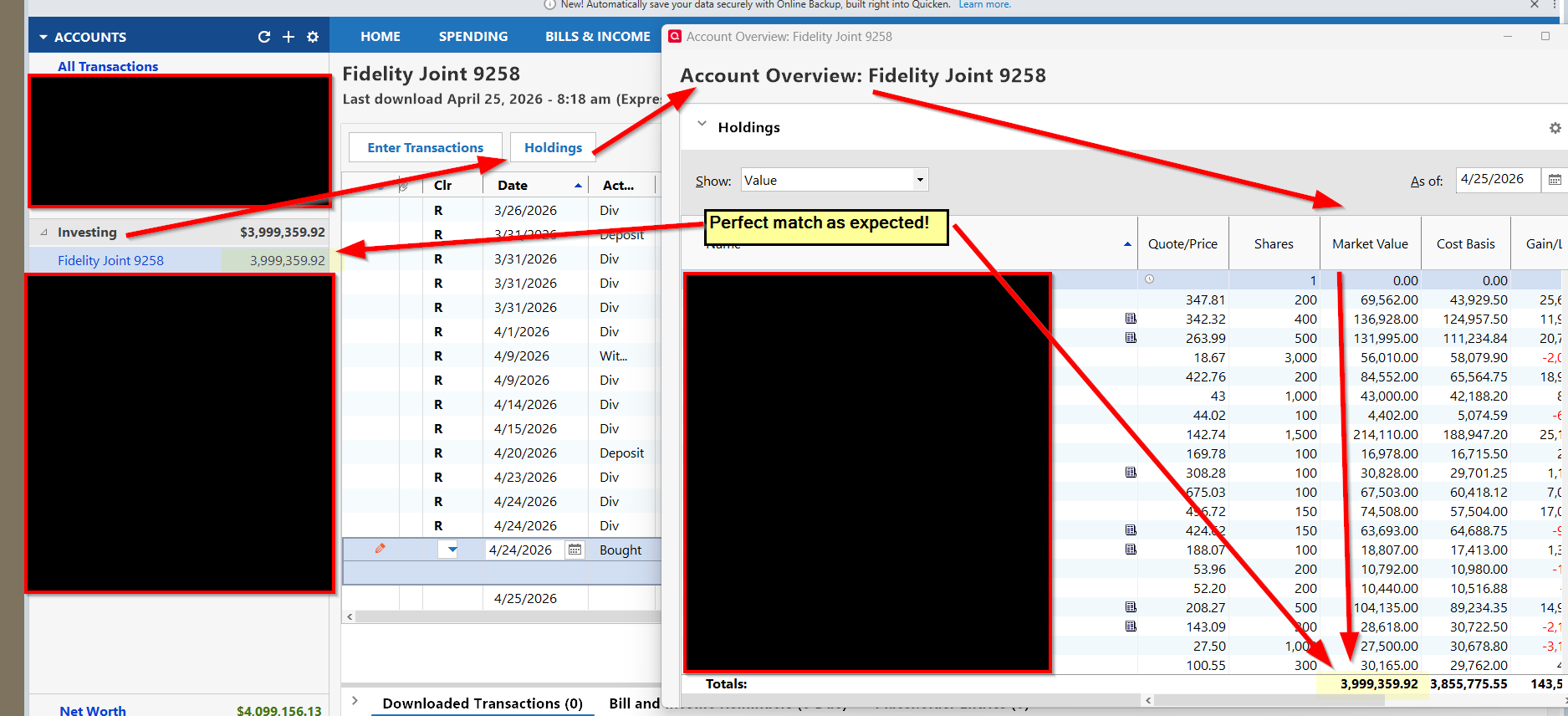
    I added a fake investment asset to my account with a discrepancy in order to see how it affects the conflicting totals. To my surprise, both account totals were matching in Quicken. I changed the price of my fake asset to zero and both totals were now matching each other in Quicken and matching the broker account value. Everything is in sync now.

    I believe this exercise has conclusively proved that Quicken failed to correctly (or fully) update in One-Stop Update the Account Summary value while it correctly updated the Market Values of the account positions and the Market Value total on the Account Overview page. It took another transaction to force Quicken to complete the update of account totals in the system.

    Please compare the screen shot below with the one posted above. It tells the whole story.

    If Quicken team monitors these posts, I hope that they will take notice. The problem remains but now I have a crude manual synchronization solution.

    Thank you to everyone who provided suggestions.

    image.png
  • mshiggins
    mshiggins Quicken Windows 2017 SuperUser ✭✭✭✭✭

    @Old Rabbit interesting finding. If you remove the fake investment, does the account value discrepancy reappear?

    Quicken user since Q1999. Currently using QW2017.
    Questions? Check out the Quicken Windows FAQ list