LPL Financial - Weird issue with Accounts
Hello-
Within the past week or so, LPL Financial would not properly update account balances. It gave me the 2FA, went through the motions, no errors, but would not update. Since that time I have tried multiple troubleshooting steps to no avail. I have 5 accounts however when resetting, it would locate 18 accounts in total. Turns out they were just multiple instances of the 5 accounts. I tried linking the accounts but on the next update, it could not find the accounts I had linked to. I then deleted everything LPL from Quicken to start fresh and upon setting up, its still locating multiple instances of the same 5 accounts. For now, I have resorted to just downloading an update from LPL and importing to Quicken but something changed over the past week and my mind is blown. Any help would be awesome.
Comments
-
Hello @Camphw,
Thank you for reaching out and telling us about your issue!
If you don't mind, I'd like to start off by having you create a new file (test file) to see if you experience the same issue in a new file as well. In doing so, we will be able to determine if this is caused by an issue within your data file or if this is how the data is being sent through the servers by the financial institution.
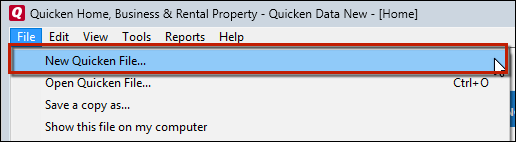
Follow the steps below to create a test file:- Choose File menu > New Quicken File.
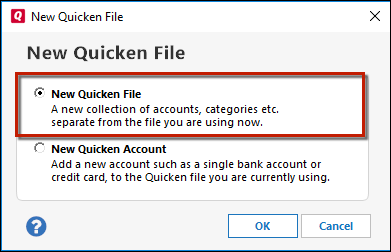
- Select New Quicken File.
- Click OK.
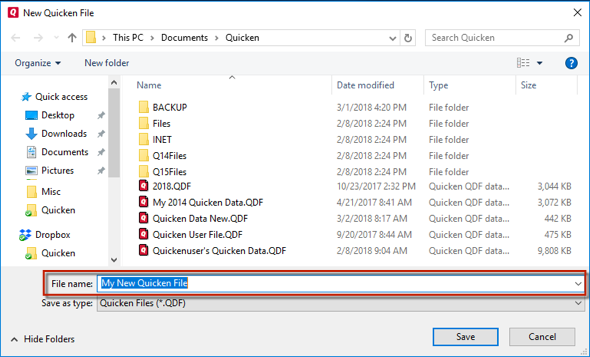
- Don't use any of these characters: * ? < > | " : \ / (asterisk, question mark, left and right-angle bracket, pipe, straight quotation marks, colon, BACKSLASH, FORWARD SLASH). Also, don't add the .qdf extension; Quicken does that for you.
- Sign in with your Quicken ID (if prompted). If you are prompted to create a Quicken ID, click Sign In under the Create Account prompt.
- Select to not use Mobile (if prompted).
- Click Add Account to try adding the account you were unable to add in your original file.
After adding accounts, see if you are experiencing the same problem in this test file. From there, you can then switch back to your original file.
Follow the steps below to switch files:
- Click the File menu.
- Look near the bottom of the options list.
- Select the data file you want to open.
Quicken will list the most recently opened data files, with a checkmark next to the file you are currently viewing.
Let us know how it goes!
-Quicken Anja
Make sure to sign up for the email digest to see a round up of your top posts.0