I wish to edit the list of accounts at Charles Schwab that are updated with Quicken One Step Update but many of the lists accounts are shown with three dots. How does everyone edit the list of accounts in Quicken One Step Update?
@laspacht,
Thank you for posing this question!
I am not sure where you are seeing three dots, as I do not see that in my own One Step Update. I have some follow-up questions for you:
Here are the steps to disconnect accounts. It is a good idea to save a backup before going through the steps.
1. Select the Tools menu and select Account List....
2. In the Account List, select the account you want to deactivate, and then click Edit.
3. In the Account Details window, click the Online Services tab.
4. Click Deactivate next to the service you want to disable.
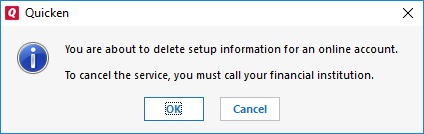
5. Click Yes to the message confirming if you want to disable this service. Note: If you do not receive this message, additional information is available below.
6. Click OK to the confirmation message.
7. (Optional) If you do not intend to reactivate, contact your financial institution to cancel any fees they may charge for access to Quicken's online services. Deactivating the account in Quicken typically will not stop the service fee.
If you have an investment account that is linked to a cash account, you need to deactivate the online services from the investment account which will automatically deactivate the linked cash account.
Important: If you are deactivating/reactivating an account to fix an issue, you'll need to deactivate all the accounts with the affected financial institution that you have activated in Quicken (including hidden ones). Once they're all deactivated, then you can follow the steps in the article to reactivate.
I have linked to support articles above with complete steps. Please review those for more information.
Let us know if this answered your question!
At the point where I click deactivate I get the following message.
I also notice this same message with other accounts so I need to track down which account Quicken is talking about unaccepted transactions.
Thank you for following up!
This message occurs when you have automatic entry turned off, and you need to review/accept the transactions in the compare to register window located at the bottom of the account register. In the photo below, there are no transactions to accept. However, if you are receiving that message, you should see transactions here and accept them.
Once you have accepted them, go through the deactivation steps outlined in my previous post again.
Let us know how it goes!
Just checking in, we haven't heard back from you in a while.
Do you still need assistance?
Thank you!
Hello again,
Checking in once more before this thread is closed.
Let us know if you still need assistance.
Due to the lack of response, I went ahead and closed this post.
If you still require assistance, please feel free to start a new post.