This discussion was created from comments split from: Error connecting to Voya Institutional Plan Services.
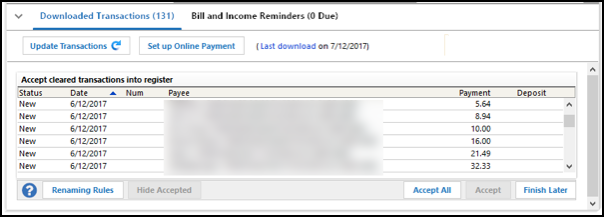
This will not work, it says I have to accept downloaded transactions, and then try again. I have no downloaded transactions to accept. Now what do I do?
Hello @DRWhitaker,
Thank you for your reply! I split this into a separate discussion so that we can troubleshoot the issue without causing any confusion in the main discussion.
To troubleshoot the message you are receiving, please follow these steps from our article on when you're being told to accept downloaded transactions, but you don't see any:
1. Press Ctrl+A on the keyboard to bring up the Account List, then click the Edit button next to the affected account in the list.
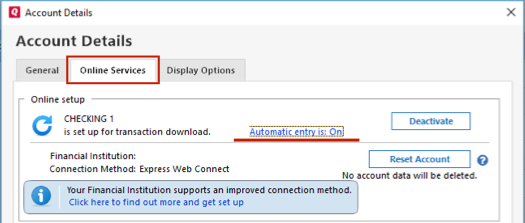
2. In the Account Details window, click on the Online Services tab then click Automatic entry is.
3. Select No on the next dialog box and click OK. Automatic entry should show as "Off" now. (If it's already off, then select Yes and click OK. Then, Automatic entry should show as "On".)
4. Click OK to close the Account Details window, then click Done on the Account List.
5. Close Quicken, wait a few seconds, then re-open it. The transactions should appear upon re-opening Quicken.
Note: If you have multiple accounts affected by this issue, you can make the change outlined above to all the accounts at once by going to Edit > Preferences, then going to Downloaded transactions and unchecking the box next to Automatically add to investment transaction lists.
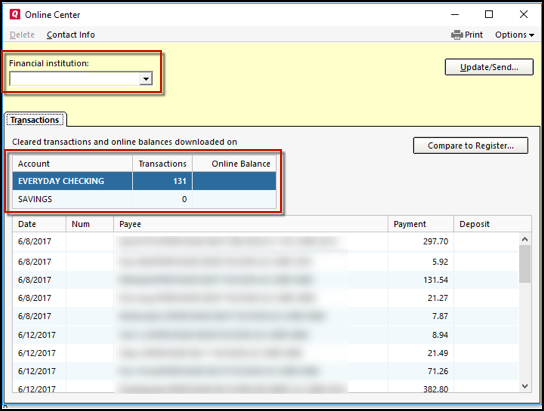
Quicken will show you downloaded transactions in multiple locations. The following information shows you how to check for downloaded transactions in the account register and Online Center.
4. Select Transactions.
If the Quicken data file is damaged, you might receive prompts about downloaded transactions when you don't have any downloaded transactions.
If you know when this issue began, the best solution is to restore a backup created before this issue began.
If you do not have a backup to restore, Quicken has a built-in utility, Validate, that will correct many data issues. Please note this does not correct all issues and these steps should be taken if the other steps outlined did not resolve the problem.
Note: Depending on the size of your data file, you may need to wait a while for the validation process to finish. Do not use the Task Manager to close Quicken. Quicken displays an error message if it cannot validate the file. If Quicken is able to validate the file and any errors are found, Quicken displays a message, "Data losses were found in your file." You can view the log file for more information.
When the validation process is complete, you will need to Reactivate your accounts for transaction download in the new file copy.
Please let me know how it goes!
All fixed now - thank you
Thank you for the follow-up,
I'm glad to hear it's working now!
If you need further assistance, please feel free to reach out!