This discussion was created from comments split from: Discover Card Appears to be Down for the Weekend Implementing Cap One Transition.
I followed all the steps for deactivating/reactivating using add account and then linking the account. It linked to the new Capital One Card Services but did not download my transactions. How do I go forward to download the transactions? Do I have to do them all manually?
Hello @sleepwiner2,
Thank you for letting us know you're encountering this issue! To troubleshoot, I recommend following these steps from our article on missing transactions/transactions not downloading:
Be sure to follow these steps in order:
1. Go to Edit > Preferences > Downloaded Transactions. The option Automatically add to banking registers needs to be unchecked.
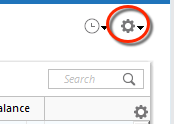
2. Refresh your online account information by clicking the Actions Gear Icon on the upper right of the register, and select Update Now. Follow the on-screen instructions to complete the update.
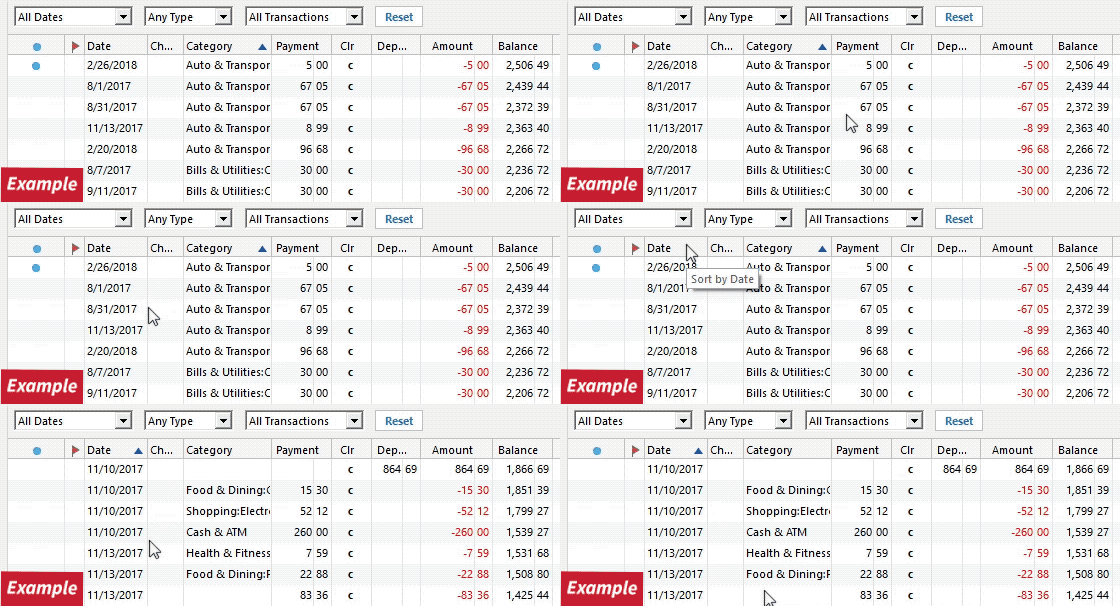
3. Confirm that the Sort Order in your account is by Date; just click the top of the Date column in your account register. It's possible the transactions are in your register, but not where you thought they'd be.
4. Click the Reset button at the top of the register. This will confirm that there's no filtering in your account register.
5. Try refreshing your login session: To do this, go to Help > Refresh Sign in. After completing the log-in process, trying running a One Step Update again.
6. Go to Actions (Gear Icon) > Register Columns > Check Downloaded Payee in the account register. This allows you to search by Payee to confirm the transactions haven't been renamed unexpectedly.
7. Go to Tools > Account List and check Show Hidden Accounts at the bottom left. Confirm the missing transactions haven't been added to a hidden account by clicking on the name of any account that appears with a check mark in the Hidden column.
I hope this helps!
I have the same problem. I followed all the suggestions in this thread and that did not work. This is not the issue. The issue started after the conversion and I know several users in the same situation. Can it be checked with Capital One to see if there is an issue they experienced with downloading transactions after the conversion.
Hello @Active User,
Thank you for letting us know you're seeing the same issue! Since the troubleshooting did not correct the issue, I recommend contacting Quicken Support directly for further assistance. They will need to check the logs to confirm whether the transaction data is being sent to Quicken, and they can escalate the issue if needed. The Quicken Support phone number can be found through this link here. Phone support is available from 5:00 am PT to 5:00 pm PT, Monday through Friday.
I apologize that I could not be of more assistance!