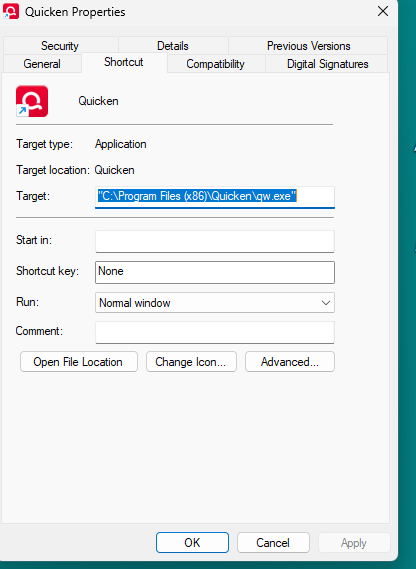
Quicken unexpectedly opens Windows File Explorer at startup and during One Step Update
Running Quicken Classic for Windows R68.31 on Windows 11 Pro 25H2.
Beginning in late October 2026, Quicken started exhibiting two unusual behaviors:
● When launching Quicken, Windows File Explorer opens over the Quicken loading screen.
● When clicking Update Now in One Step Update, File Explorer opens in my Quicken data directory.
Quicken itself functions normally, and One Step Update completes successfully.
I’ve done some troubleshooting and discovered the following:
● With the shortcut’s “Start in” field blank, Explorer opens in C:\Windows\System32.
● With “Start in” set to C:\Program Files (x86)\Quicken, Explorer opens in that directory.
● Changing the working directory changes the directory Explorer opens.
● Creating a new shortcut does not resolve the issue.
● Opening an alternate Quicken data file does not resolve the issue.
● There are no active Quicken compatibility overrides.
● Microsoft Process Monitor shows no additional Explorer.exe process being created, suggesting the existing Windows Explorer process is opening another window.
● No other applications exhibit this behavior.
I found a similar Community discussion from October 2023, titled “Why does Quicken display Windows Explorer when I open Quicken?”
Has anyone experienced this recently? Is there a Quicken configuration setting or known software defect that could cause this behavior?