Memorized payee list has payee disappear after each use

Each time I use a payee out of my memorized list it disappears. Each time I have to go back into the list and check the box to make it show up on the list again. I use the list off of my calendar every day and it has become very annoying. HELP
Answers
-
Are you talking about the MPL entry's checkbox "Show this entry in the Calendar Memorized Payee List"?
AFAIK, this should be enabled by default for all MPL entries.What is the setting for "Auto-delete Payees unused for [xx] months"? Is it "ON" and set to [xx] greater than zero (recommended value is 24 months)?
0 -
Thanks for the reply. I have the MPL showing on the right side of my calendar. When I drag one over to a particular day on the calendar to show a payment of some kind the payee leaves the list on the right had side. I have to go back to edit MPL and re-check the box on the edit MPL window. The box says "show this payee on the calendar memorized payee list" Only then is it back in the list next to my calendar. I have been having this problem for months and was waiting on a fix in the next update but nothing has happened yet.
Thanks
0 -
And Yes I did check and make sure that the Auto-Delete button was off.
0 -
Strictly based on what I can read here in the Community, you appear to be the first user to report this particular issue.
I would recommend that you do the following actions:1. Even if you are on the latest software level already, download and install the latest Manual Patch file from https://www.quicken.com/support/update-and-patch-20182019-release-quicken-windows-subscription-product to ensure your Quicken software is up to date and correctly installed.
2. Reboot Windows. Let Windows fully wake up and do whatever it wants to do after booting up … 15 minutes or so.
3. Start Quicken. Do not run One Step Update.
4. Run BOTH Validate and Supervalidate to attempt to repair your Quicken data file.
5. If nothing helps, please contact Quicken Support on the phone during posted hours of operation and report this issue.Validate and Supervalidate instructions
First save a backup file prior to performing these steps
Validate:
• Click File
• Select Validate and Repair File...
• Select Validate File
• If the data file contains investment accounts also select "Rebuild investing lots".
• If you suspect that a damaged Quotes Price History causes your problems, also select "Correct investing price history" functions "Delete" or "Repair and Rebuild".
• Click OK
• Review the Data Log. Anything interesting in there, worthwhile posting here?
• Close Quicken, leave it closed for about 30 secs
• Reopen Quicken and see if the issue persists.Super Validate:
• Click File
• Press and hold both CTRL and Shift keys while you click Validate and Repair File...
• Select Supervalidate File
• Click OK
• Review the Data Log. Anything interesting in there, worthwhile posting here?
• Close Quicken, leave it closed for about 30 secs
• Reopen Quicken and see if the issue persists.0 -
I did all the suggestions that you had listed above. All the data log files show that everything was fine.
I tried the application after each update and I still have the same issue.
I will call the support number in the morning and see if they can help with the problem.
Thanks for the help
0 -
Today I called in and we fixed the problem. The fix was not what I expected and it will be a lot of work for me to go to all 638 Memorized payees to make the fix but O Well. That is what I have to do.
If you are having the same problem you will need to do the following:
Open the memorized payee list and make sure that the Lock and Leave box is checked for each one you want to stay on the list.
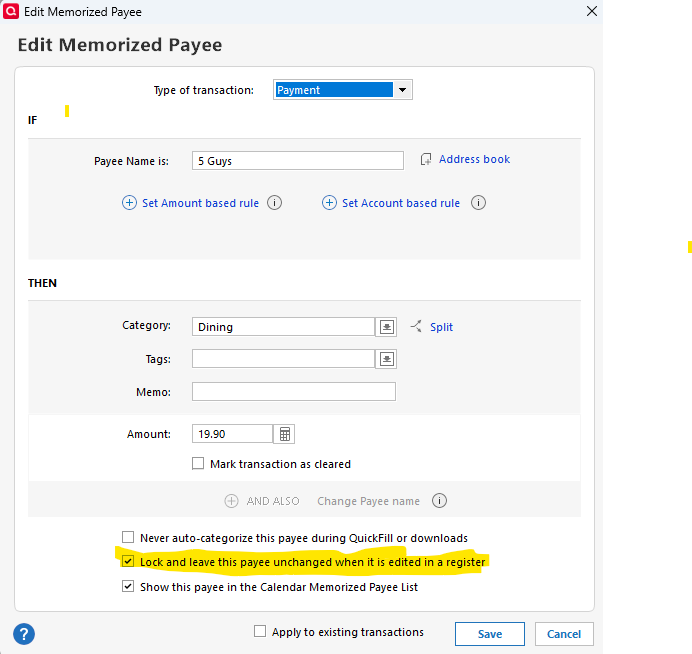 0
0 -
The "Lock" box on the MP List appears to do the same thing as the "Lock and leave" option on the edit of aa specific entry.
 0
0 -
Did you know that the new MPL list view allows you to sort the list by the Lock column?
Block-select the MPL entries which do not show Lock is on.
Once selected, right-click on one of the selected entries. You'll get a popup menu. Click to select Lock and all selected MPL entries will have Lock set on.BTW, do you really need over 600 MPL entries? Or are there a number of obsolete entries, unused ones, or duplicates that can be eliminated?
Consider enabling "Auto-delete" with a 24 months setting.
For as long as a register transaction for a seldom used payee exists, you can easily use this payee in a new transaction when entering it from the register.0
