Mobile Sync - Not Responding

Almost every time I do a cloud sync to import my Quicken mobile app transactions into the Quicken on my PC, it hangs up on Processing Data. When I check Task Manager it says Quicken is Not Responding.
This has been going on for some time and I've reached out to Quicken chat and no one can ever come up with a definitive solution. I've done the following.
*** Set up a template so I only have 5 years of data
*** My file is on my C drive
*** Signed in as a different user
*** Validated my file
*** Checked for updated and I'm up to date running R63.21
*** Restarted my PC
*** I'm running Quicken Starter Classic on a Win10 PC
The only thing anyone can think of is to reset my cloud data. However, that defeats the purpose of using the Quicken Mobile App.
Any suggestions would be GREATLY appreciated.
Thanks - Matt
Comments
-
@mattpisani I think doing a reset is a good idea. I am not sure why you would say it defeats the purpose of using the mobile app?
It sound like there are some issues with your cloud file and a reset would probably fix them. I am not sure if you have seen this but it explains the reset concisely -

Of course, it's up to you, but I would not hesitate to do a reset if I had issues with my cloud file.
As always, please make a backup of your data file before you attempt any troubleshooting steps.
0 -
I'll probably have to reset the cloud data. I say it defeats the purpose of the mobile app because probably 4 out of 5 times when I sync, it doesn't work. Then I go through all the steps above to no avail. To me, the convenience of the mobile app is gone if I have to reset my cloud data almost every time I sync. And before resetting the data, I have to go into app.quicken.com to see all the transactions that are waiting to be synced to my PC and type them into Quicken on my PC before resetting the cloud data. If this was a one off thing, I'd agree that resetting the data would be a good thing, but this happens all the time.
0 -
@mattpisani - if you choose "Yes" to the question on the screen print I provided, you wouldn't need to manually type those pending transactions into Quicken.
If you are continually having to reset your cloud data file, there might be some other things you can try
Sign Out and Back In -
- Go to Edit > Preferences > Quicken ID & Cloud Accounts.
- Click Sign in as a different user, type “Yes” to confirm, then sign back in with your Quicken ID.
- This refreshes your registration token and can resolve sync errors.
Another way to get to this option is through the Mobile & Web tab, see the screen print below -
Check for Duplicated Accounts -
If you see duplicate accounts or transactions, consider deleting the cloud account:
- Create a new dummy file via File > New Quicken File.
- Go to Edit > Preferences > Quicken ID & Cloud Accounts.
- Click Cloud accounts associated with this Quicken ID, select the original file, and delete it.
You can also delete unused cloud data files. If you go to the Mobile & Web tab, down towards the bottom, you will see a pane with some troubleshooting options -
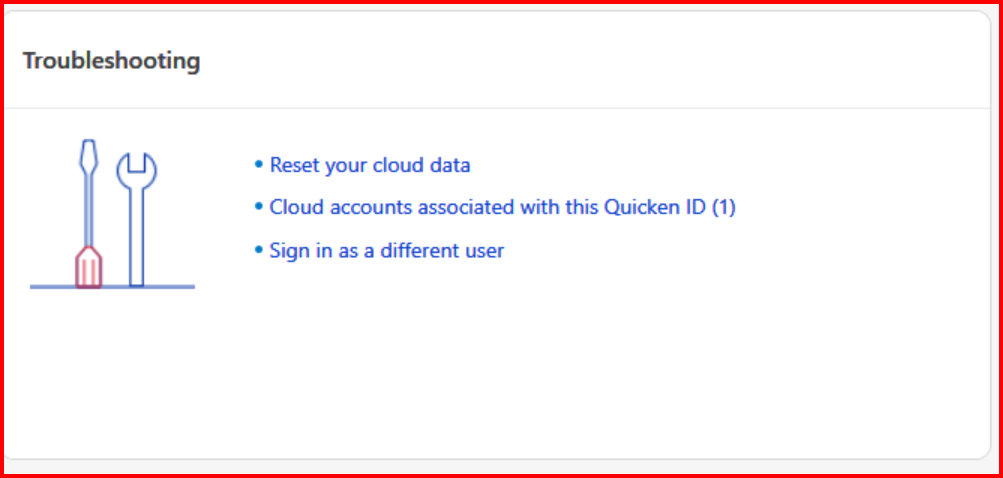
Click on "Cloud accounts…" and you will see a list of all the cloud files created. You can safely delete out the ones from old unused data files.
0 -
I went to reset the cloud data and chose "Yes, sync first and then reset". It ran though Transactions, Renaming Rules and then Processing Data which is where it stalls. Today I let it go for hours. Again Task Manager said Quicken was Not Responding.
There's only one account associated with my cloud data and I've tried signing in as a different user a number of time and still when I try to sync, hit hangs on Processing Data until it doesn't respond anymore and I have close Quicken and reopen it.
0 -
@mattpisani I have a feeling that your issues go beyond just the cloud data file. Have you tried to make a copy of your data file using Quicken's "copy file" process? I think you mentioned that you created a template, but I am not sure if that is the same thing.
I know that there is a lot of steps here, but if your issue is data file corruption, then these steps hopefully will get things running smoothly again. You didn't mention what types of accounts you have or what connection method you are using, but these steps will cover all the bases.
- Make a backup of your data file. Also, make backups during this process, just in case you need to go back a step.
- Print an Account List. Open the Account List (Ctrl-A). Click on “Options” in the lower left of the window. Make sure “Include additional info when printing” and “Show transaction download status” are checked. Then, click on the printer icon to print the list, or save it to a PDF. The Export option produces a file, but it’s not as easy to read.
- Make note of Financial Institution, Account Number, and, Transaction Download from the Account List. This information may be needed for verification in the reactivation process.
- Validate your data file. Click on File → Validate and Repair File, then select "Validate". Click "OK". Review the "Validate & Repair log" for any messages that need to be acted upon.
- Super Validate your data file. Same as step #2, except hold Ctrl-Shift when clicking on "Validate and Repair File".
- Do a Quicken "Copy File" to create a copy of your data file. This process forces a rewrite of code and fixes some file corruption issues. It will also clear out online connection "remnants" for all accounts. Click on File → Copy or Backup File, and select "Create a copy or template", and then click Next.
- On the next screen, leave the defaults as is. You can change the new file name and location, if you wish. Click on "Save Copy".
- During the copy process, you will be asked to provide a password for the new file. If you don't want a password, hit ESC.
- When the process completes, switch over to the new data file (copy).
- For EWC+ accounts (noted in the Account List), go to each of your financial institutions’ websites and log into your online banking account. Locate the section where connected apps or third-party access is managed and make sure to unlink or disconnect Quicken from your accounts on the bank’s end. This may be listed under "Security," "Settings," or "Authorized Apps" depending on the institution. If you do not see a link or a third-party authorization, it may have already been deleted by the deactivation process in Quicken.
- Reactivate online services for all accounts in the new data file, by using “Add Account” (do not use “Set up now” on the Online Services tab of Account Details) and carefully link to existing accounts in Quicken. If needed, use the FI information from the Account List for account mapping.
Again, I know there are a lot of steps here, but I think the cloud data file issue might be just a symptom of other issues you might have with your data file and these steps will help fix some data file file corruption, if that is the issue.
0
Categories
- All Categories
- 3 Product Ideas
- 34 Announcements
- 249 Alerts, Online Banking & Known Product Issues
- 19 Product Alerts
- 266 Welcome to the Community!
- 42 Before you Buy
- 1.5K Product Ideas
- 55.8K Quicken Classic for Windows
- 16.9K Quicken Classic for Mac
- 1K Quicken Mobile
- 834 Quicken on the Web
- 84 Quicken LifeHub