Change account type assigned to CDs from Synchrony Bank - came in as Checking Accounts -

Hi,
I'm running Quicken Classic for Windows (R63.21 build 27.1.63.21), on a windows 11 (home) computer.
I recently set up 4 CDs from Synchrony Bank. When I added the accounts to Quicken, it brought them all in as Checking accounts. That makes no sense to me - I would think they were either savings or investments.
I used the typical Add an Account method.
Is there a way for me to change the account type manually?
If I remove the accounts and set them up using some other method, would I be able to set the account type myself?
I really prefer it to be a savings account.
Thanks for any tips!
kmk
Best Answers
-
Synchrony is a bank, and as such that is how it is going to treat CDs (as an individual accounts not securities). Whereas a brokerage might have treated them as securities.
There isn't any way you can download and have them as savings or investment accounts. The financial institution chooses the account type. I agree that checking is probably a poor choose, but I had CDs with Synchrony and so I know this to be the case.
But Quicken really doesn't treat savings accounts much different than checking accounts, so you can just change the Account Intent to "put it in the savings area".
What you can do is change the Account Intent on the Account Details → Display Options tab to have Quicken "mostly" treat it as Savings.
Note that there is also an investment/retirement intent, which "mostly works". But I said mostly because there are places where it won't look/work the exact same way as if it was a security.
1 -
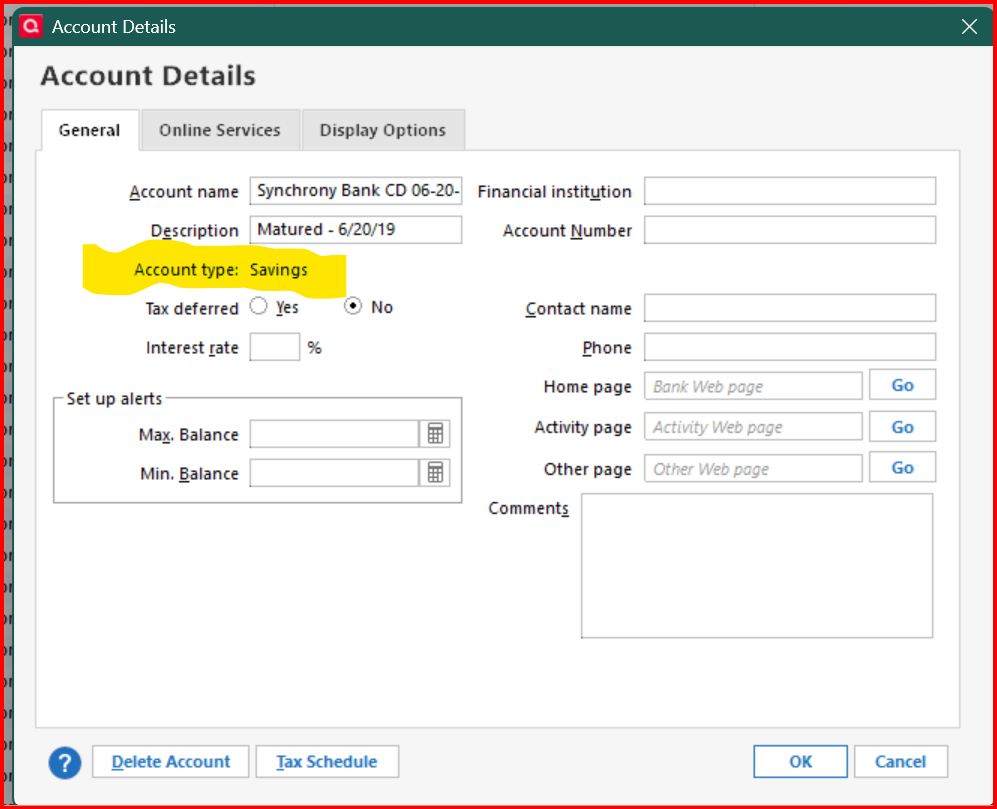
@Chris_QPW I have had several Synchrony Bank CDs and all of them have an Account Type = Savings. See below -
 1
1

Answers
-
@kmkelmor unfortunately, Account Type cannot be changed once the account is set up. The Account Type of "Savings" vs. "Checking" has no impact on how the account runs on Quicken. If transactions are downloading from Synchrony Bank without any issues, then I would recommend just keeping the Account Type = Checking.
But if you really want to have Account Type = Savings, then here is how you can do it -
- Make a backup of your data file.
- Deactivate all of your CD accounts with Synchrony.
- In the General Tab of Account Details, blank out both the Financial Institution Name and Account Number for each CD account.
- Change the Account Name to something like "Synchrony CD - OLD" so it's easy to identify later.
- Reactivate the accounts by "Add Account"
- Go through the activation process, when you get to the list of accounts to add, make sure to change the account type to "Savings".
- Do not link the accounts but add them as new.
- After adding the new Synchrony CD accounts, update the account names to what they should be.
- Review each account and determine what historical transactions are missing in the new CD accounts.
- Move the missing transactions from the old accounts to the new ones, if necessary.
- When the new CD accounts are complete and reconciled, you can delete the old CD accounts.
1 -
@kmkelmor I forgot to mention one other important thing. When you create the new CD accounts, Quicken will automatically create an Opening Balance transaction for each account that you will need to make sure to delete before you move transactions from the old CD accounts.
0 -
Synchrony is a bank, and as such that is how it is going to treat CDs (as an individual accounts not securities). Whereas a brokerage might have treated them as securities.
There isn't any way you can download and have them as savings or investment accounts. The financial institution chooses the account type. I agree that checking is probably a poor choose, but I had CDs with Synchrony and so I know this to be the case.
But Quicken really doesn't treat savings accounts much different than checking accounts, so you can just change the Account Intent to "put it in the savings area".
What you can do is change the Account Intent on the Account Details → Display Options tab to have Quicken "mostly" treat it as Savings.
Note that there is also an investment/retirement intent, which "mostly works". But I said mostly because there are places where it won't look/work the exact same way as if it was a security.
1 -
@Chris_QPW I have had several Synchrony Bank CDs and all of them have an Account Type = Savings. See below -
1 -
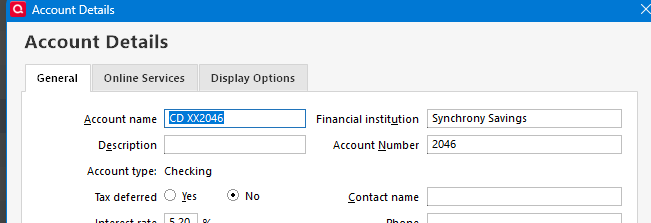
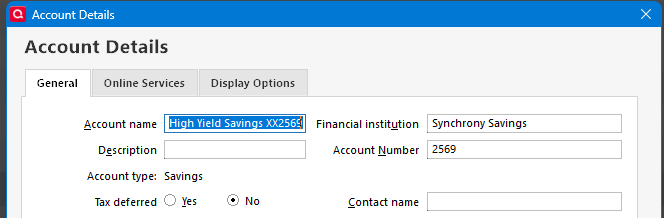
Very strange (on Synchrony's part).
I'm looking back at my old accounts and my CD accounts are Checking and then I had some savings accounts they are marked Savings.
 1
1 -
It could be that I set them all up first as a offline manual account with Account Type = Savings and then activated them after.
@kmkelmor if you find that the account type = Savings is not selectable, you can always set up a new offline CD account with Account Type = Savings, and then link them. That way, it doesn't matter if the set up wants to use Account Type = Checking. I found that for updating transactions (OSU) it doesn't matter if it is coded as Checking or Savings.
1 -
That probably explains it. I could certainly see where Quicken kept the type it had when it was created if the one downloaded and the existing one were both bank accounts. And the more I think of it I have seen the same thing when importing QIF flies.
1 -
@kmkelmor I updated the steps I provided to include alternate steps if Account Type = "Savings" is not available. Sorry for the confusion, but if you have any questions, or need help, please circle back.
1 -
Thanks to both of you! While I would prefer it to be savings instead of checking, by changing the account intent from spending to savings, I got it to inherit the color scheme and other tweaks I had set up. So that's good for now. If I end up starting a fresh data file, I'll set these up offline first so I can make them Savings accounts.
Thanks for the help!
0