New Quicken User How to Categorize Thousand of Transactions at Once

Just started using Quicken for the first time and went through the time consuming process of adding all my account, finally! Now I need to categorize thousand of transactions. How do I select all transactions that have the same "payee" and make them all the same category. I'm stuck on this simple step. Using Quicken Classic Deluxe for whatever that is worth.
Answers
-
You can run the Itemized Payee report for whatever time period you need. Then click on a payee so that it is highlighted and click "Edit" at the top just under the date range. Then select "Recategorize transactions". This will change all of the transactions in the report for that payee to the category.
Quicken Windows user since 1993.
0 -
Ctrl+H,
Select Payee, Exact and put in the payee name. If you want to refine the search based on another field select the plus icon, otherwise select Find.
Once they are all selected you can use the Replace at the bottom to change the category. Note this can find and replace over multiple accounts.
Another "recent" change for just categorization is this preference:
Edit → Preferences → Data entry and QuickFill → Offer to update past transactions when category is changed (and optionally do this only if a transaction isn't already categorized).
Then in a given register when you change the category you will get this prompt:
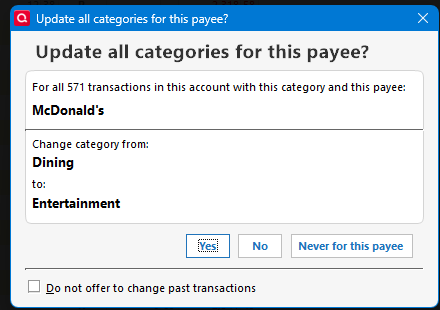
Note that since you didn't get any categories during the downloading that suggests that you turned off Quicken's suggestions. For new users, I'm on the fence if that is a good thing or not. It is this preference:
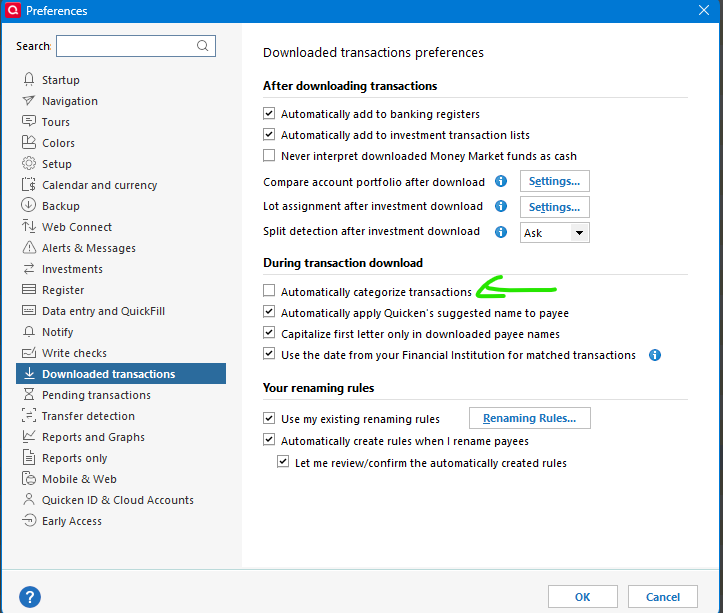
But as you can see, I have turned it off, because I definitely feel that I don't want Quicken guessing at what my new payees should be categorized as. I want it to leave blank, and I will fill it in and memorize the payee/category that I want.
Note this guess is at the tail end of all the processing. First there is the renaming of the payee. The main purpose of this to make the payee names uniform. Like changing "Safeway Store #4343" to just Safeway. Then there are the memorized payees. They are used both for manual input and for Quicken to assign a category based on the payee's name. The quickest way to create one these is to fill in a transaction for a payee with the right category and tag and memo if you want those and type Ctrl+M to memorize it (or right click and select it from the context menu).
Once you have the memorized payee created future downloaded transactions will use the downloaded payee/renamed payee to match that memorized payee and assign the category to it.
0
