Best method to assure correct categorization upon import?

A majority of categorization done when I import files from various financial institutions, in particular checking accounts is not categorized correctly. How can I improve the accuracy of categorization when I import files?
Thanks!
Scott
Answers
-
Quicken has several features that you can use to help ensure that your transactions are categorized the way you want. We could get into a lot of detail on the pros and cons of these, but here is an overview. I will focus on banking rather than investing transactions.
These options are controlled by the settings at Edit > Preferences > Data entry and QuickFill
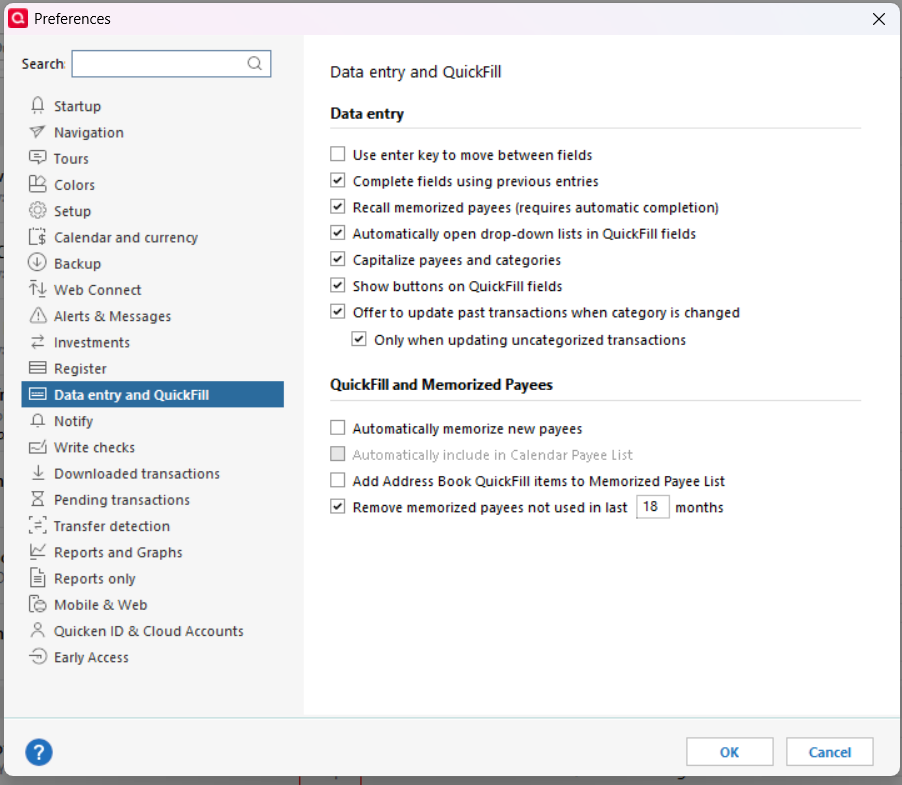
Recall memorized payees This enables use of the Memorized Payee List (MPL.) The MPL will automatically add a Category, Tag, and Memo of your choice to the Payee
Automatically Memorize new Payees This helps new users build their MPL. I leave it un-checked because I want to manage the MPL myself.
Remove memorized payees not used … This helps clear the MPL of entries that you do not use often.
These options are controlled by settings at Edit > Preferences > Downloaded transactions. These are the settings I use.
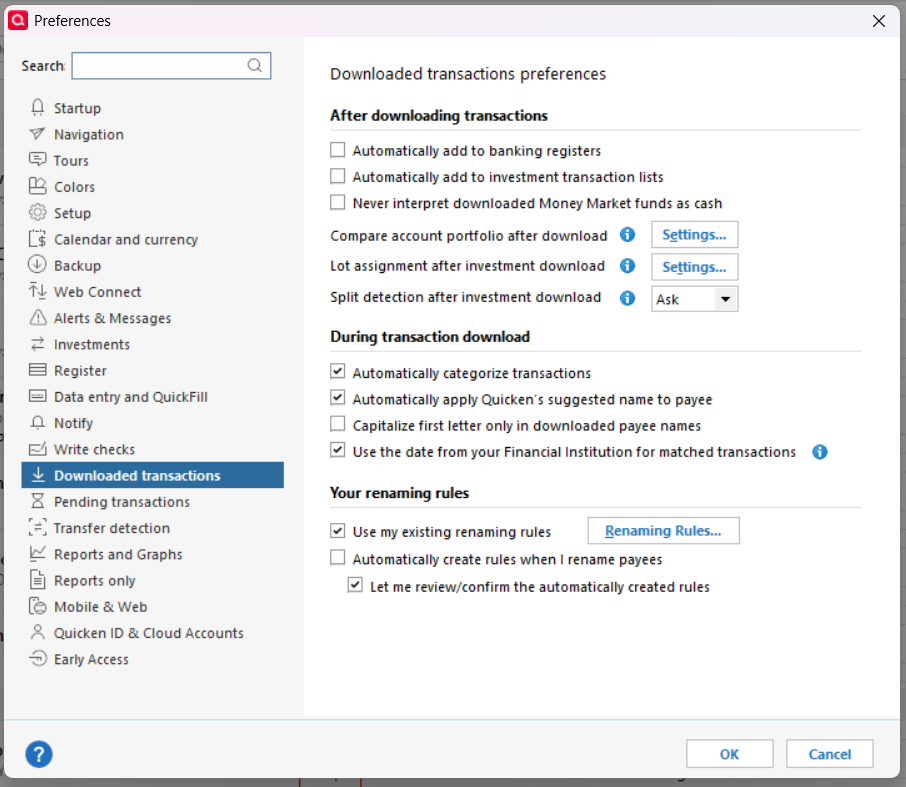
Automatically add to banking registers I leave this un-checked so that I can review and if necessary correct each transaction before it is added to the register.
Automatically Categorize transactions This lets Quicken assign a built-in Category to Payees it recognizes if they are not in your Memorized Payee List
Automatically apply Quicken's suggested name to Payee This allows Quicken to rename Payees it recognizes if none of your Renaming Rules (see below) applies
Use my existing renaming rules Renaming Rules will standardize Payee names so that for example all variations of Starbucks will simply be Starbucks.
Automatically create rules when I rename payees This is useful when you are getting started with Quicken, but I leave it un-checked and manage the Memorized Payee List myself.
Another useful feature is Reminders. These are for transactions that repeat on a regular schedule - Paychecks, utility bills, credit card bills, etc. When you set up a Reminder, you can assign a Payee name, date, Category, memo, etc to the transaction. If the amount varies, you can set it each time. If you accept the reminder with a date a few days before the transaction downloads, Quicken will enter the transaction into the register and match it to the corresponding transaction when it downloads.
QWin Premier subscription0 -
To help make memorized payees work better and reduce the number of memorized payees you need to maintain, start with Renaming Rules to make payees more consistent. An example Renaming Rule might be Starbucks to rename Starbucks Palo Alto, Starbucks Menlo Park, and Starbucks Mountain View to just Starbucks. Then you just need one memorized payee to apply your preferred category.
Quicken user since Q1999. Currently using QW2017.
Questions? Check out the Quicken Windows FAQ list0