Reconciling

I've been with Quicken for 100 years, or so it seems. LOL Suddenly, when I reconcile an account, and all agrees, and I go back to the account, the "C's" are still there. No "R's." No matter what I do, the "R's" will not appear. If I click to reconcile again, it tells me there are no transactions to reconcile.
[Edited-Readability]
Comments
-
Hello @1958usmc,
Thank you for adding to this discussion.
I do have some follow-up questions for you if that's ok.
- Where is your file located?
- Is your file being backed up/synced by any third-party cloud services like iCloud, Dropbox, or OneDrive?
- How long has this been happening?
This will give us a good starting point. Looking forward to your response.
Thank you!
Quicken Alyssa
Make sure to sign up for the email digest to see a round up of your top posts.
0 -
- Open my computer in the C drive
- Hmm. Good question, I don't know. Sorry
- Just within the last few days
0 -
Just discovered that it is synced to the iCloud
0 -
Microsoft Windows has a sneaky habit of making the Documents folder default to iCloud sync. The easiest method to get quicken off of iCloud is to create a separate folder from the Documents folder and move Quicken to it. As an example, I created a folder named Local Files and added the Quicken sub-folder.
You may also want to check your data file for any corruption caused by iCloud sync by running a file validation.
 0
0 -
How do I do a "file validation?" Please understand, I am an 85-year-old guy who is not electronically grounded. LOL
0 -
Hello @1958usmc,
Thank you for your question!
To Validate your file:
- Go to FIle in the top left of Quicken.
- Select Validate and Repair file… from the menu options.
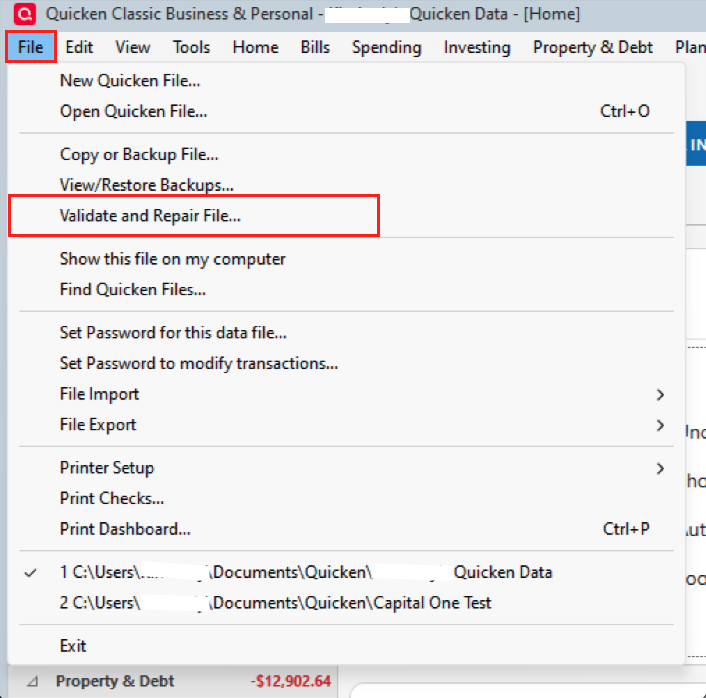
- In the window that opens up, check the first box for Validate file.
- Click Ok.
After validating your file, you would then want to try your reconciliation again and let us know how it goes. We will have more suggestions if needed.
Thank you!
Quicken Alyssa
Make sure to sign up for the email digest to see a round up of your top posts.
0 -
Thank you, Alyssa. It did not work. I still get the comment that there no items to reconcile, but there are many with only the "c".
0 -
Hello @1958usmc,
Thank you for the additional information.
Have you by chance double-checked the information in the reconciliation window? For instance, if the wrong statement ending date is used, Quicken could be looking at a different timeframe of transactions than you thought.
Earlier, when you said that you realized your file was synced to the cloud, did you notice a way to exclude it from the sync? If not, I would recommend moving your file to the default location, where it will not be synced. The default file path for a Quicken for Windows file is C:>Users>username>Documents>Quicken.
Also, if the date was correct in the reconciliation window, please try the steps outlined in this Support Article for advanced data file troubleshooting. After that, try the reconcile again.
Thank you!
Quicken Alyssa
Make sure to sign up for the email digest to see a round up of your top posts.
0

