Quicken closes after one step update

I've had an issue recently where Quicken will close after the one-step update completes. On the screen, it seems like the update has finished, but it doesn't show new transactions. If I restart Quicken and do another one-step update, the transactions get downloaded, and everything is fine.
The one thing I've noticed is that when I run it the second time, I see a message about syncing online. I've checked the preferences, and Sync is turned off, and I don't have the online backup enabled, so I'm not sure why it is even doing any syncing. I wouldn't mind this, but it seems to be related to the one step back up causing Quicken to terminate.
I took a quick look to see if anyone had reported this, but didn't spot anything. Is anyone else having this issue, or have any thoughts on how to resolve it?
Thanks!
[Edited-Readability]
Comments
-
Hello @pfspartan,
Thanks for sharing your experience—I definitely understand how frustrating it can be when Quicken closes unexpectedly after running One Step Update.
Just a quick note about the syncing message you mentioned: if your file was originally set up with sync turned on, you may still see that syncing message even after you've disabled it. The good news is that if Sync is turned off, it's not actually syncing—it's more of a leftover visual cue from the previous setting.
To help narrow this down, could you let us know where your Quicken data file is currently stored? For example, is it saved locally on your hard drive, or is it being synced by any third-party cloud services like iCloud, OneDrive, or Dropbox?
Also, how long has this issue been happening?
Looking forward to your update!
Quicken Alyssa
Make sure to sign up for the email digest to see a round up of your top posts.
0 -
Hi Alyssa. Thanks for the quick response!
The data file is stored on my hard drive. The Quicken backup folder is getting backed up to a Google Drive but the actual Quicken data file isn't getting synced anywhere.
I would say it has been happening for several weeks. It took me a few times to realize that when I ran the one step update a second time it always got the syncing message. I can try turning the syncing on and back off if you think that would help.
I run the one step update every morning and the error seems to happen every few days. I'll track it closer for the next few days to see how often it is happening.
Thanks again for the quick response!
0 -
Hello @pfspartan,
Thank you for following up with those additional details.
Enabling and then disabling the sync won't hurt anything, and you can certainly try it.
Another thing you can try is validating your file.
To do this:
- Go to File.
- Select Validate and Repair file…
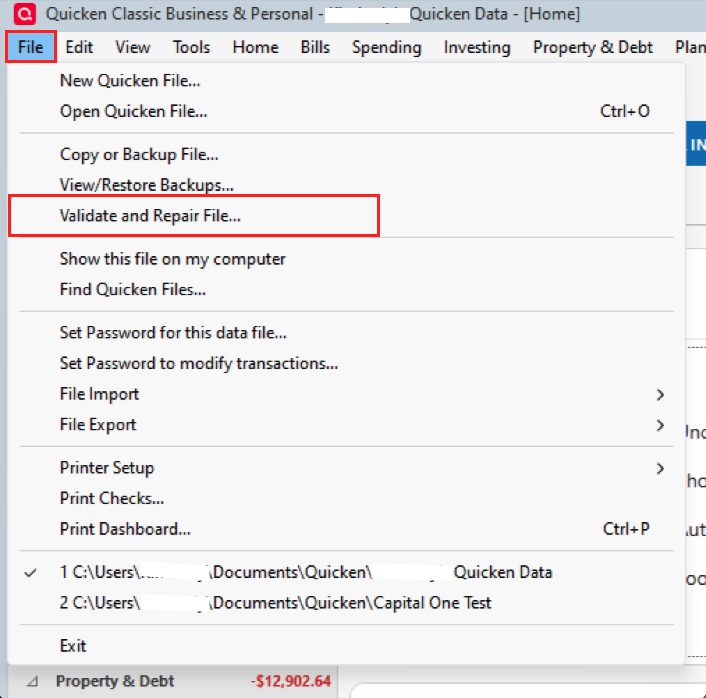
- Check the box for Validate file
- Click Ok.
After the validation, I would go File>Exit, wait a few seconds, reopen Quicken, and try the One Step Update again.
Let me know how it goes!
Quicken Alyssa
Make sure to sign up for the email digest to see a round up of your top posts.
0 -
Thanks, Alyssa! I ran the validate and it did find a few things. I'll try the one step update again and let you know. The error doesn't happen every time so I may not know for sure if it is fixed for a few days. I'll report back if the issue happens again.
Thanks again for the quick response!
0 -
Helo @pfspartan,
Thank you for following up on the validation portion.
Sounds good. I hope the validation cleared up the issue. If not, I will be here to help.
Thanks!
Quicken Alyssa
Make sure to sign up for the email digest to see a round up of your top posts.
0
