Bank Account Import

I am setting up quicken for the first time and i have many years of bank transactions (CSV format) that i want to import. Can i set up an offline bank checking account and import the historical data. After that data is imported can the bank account be switched to online banking in order to automatically import all future transactions? I have already tested the online connection to my bank and it works it just does not go back to the 10 years of historical data that i have and i have different categories and sub categories in my historical data that i want to use and feed into Qwk via the CSV file. When i did the test, the program started importing and categorizing everything and i was not able to stop it before it grabbed everything my bank allowed it to take.
Answers
-
OK there is a lot to unpack here hopefully I won't miss anything.
Recently Quicken has added a CSV import, but the data hast to be in the exact format that they show:
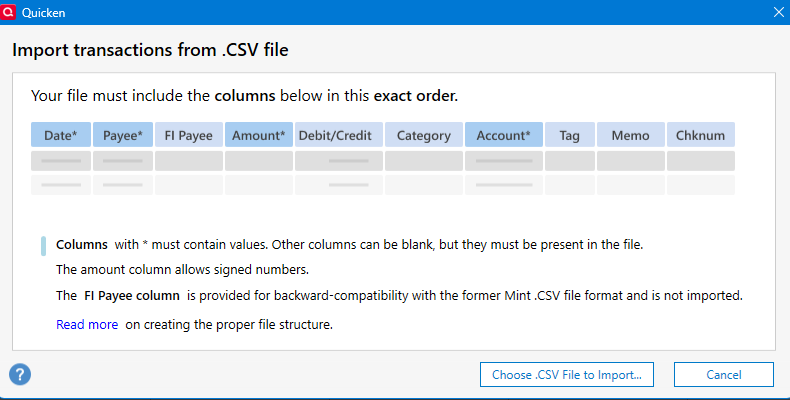
You might be better off using my program ImportQIF to convert the data to QIF format and import that.
And yes, it is possible to change from a manual entry account to one that downloads transactions using One Step Update, but the hardest part of that is the changeover and most likely duplicate transactions.
But first let's talk about the categories and the way Quicken determines them.
Downloaded transactions are first run through the Renaming Rules (you can see these on the Tools menu, but that doesn't show up until after you have connected your first online account, but I see that you can get to them in a new data file through Edit → Preferences → Downloaded transactions → Renaming Rules). The renaming rules are used mainly to normalize the payee's name (Like change Safeway Store### to Safeway) for the next step which is the Memorized Payee (also on the tools menu).
The Memorized Payees main purpose is to connect a given payee name to filling in information like the category (it is also used for manual entry for a similar purpose). This forms the payee to category relationship. Note that other than case of the letters the payee's name has to match exactly to what is in the Memorized Payee list before Quicken will use that entry to fill the category.
While downloading transactions if you don't have a matching renaming rule or matching memorized payee Quicken will make guesses at the payee name/category depending on the preferences you select. I suggest you look closely at these preferences dialogs:
Edit → Preferences:
Data entry and QuickFill (especially if you want it to memorize new payees automatically, which you might want at the beginning, but maybe not later)
Downloaded transactions
Transfer Detection (this is only a guess based mostly on the amount of a deposit and withdraw; you should always have confirm on)
Now for how I think I would attack this problem.
New data file.
Go into Tools Category List and select them all and then delete them (provided you don't want to use any of the existing ones), but note that as the categories are created Quicken will guess at if they are income or expense, and might get that wrong. Plus, some have tax lines associated with them, that would have to be added back in for yours. Maybe I wouldn't take this step… Just have them as reference to start with….
When you import using the new CSV or with QIF and have a category that Quicken doesn't have already it will create a new category. And for your transactions the preference to automatically memorized the payee/category might be exactly what you want. But I'm not sure that preference will do anything in this case. I know that they removed a lot of the processing for QIF file importing, so it probably doesn't do the memorizing, and I don't think the new CSV import does this either.
Now as for the sequence of manual/setting up for online downloading. As you have seen on the initial download you can't control how far back the transactions will download, it is controlled by the financial institution. This will most likely cause an overlap with the transactions you have in your CSV file(s).
You said you have already tried the connecting to the online account. That would give you an indication of the amount of overlap you have. But of course, it also categorized them wrong.
My inclination would be to start with the connected account, and delete any transactions that you already have CSV data for. You can click on the first transaction to delete and then hold down the shift key and select the last transaction you want to delete and then select Ctrl+D to delete them. Note though the first transaction will be the opening balance one and it is important to note that if you have to start with an amount other than zero you will need to know how that balance adjustment is done. Quicken uses the category list entry syntax of [Other Account] as a transfer to the "Other Account" and [Account] to mean a balance adjustment to the current "Account".
And then import the CSV/QIF file to fill in the history. From there on you can just download the future transactions.
0 -
Thanks for your suggestions. When I did the testing i noticed that it just grabbed everything that my bank wanted to give it so i think your suggestion of starting out in online mode, then deleting all transactions that i know that i already have in my historical excel files is the way to go. for me that would be any transaction that the banks sends over prior to 1-Jan-2025 (i do not have any 2025 data in my excel files yet). The bank only sent a partial list of 2024 data and nothing past april, 2024 so i don't think ill be in much trouble there.
I am aware of the file layout for importing transactions. If i transformed my excel data so that the categories and subcategories in my file matched exactly to the cat/subcats in quicken would quicken be happy and just accept them? I assume that for the "Category" column in the CSV file the format would be category:subcategory. If so, I can easily pull that from my spreadsheet. My historical data structure is roughly based on the quicken layout (i am an old 2012 quicken user returning to the 'clan' to give it another shot).
I was thinking of just manually updating the quicken cats/subcats and then making sure my historical data matched the new cats/subs.
I am very grateful for help here. Thanks for taking the time.
Rick
0 -
Yes, it seems that the CSV format allows the category:subcategory format. The example CSV file that they will generate has a transaction like that in it and I tried it and it imported just fine.
Updating Quicken's categories is probably the best way to go since you will retain the tax lines and whether it is an expense or income.
0

Categories
- All Categories
- 16 Product Ideas
- 34 Announcements
- 248 Alerts, Online Banking & Known Product Issues
- 20 Product Alerts
- 516 Welcome to the Community!
- 681 Before you Buy
- 1.5K Product Ideas
- 55.6K Quicken Classic for Windows
- 16.8K Quicken Classic for Mac
- 1K Quicken Mobile
- 834 Quicken on the Web
- 126 Quicken LifeHub