cannot connect to Amazon or Lowes Synchrony cards

quicken classic
Keep getting cc-503 error.when adding accounts for Amazon and Lowes credit cards.
I can logon from the website.
I have logged out and backin from intuit in preferences.
i have deactivared and cannot get it added back without error.
Comments
-
Hello @SElias,
Thank you for sharing your experience and reporting the issues you are seeing with Synchrony.
CC-503 with Synchrony Bank Credit Cards is currently a Known Issue. The issue with Amazon and Lowe's is most likely related. However, those instances are not part of the alert yet. That being said, we would need to follow the steps outlined in the Support Article. It seems like you have already one step one in the article, so you can skip that.
Step Two: Verify your bank login at the bank's website
- Go to your bank's website and confirm that you're able to log in with the expected username and password.
- Once you are logged in, review your account at the website for notifications (such as pending messages in a mailbox or message center) to confirm if further action is required to grant Quicken access.
- Some banks will require a separate login, password, or both to access accounts on third-party software. Also note, you may need to go to your settings at the website to access these prompts for new credentials.
New passwords: If you are required to make a new password, be aware that some special characters may cause errors in Quicken. These special characters are the ampersand (&), left carat (<), right carat (>), backslash (\), and forward slash (/). Additionally, while Quicken does not have a character limit, your bank may have one.
Step Three: Update your password(s) in Quicken
- Launch Quicken and go to Tools > Password Vault > Add/Edit Passwords.
- Click on the account in the Password Vault.
- Choose Delete Password for the account.
- Complete a One Step Update, you will be prompted to enter the password manually.
- Type in the password (the same one used on the bank's website) and check in the box marked Save next to the password field.
- Click Update Now.
If there is no option to delete and update the password, or if the login ID/username also needs to be changed:
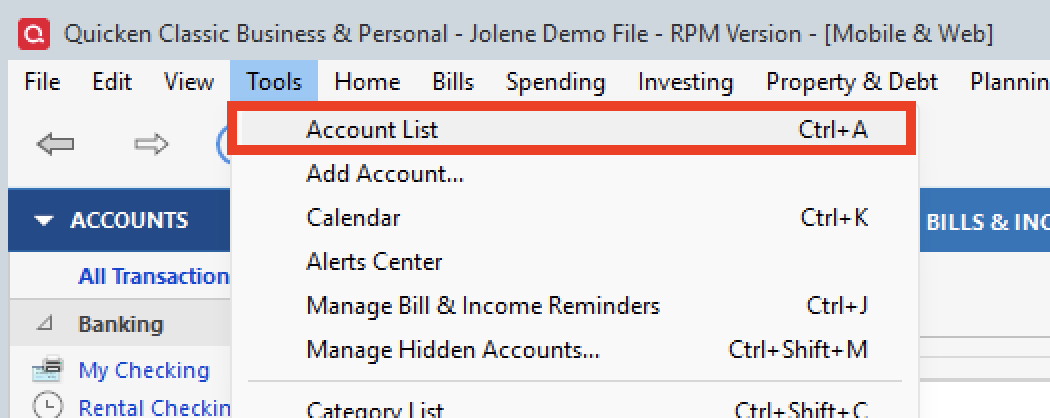
- Choose Tools > Account List.
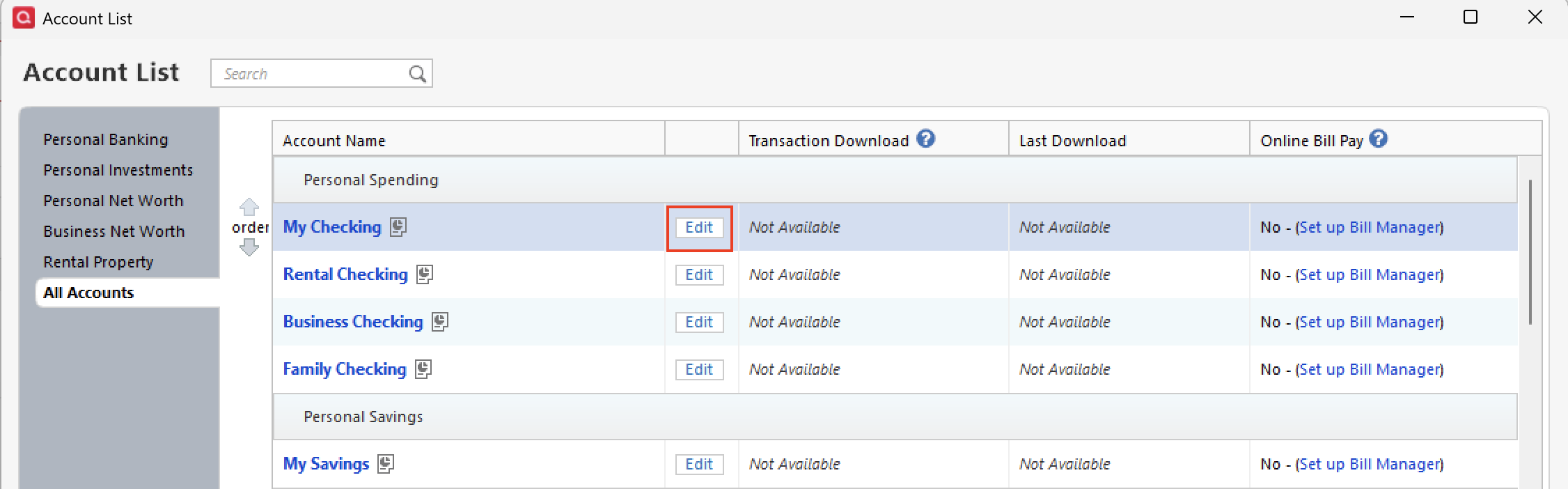
- Click the Edit button next to the account you want to change the login ID for.
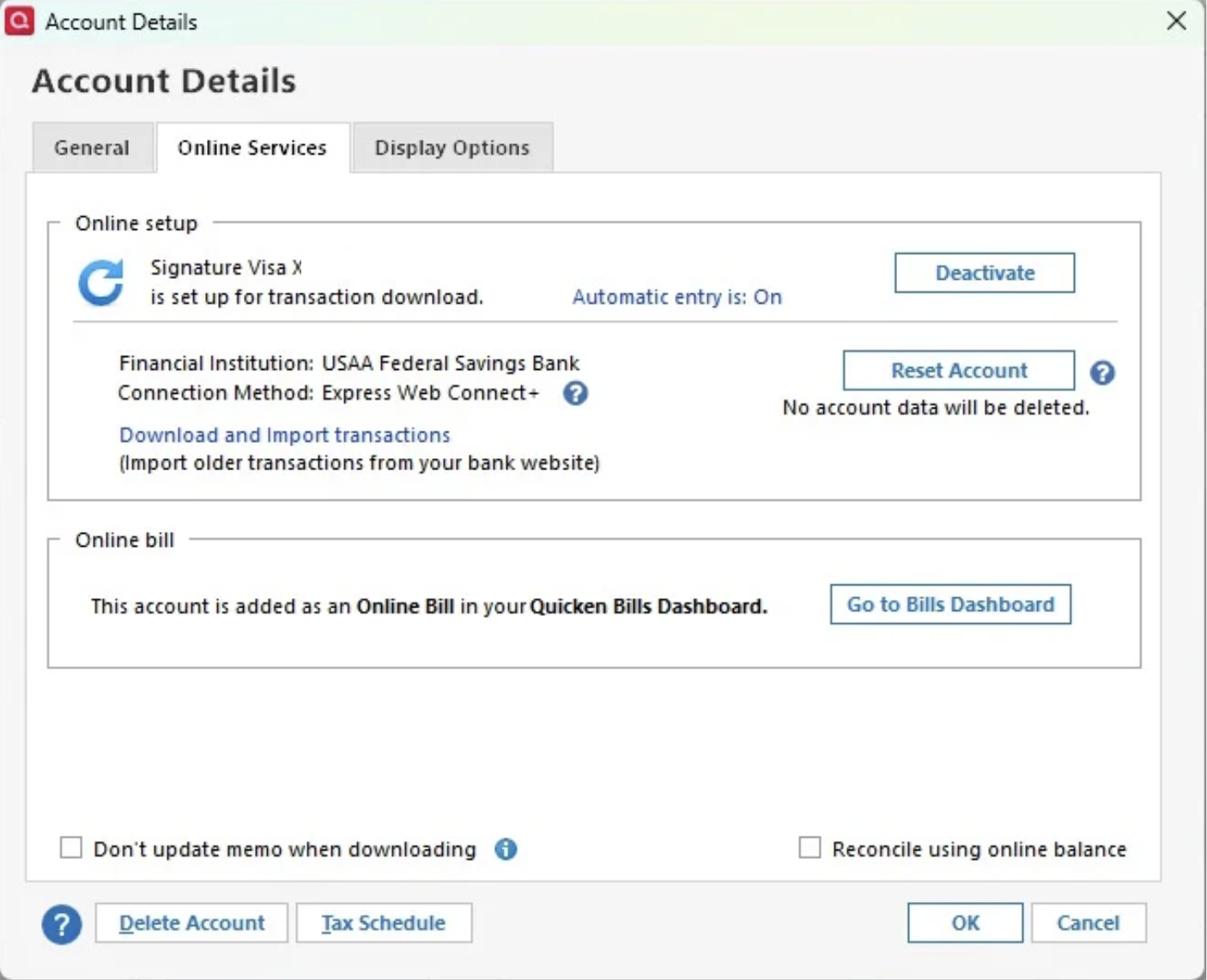
- In the Account Details window, click the Online Services tab.
- Click Reset Account.
- Enter the correct login ID and follow the on-screen prompts to complete the reset.
- If prompted, carefully LINK the accounts found to the existing accounts in Quicken.
After the reset process is complete, attempt your online session again.
If the issue persists
Try Deactivating and Reactivating the affected accounts:
- Choose Tools > Account List.
- Click the Edit button next to the account you want to change the login ID for.
- In the Account Details window, click the Online Services tab.
- Click Deactivate, and then click Yes to deactivate online services.
- Click Yes again, if necessary, to confirm your choice.
- Repeat these steps to deactivate all accounts at this same bank.
- Return to the Online Services tab and click Set up Now for each account you've deactivated.
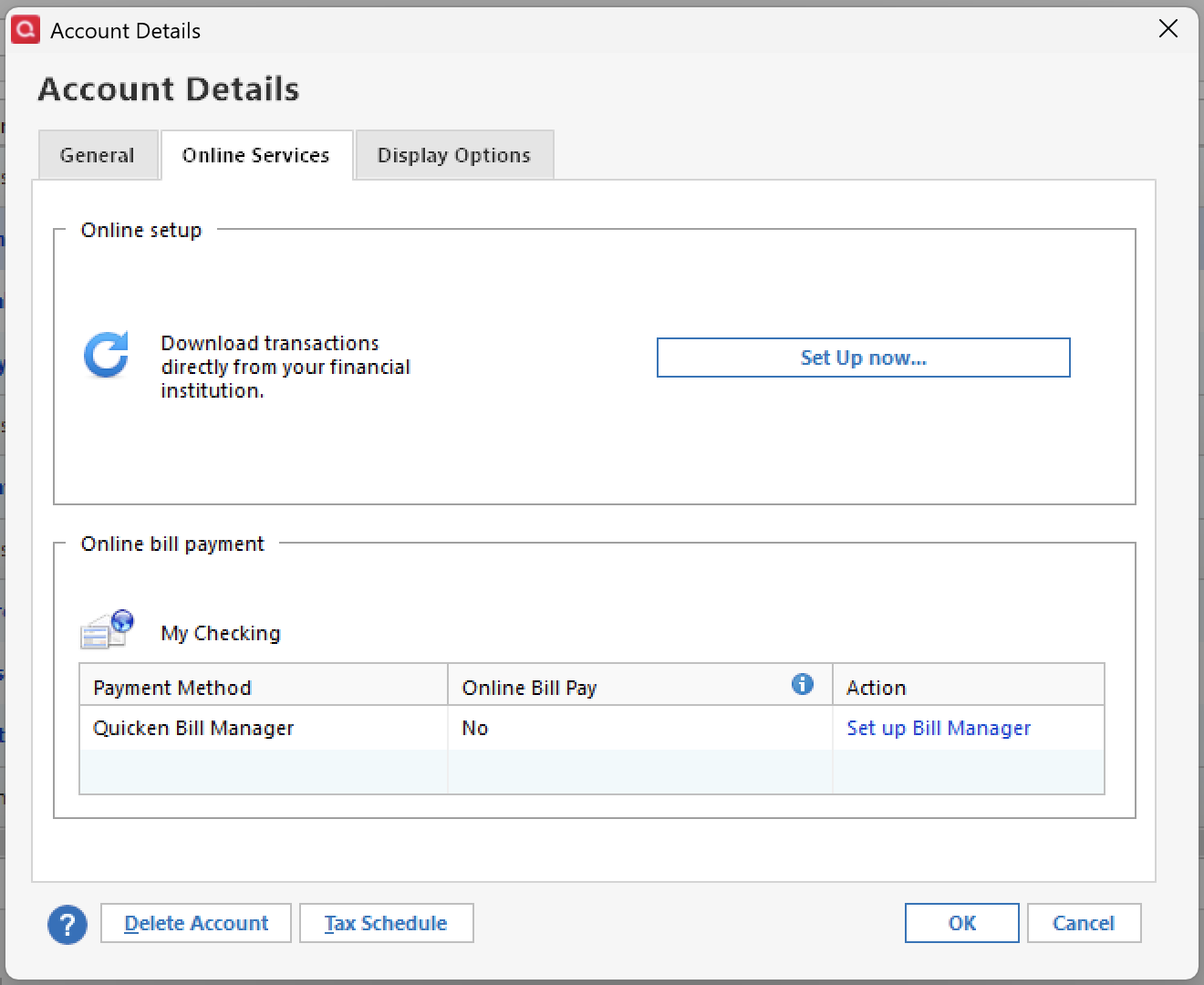
- Enter the correct login ID and follow the on-screen prompts to activate your account.
If the steps do not resolve the issue, you will need to contact Quicken Support directly. Further investigation and possible escalation may be necessary.
Thank you!
Quicken Alyssa
Make sure to sign up for the email digest to see a round up of your top posts.
0
