Changed password on RBC Wealth Management, now cant download transactions

Yesterday I changed my password on my master RBC wealth management account as it had been some time since I'd done so. Logged into the site thru the web and it let me access things as normal. 2FA is enabled. Quicken downloads are enabled in the preferences on the site.
Today went to update my RBC accounts in Quicken and it says cannot login. It seems to find the accounts and then sends me a 2FA request which I enter. After this the One Step Update screen simply says it encountered an error while connecting to the bank.
Previous screens said it simply could not login, saying 'signon information provided has failed authentication'
I can still log into the account thru the web so it doesn't appear to be locked. I have seven different account w/ RBC and all worked perfectly yesterday.
Quicken Classic Business & Personal
Version: R65.29
Release: 27.1.65.29
Windows 11 Enterprise
Comments
-
Hello @epicmountain,
Thank you for sharing your experience. I am happy to help.
After reviewing your account connections internally, it appears you are receiving a CC-506. This error occurs when Quicken is unable to identify the account in Quicken to which your downloaded information belongs.
To resolve this:
Refresh your account information
- From your account register, select the Actions gear icon at the very top of your register (Ctrl + Shift + N).
- Then select Update Now.
- Follow the on-screen instructions to complete the update.
- If the problem persists, continue with the procedures below.
Deactivate all accounts for this financial institution, then force Quicken to "discover" all available accounts:
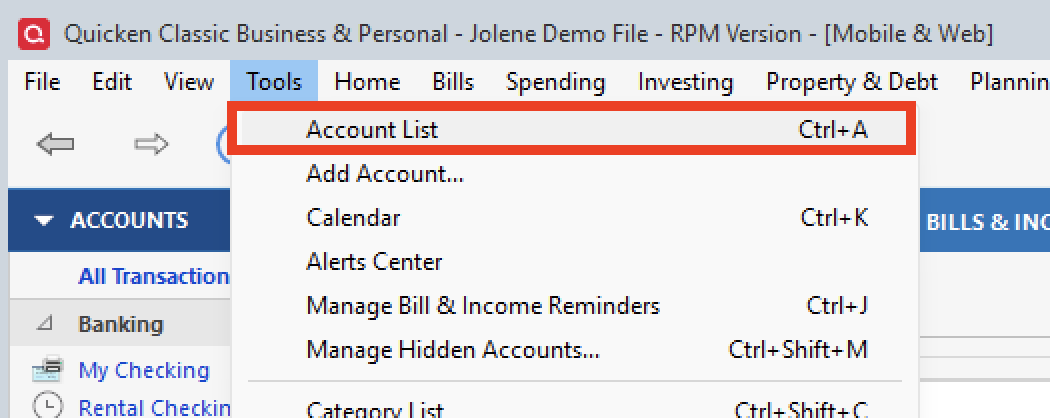
- Open the Account List in Quicken (Tools > Account List OR Ctrl + A).
- If present, select the Show Hidden Accounts checkbox at the bottom of the Account List.
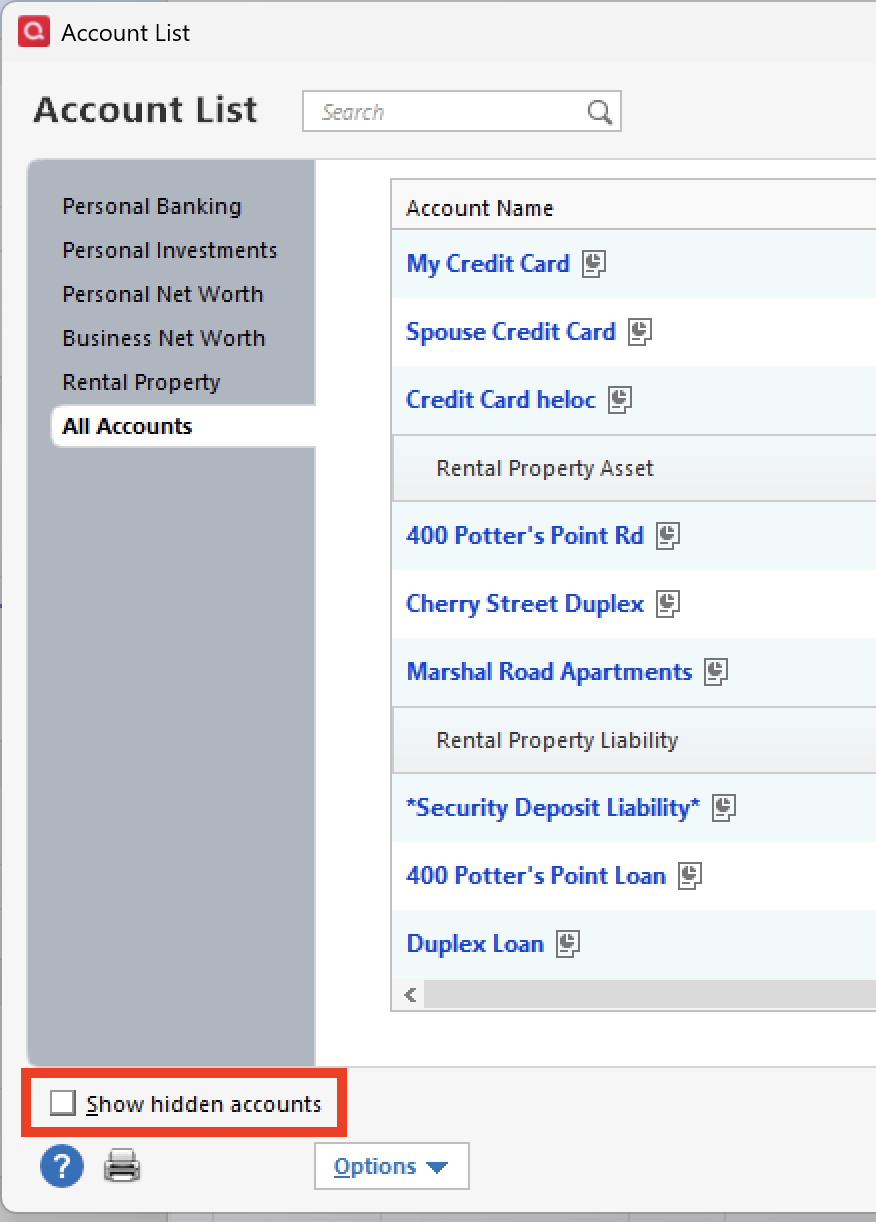
- Edit each account with this financial institution to Deactivate (or Remove From One Step Update) on the Online Services tab.
- When finished, close the Account List.
- Close, then re-open Quicken.
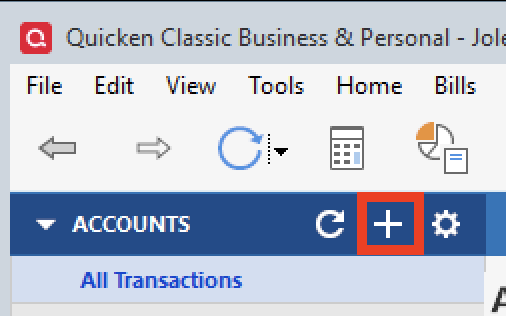
- Click the Add Account button at the top of the Account Bar on your main view.
- Walk through this process as if you were going to add a new account, providing the login credentials and answering any security questions/processes presented, UNTIL you reach the screen where Quicken displays the Accounts Discovered at the financial institution.
- Very carefully LINK each of the found accounts to the appropriate account you already have set up in Quicken.
Let us know how it goes!
Quicken Alyssa
Make sure to sign up for the email digest to see a round up of your top posts.
0 -
Alyssa,
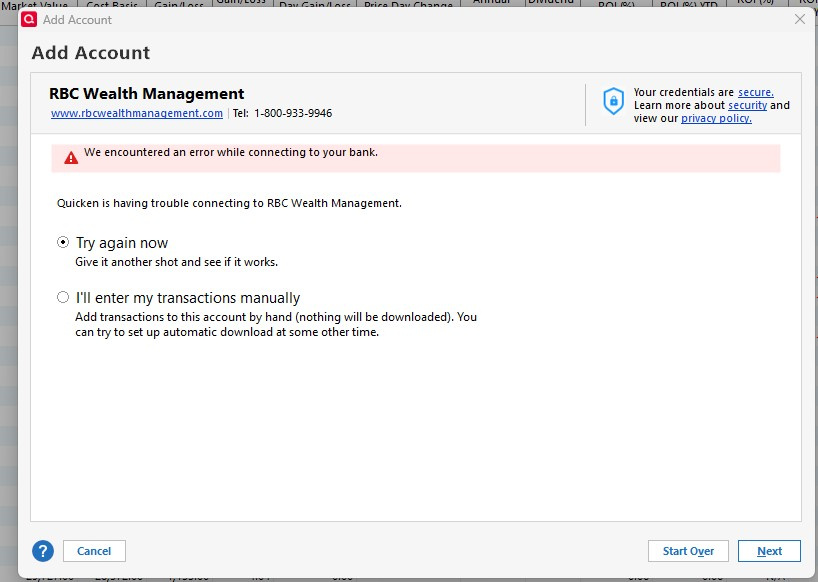
Tried your process just now. All seven accounts have been removed from one step update. Created a 'new' account for RBC Wealth Management and entered in username/password and 2FA code. Failed. Screenshot attached. Sometimes my VPN can cause an issue so I tried it with and w/o it on and it failed both times.
From the connlog.txt;
20260112 17:18:22: Marketing session sending to: https://msa.intuit.com/banking/fimkt/basic/QWBasic.ini
20260112 17:18:22: QFN: Beginning get from https://msa.intuit.com/banking/fimkt/basic/QWBasic.ini
20260112 17:18:23: QFN: End get from https://msa.intuit.com/banking/fimkt/basic/QWBasic.ini, netstatus 0
20260112 17:18:23: QFN: Beginning send to https://ofx.rbc.com
20260112 17:18:25: QFN: End send to https://ofx.rbc.com, netstatus 0
20260112 17:18:25: QFN: Beginning send to https://ofx.rbc.com
20260112 17:18:27: QFN: End send to https://ofx.rbc.com, netstatus 0
20260112 17:18:27: Signon information provided has failed authentication.Question for you: Could there be a password 'length' or 'format' issue? My previous password wasn't its current 32 characters like it is now. It was much shorter. When I made the password longer, that's when I could not login. These are NOT my passwords.
Example PW now: GgWh^TBn5WfATjxtX@EBrt6g9@kfT4mr
Example PW previous would be similar but only say 20 or less characters.
I also tried a PW like this, and this is when it failed the first time: Urgent7-Exes7-Garbage9-Squid8-Atop7
 1
1 -
Thank you for following up with additional information.
Yes, in some cases, password length can cause an issue. However, password requirements differ, so there is no universal answer.
If you send over your log files, I can take a look to see what the requirements are for this bank, as it can usually be found there.
To send over your logs, go to Help>Report a problem>Send to Quicken.
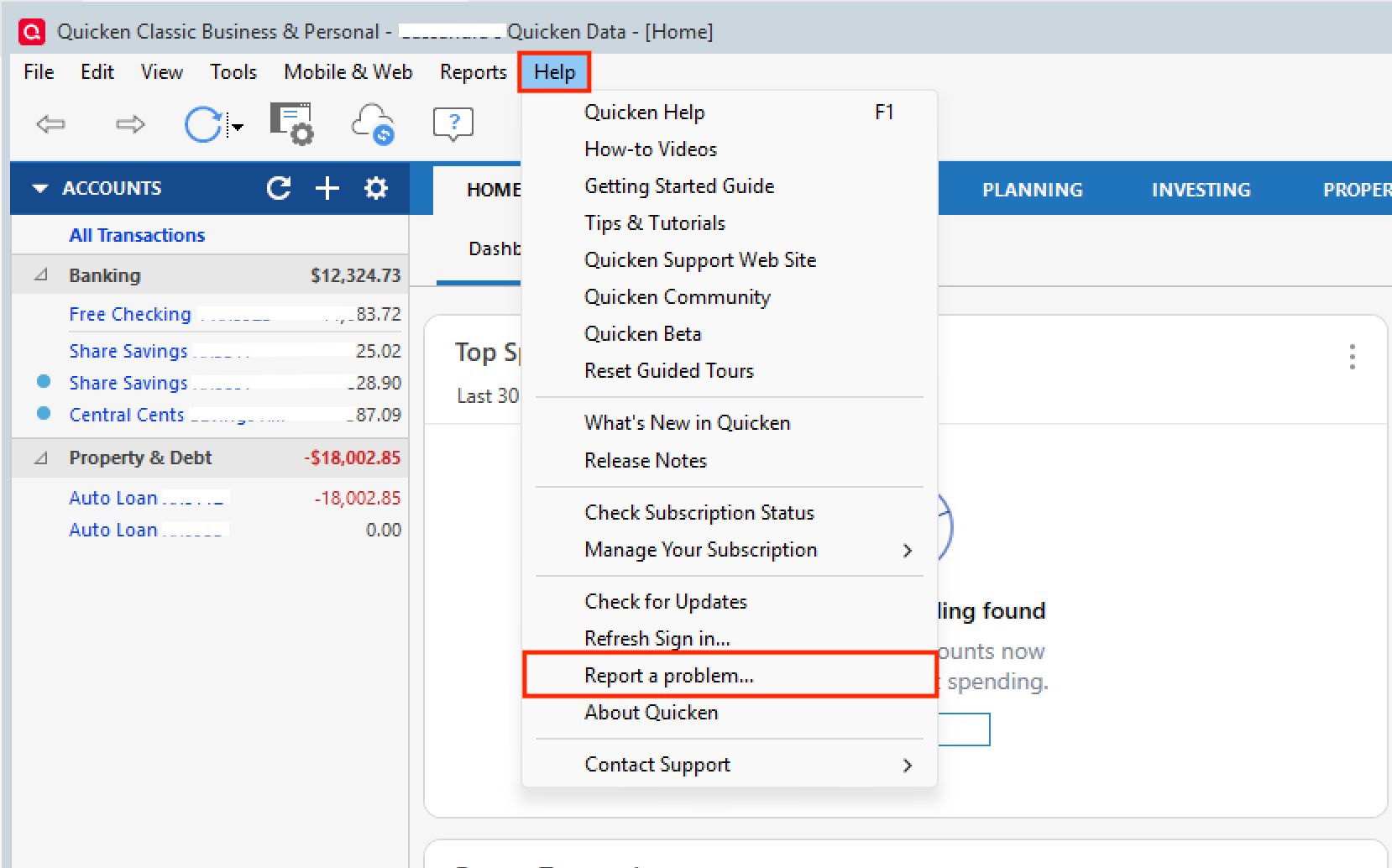
Let me know once you have done it, and I will take a look!
Thank you!
Quicken Alyssa
Make sure to sign up for the email digest to see a round up of your top posts.
0 -
Alyssa,
Uploaded the logs this morning, 536 CST. "RBC Wealth Management login error" was the subject.
thanks..
1 -
Anything found in the log files I sent last week?
0 -
I changed my PW to 16 random characters according to RBCs rules and it still would not connect.
0 -
Thank you for following up, and I apologize for the delayed response.
Unfortunately, I searched, and the password requirements are not in the logs, like we would normally expect them to be.
Given that you have already completed the troubleshooting steps I provided above, and the issue has persisted, you will now need to reach out to Quicken Support. Further investigation and escalation may be required.
Sorry, I couldn't be of more assistance!
Quicken Alyssa
Make sure to sign up for the email digest to see a round up of your top posts.
1 -
OK thanks for the help. I'll see what support can do for me.
1 -
Quicken Alyssa
Make sure to sign up for the email digest to see a round up of your top posts.
0 -
Alyssa,
So I spend nearly an hour on the phone w / Quicken support and a screen share trying various things w/ smaller, parsed versions of my data file. In the end it was escalated up the support chain and they said the issue is on the RBC end. My username and PW for RBCs website will not work in Quicken and I need a new login and PW from RBC that will allow for a direct connection in Quicken. Strange because there is an option in RBCs website that says 'allow Quicken downloads'. Its currently on for me and has been.
So I guess I call RBC and see what they say, I don't remember having a special login to allow for Quicken downloads.
1 -
Thank you for the update!
It is common to need a special set of credentials for Direct Connect. Hopefully, RBC can provide you with some that will work.
Thanks again!
Quicken Alyssa
Make sure to sign up for the email digest to see a round up of your top posts.
0
