Deleting Transactions Downloaded from Bank

Hello Quicken Community,
I am new to Quicken with a subscription to the Desktop version of Quicken Classic Premier. In going through the setup, I downloaded all my bank account information from my bank. When the file was imported, I saw that the transactions went all the way back to 2023. It is not necessary that I have 2023 and 2024 information in Quicken, and I need to know if I can just delete all of these transactions and then enter an opening balance for the register as of 1/1/25, which would be the ending bank balance per my bank statement of 12/31/2024. I would appreciate the Community's help with this.
Thank you in advance.
[Edited-Readability]
Answers
-
Welcome @cuttersmom.
It is perfectly fine to do that if that is your desire.
After you do that, it is possible in rare occasions that your balance may be off by day or two depending on when the transaction download/post date was in Quicken - e.g. your 12/31 transaction come into Quicken as 1/1. In such case manually enter an adjustment transaction such that the ending balance matches your bank.
Very important tip for all of your accounts: Make a note of every opening balance $ amount in the memo field of the respective transactions. Why? There is an old unresolved/unknown issue in Quicken where an opening balance may sporadically get altered when an account is reset, deactivated and reconnected. In such cases you will notice that your ending balance is off. This should be an immediate indication to you that possibly the bug surfaced and changed your opening balance. Hence you can quickly compare it against what you have in the memo field and easily correct it.
- Q Win Deluxe user since 2010, US Subscription
- I don't use Cloud Sync, Mobile & Web, Bill Pay0 -
Hello @cuttersmom,
Thank you for posing this question!
Just adding to what has already been suggested.
Yes, you can absolutely delete the history you don't want and adjust the opening balance. I would make sure to save a backup first. This way, if anything goes wrong during the process, you can get back to where you started.
To save a backup:
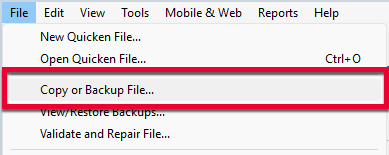
1. Select File > Copy or Backup File...
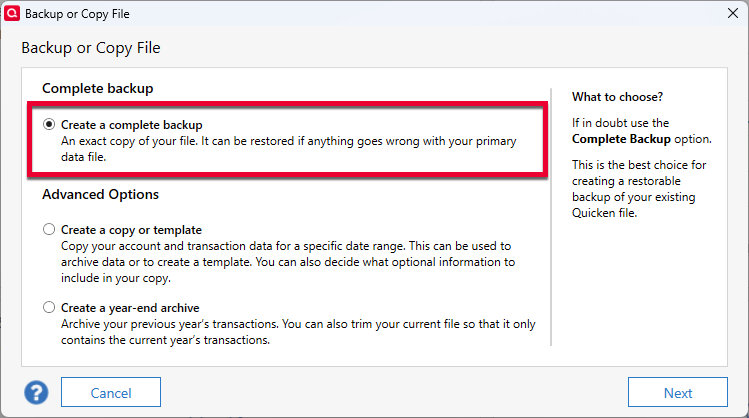
2. Select Create a complete backup and click Next.
3. To make it easier to identify your latest backup, you can put a check next to Add date to backup file name.
4. Quicken will show you the location where your backup will be saved, along with the name of the backup file (this is typically your Quicken file name followed by .QDF-backup).
- The default save location for backup files is C:\Users\[your name]\Documents\Quicken\BACKUP, and we recommend leaving this unchanged.
- If you need to change this location, click Change... then select a folder to save the backup to. After making your selection, click Save.
5. Click Create Backup.
Let us know how it goes!
Quicken Alyssa
Make sure to sign up for the email digest to see a round up of your top posts.
0 -
Just checking in, we haven't heard back from you in a while.
Do you still need assistance?
Thank you!
Quicken Alyssa
Make sure to sign up for the email digest to see a round up of your top posts.
0 -
Hello again,
Checking in once more before this thread is closed.
Let us know if you still need assistance.
Thank you!
Quicken Alyssa
Make sure to sign up for the email digest to see a round up of your top posts.
0 -
Due to the lack of response, I went ahead and closed this post.
If you still require assistance, please feel free to start a new post.
Thank you!
Quicken Alyssa
Make sure to sign up for the email digest to see a round up of your top posts.
0