Quicken crashes on startup (unless run as admin)

I've been using Quicken for about 10 years now. Following a recent update, when I try to launch Quicken, it crashes immediately. I can only start it with the CTRL-ALT-click (run as admin) trick. I've validated my data file multiple times, but the issue perisists. Any suggestions as to what else to try?
I'm currently on R66.12 running in Windows 11.
Comments
-
Hi @ChrisSBU,
Thank you for reaching out and for sharing the details about the issue you’re experiencing. I’m happy to help you work through this.
There are several troubleshooting steps we can try. Before we proceed, could you please provide a bit more information?
- Where is your Quicken data file located? To check, please go to File and look at the bottom of the menu for “Recent Files.” The file with the check mark next to it is the one currently open. Please let me know its location.
- Is your file being backed up/ synced by any third-party services like Carbonite, OneDrive, or Backblaze?
- Are you using a VPN, firewall, or antivirus software?If so, please let me know which one(s).
- Do you have any pending Windows updates, or did you install a Windows update around the time the issue began?
- Have you tried restoring a backup from a date prior to when the issue started?
- Have you created a new test data file to see whether the same behavior occurs there?
Once I have this information, I’ll be able to guide you through the next steps. I look forward to your response.
Quicken Laura
Make sure to sign up for the email digest to see a round up of your top posts.
0 -
Good morning!
The file is located on my data drive, D:\work, to ensure it's not part of OneDrive or any other process.
No backup or third party services running on that drive. No VPN or firewall, and no recent windows updates. I think this happened right after a Quicken update last week.
I created a new blank file, and Quicken still crashes immediately upon startup.
0 -
Hi @ChrisSBU,
Thank you for answering those questions. Just to confirm, is your D: drive an internal drive?
If the crashing started after the most recent Quicken update, we can try manually installing the latest patch. Please follow these steps:
- Close Quicken.
- Download the latest Quicken manual patch update for Windows
- Install the downloaded patch file.
- Reopen Quicken once the installation is complete.
Please let me know the results after trying these steps, and we’ll go from there if needed.
Quicken Laura
Make sure to sign up for the email digest to see a round up of your top posts.
0 -
I downloaded the patch, which appeared to open up everything fine. But when I closed it and tried to re-open, it crashed again.
0 -
Hi @ChrisSBU,
Thank you for giving that a try. I appreciate your efforts. There are a few additional troubleshooting steps we can take to help resolve the issue.
First, we recommend ensuring that your Quicken data file is stored locally on your computer. The default and recommended location is:C:\Users\username\Documents\Quicken
Using a file from an external location can cause it to become corrupted, leading to the issues you are experiencing.
Steps to change the file location:
- Close Quicken if it is open.
- Open File Explorer and locate your current Quicken data file (.QDF).
- Right-click the file and select Copy (or Cut, if you prefer to move it).
- Navigate to C:\Users\username\Documents\Quicken.
- Right-click inside the folder and select Paste.
- Once copied, double-click the file from this new location to open it in Quicken.
If the issue persists after moving the file, we can proceed with performing a clean uninstall and reinstall of Quicken.
- Click the Start button and select Settings (gear icon).

- Select Apps from the settings list, then click Installed apps.
- In the Installed apps list, scroll down to Quicken, click the three dots menu, then select Uninstall.
- Click on Uninstall again to confirm and follow through the prompts until the program is removed.
- Restart the computer.
Step 1: Download Quicken from
- Click the corresponding button below to download Quicken for Windows.
- Click Run to begin.
- If you're using Google Chrome, click the download progress button at the bottom left corner of the window after the download is complete.
- If you're using Firefox, click Save File. Click the download icon in the upper right corner, then select the Quicken EXE file.
Step 2: Install Quicken
- Follow the on-screen instructions to complete the installation.
- Click Next to get started.
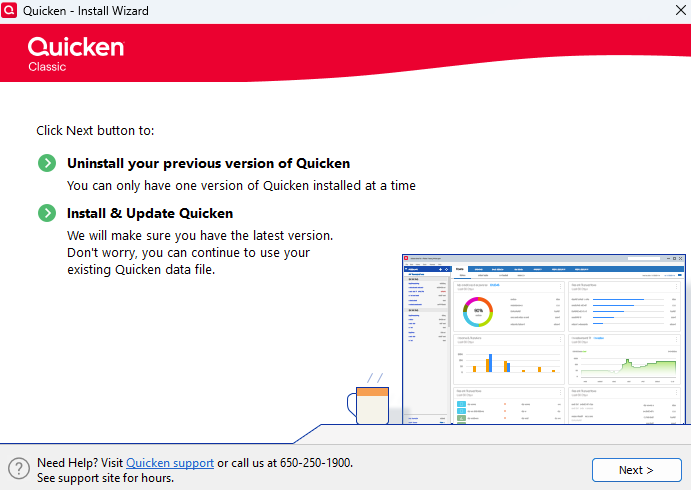
- Click Install on the Ready to install prompt.
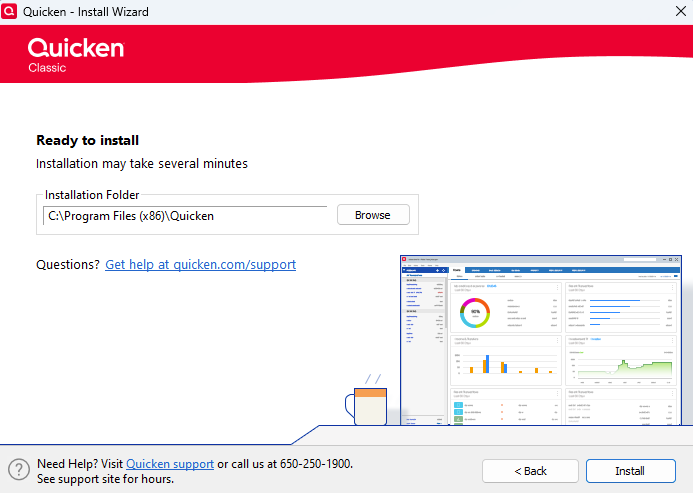
- Click Next to get started.
- When the installation is complete, click Done.
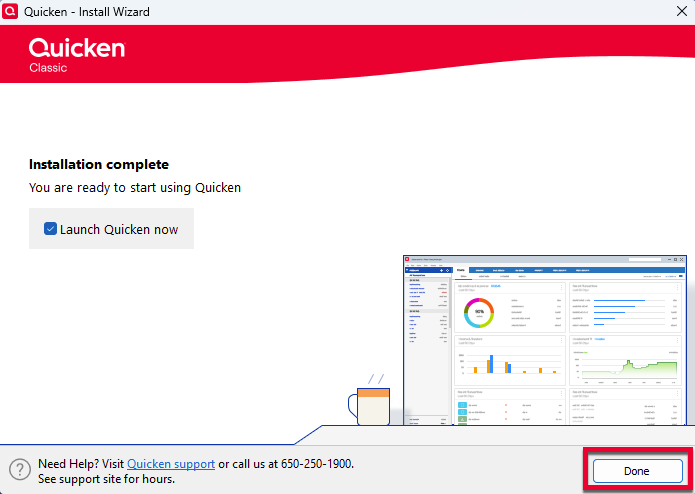
- Enter your Quicken ID and Password.
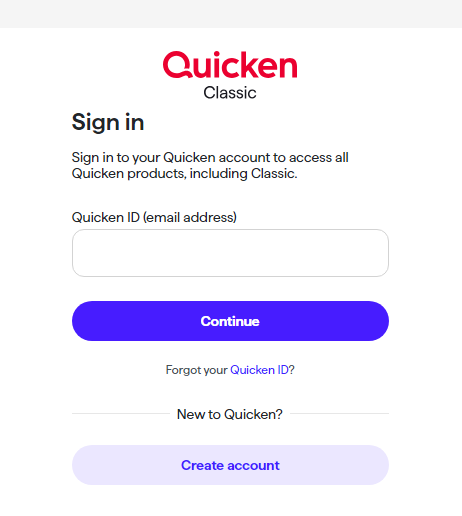
- If prompted, enter the 6-digit code. This process verifies your information and helps keep your account safe.
Step 3: Open your Quicken data file
- Select “Start over and create a new data file.”
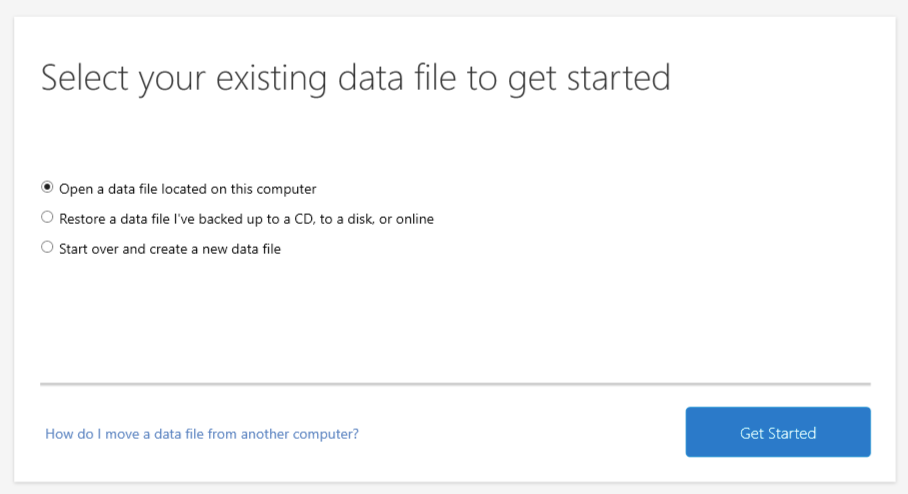
Please let me know how it goes!
Quicken Laura
Make sure to sign up for the email digest to see a round up of your top posts.
0 -
Thanks for the guidance…
When trying to re-install, it threw an error, and I had to manually delete the original Quicken install folder, which also threw some warnings…it looks like a prior update may have locked or changed permissions on some of the files to require administrator.
Once I deleted the old folder, I was able to re-run the installer and it opened my existing file without issue. Thanks again!
0 -
Hi @ChrisSBU,
That’s great news! I’m glad to hear the issue has been resolved.
If you need any more help, please don't hesitate to get in touch. We're always here to help!
Quicken Laura
Make sure to sign up for the email digest to see a round up of your top posts.
0 -
I have the same issue as @ChrisSBU
I have tried all the above suggestions but after closing it crashes on next opening.
The only way I can get it to run normally is to reinstall the manual fix, QW27.1.66.28MPatch
All my data files are on the C in the prober location.
Any assistance would be greatly appreciated.
0 -
Hi @Eli58,
Thank you for joining this thread and sharing your experience. I'd be happy to help you.
You mentioned that the only way to get things running normally is by reinstalling the manual patch (QW27.1.66.28MPatch). Does this mean you need to reinstall the patch on a regular basis?
Additionally, it would be very helpful if you could provide a bit more information on the following:
- Is your file being backed up/ synced by any third-party services like Carbonite, OneDrive, or Backblaze?
- Are you using a VPN, firewall, or antivirus software? If so, please let me know which one(s).
- Do you have any pending Windows updates, or did you install a Windows update around the time the issue began?
- Have you tried restoring a backup from a date prior to when the issue started?
- Have you created a new test data file to see whether the same behavior occurs there?
I'll look forward to your response!
Quicken Laura
Make sure to sign up for the email digest to see a round up of your top posts.
0 -
Hi Laura, sorry for the late response.
Yes, to the manual patch. Once I run the patch and select Start Quicken it opens and displays the Dashboard and can download data to update the files. I can also open additional data files as long as I don't close Quicken. Once I close the app, I need to run the manual patch before I am able to open any files. On failure Quicken opens and I can see the last open file under accounts, but it errors before displaying the Dashboard.
At this time it is only saved on my local C and backed up there as well.
I am running Bitdefender Total Security and have been for a couple of years before this issue started.
I opened an older Quicken file that hadn't been opened prior to this failure but once I closed Quicken and tried to run it again it failed/crashed and opened the same submit error report as it does for the others.
Thanks again for your support.
0 -
Hi @Eli58,
No problem at all. Thank you for taking the time to answer those questions.
I just want to clarify your response regarding the last question about creating a test file, as it wasn’t entirely clear whether that step has been completed. If you haven’t tried it yet, please follow the steps below to create a new file and let me know if the issue persists there as well:
- Go to File > New Quicken File.
- Select New Quicken File and click OK.
- Enter a name for the file, then click Save.
(Avoid using special characters such as * ? < > | " : \ / and do not add the .qdf extension—Quicken will do that automatically.) - Sign in with your Quicken ID.
- Choose whether to enable Mobile.
- Click Add Account to start adding accounts to the new file (adding accounts is optional—you can skip this step if you just want to test the file).
Once you’ve completed these steps, please let me know how it goes. I’ll be happy to assist further based on the results.
Quicken Laura
Make sure to sign up for the email digest to see a round up of your top posts.
0 -
Hi Laura,
I created a new Quicken file and added an account.
I did this by running Quicken as admin as this allows me to run Quicken without the manual update however it always comes up with a warning that running as admin is not supported and could cause issues but Quicken runs and I can access files and accounts as well as download without any issues so far.
I closed quicken and tried to run it normally, but it also crashed with the new file as well.
I guess I will need to keep running the manual patch each time I run Quicken if I don't want to get the unsupported message when running as admin.
Best Regards
Eli58
0 -
Hi @Eli58,
Thank you for trying all the steps provided. I’m sorry to hear the issue is still unresolved.
As a next step, I recommend installing the Microsoft .NET Framework Repair Tool as an administrator, as this can sometimes resolve issues like the one you’re experiencing. You can download it here:
Steps to install the .NET Repair
- After downloading, locate the NetFxRepairTool file in your downloads folder.
- Right-click on it and select Run as administrator.
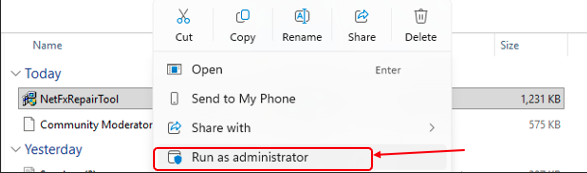
- Follow the on-screen prompts to complete the installation.
After installing the utility, please restart your computer and then try launching Quicken again.
If the issue persists, I recommend contacting Quicken Support for further assistance. They’ll be able to guide you through additional troubleshooting steps in real time and escalate the issue if necessary.
Please feel free to reach out if you have any additional questions.
Quicken Laura
Make sure to sign up for the email digest to see a round up of your top posts.
0 -
Hi Laura, no luck with the net fix repair tool.
Not sure if quicken support is going to help. Went there first with no luck and they suggested the community.
Will give them another shot.
0 -
I understand how frustrating this situation can be. Quicken Support will be able to escalate the issue in real time if needed, and you can share this thread with them so they have full visibility into the steps you’ve already taken.
Additionally, you may try temporarily disabling Bitdefender, your firewall, or other security software as a test. While less common, updates to these programs can sometimes interfere with Quicken’s performance.
Please let me know if you have more questions.
(Ticket #10207431)
Quicken Laura
Make sure to sign up for the email digest to see a round up of your top posts.
0
