Fidelity CC-800 error, lost transaction history

Windows Classic Premier…. Fidelity
This morning, I updated my transactions, got the CC-800 error. Went through the steps to add the Fidelity accounts again and sign in.
Quicken restarted. Now my view of the register has changed. If I click on an account, it goes to what I suppose is a dashboard, which shows the holdings in the account (total value, portfolio by security, value over time, and top movers). I no longer have my transaction history, only share balances for various dates.
I have a copy from the beginning of this month that still has the transactions, but it won't update the transactions for this month.
How do I fix this and get my transaction history back?
[Edited - Readability]
Comments
-
To add to the problem, my copy file that had the transactions still, I add to add again to Fidelity to download transactions. After doing so, I lost all the transaction history in that file as well.
0 -
Hi @Tony Luers,
Thank you for sharing those details. I’ll be happy to help you troubleshoot the issue.
You can enable the transaction view in the file where your accounts are updating properly. To do so, please follow these steps:
- Open an investment account.
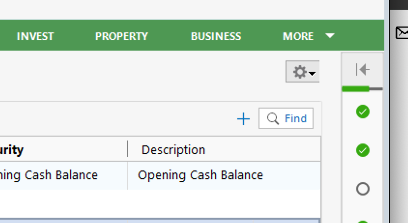
- Click on the "Gear" icon in the upper right.
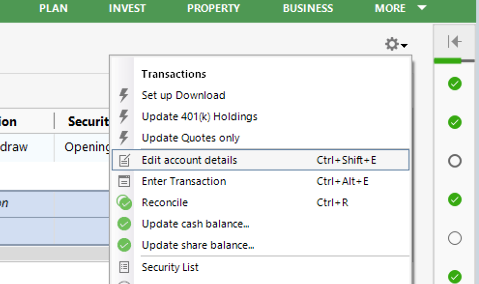
- Select "Edit account details."
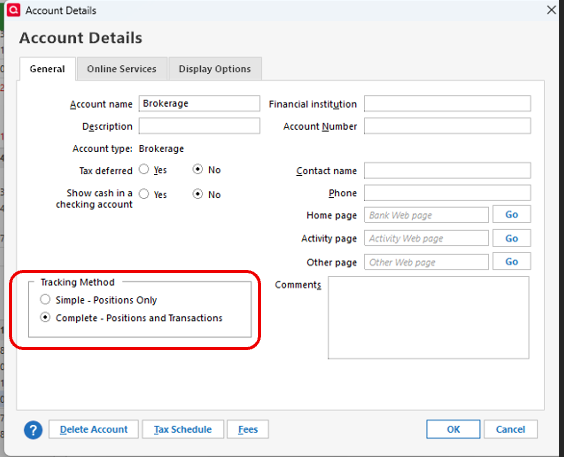
- In the account details at the bottom left, you will find the "Tracking Method" > select "Complete - Positions and Transactions.
- Click ok.
Please let me know how it goes!
Quicken Laura
Make sure to sign up for the email digest to see a round up of your top posts.
1 -
Thank you very much, that took care of it!
I do have another question maybe you can answer.
There are 10 accounts. Typically, any new transaction has a red flag in the account column but 2 or 3 account have the blue dot. Why is this and how do I get all accounts to show the red flag so I can review the transactions?
0 -
Hi @Tony Luers,
I’m glad to hear that worked for you! I can definitely help with the blue dot issue.
The blue dot appears when the Automatic Entry setting is enabled. To disable it, follow these steps:
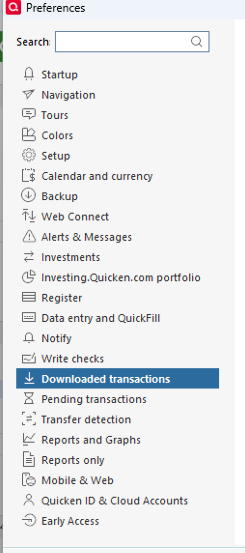
Check the global preferences:
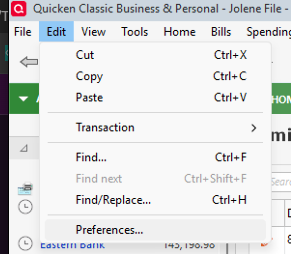
- Go to Edit
- Select Preferences
- Click on Downloaded Transactions
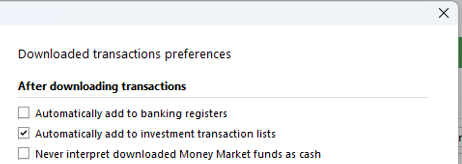
- Ensure that “Automatically add to banking registers” is unchecked
To verify the setting for the specific account:
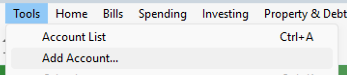
- Go to Tools > Account List
- Select the account where the red flag is no longer appearing and click Edit

- In the Account Details window, select the Online Services tab
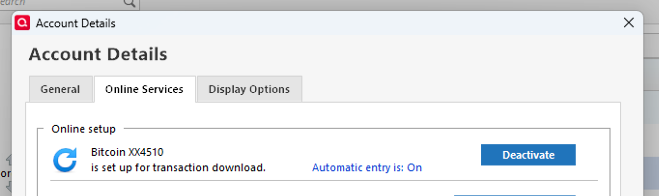
- Click on Automatic Entry
- Choose “Use the general account preference that applies to all Banking accounts”
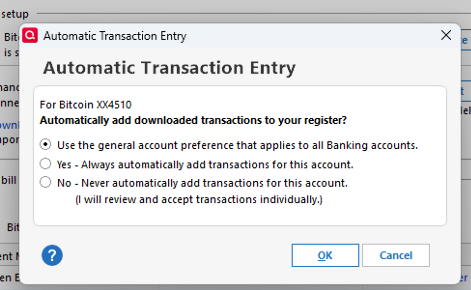
- Click OK
After completing these steps, close the Account Details window and update the account to see if the blue dot disappears.
I hope this helps!
Quicken Laura
Make sure to sign up for the email digest to see a round up of your top posts.
1 -
Thank you again, that fixed it. That's aways annoyed me. I appreciate your easy to follow instructions!
0 -
Hi @Tony Luers,
That’s great news! I’m really glad everything is working properly now. It’s always a pleasure to help.
If you need anything else in the future, don’t hesitate to reach out!
Quicken Laura
Make sure to sign up for the email digest to see a round up of your top posts.
0
