Unable to Connect Accounts at Chase Using Two Different User Logins [Edited]

We have 2 separate Chase logins because both my husband and myself have separate retirement accounts with them. The program does not seem to recognize that there are two different logins and will only connect to one of the retirement accounts. I have tried to reset accounts, add accounts, deactivate, and reactivate. Each time I do so, I get a message that the account attached to the other login is not seen at Chase and should be deactivated. Quicken used to recognize each separate login and update the accounts accordingly. Any suggestions?
[Edited - Readability]
Comments
-
Hi @Tammy Van Buren,
Thank you for reaching out and for detailing the steps you’ve already tried.
Based on your description, it does appear that the connection is only recognizing one ID at a time. Since you mentioned you have already attempted a reset, let’s try the process again with a few additional steps that may help resolve the issue.
- Select Tools > Account List

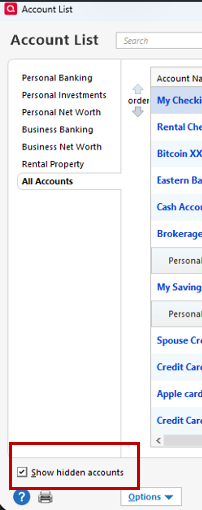
- If present, select the Show Hidden Accounts checkbox at the bottom of the Account List
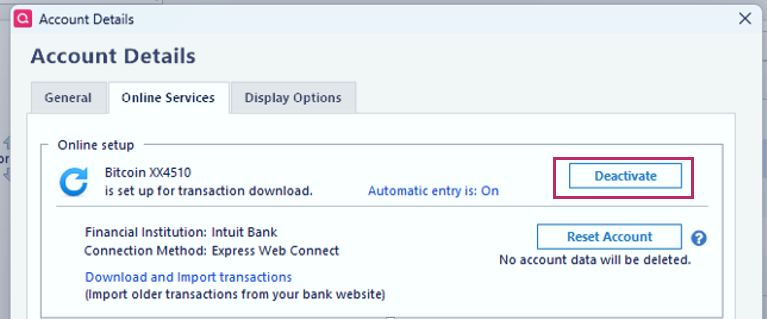
- Select Edit on each account with this error and select the Online Services tab.
- Click Deactivate.
- Click Yes to the message confirming if you want ot disable this service.
- When finished, close the Account List.
Revoke Quicken Third-Party Access
Next, sign in to your financial institution’s website and revoke Quicken’s third-party access from your account settings. The exact location of this setting may vary by financial institution.
Reactivate the first set of accounts.
Note: If any of the accounts are joint accounts, please reconnect them while logged in as the primary account holder, not the secondary user.
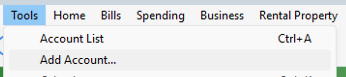
- Go to Tools > Add Account.
- Search for and select your financial institution.
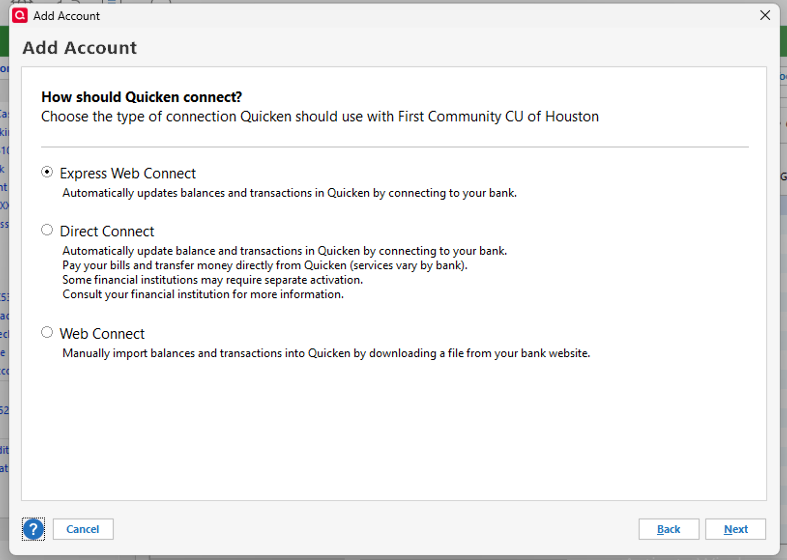
- If prompted, choose the appropriate connection method.
- Follow the on-screen instructions.
- When the list of found accounts appears, be sure to select Link to connect them to your existing accounts (do not add duplicates).
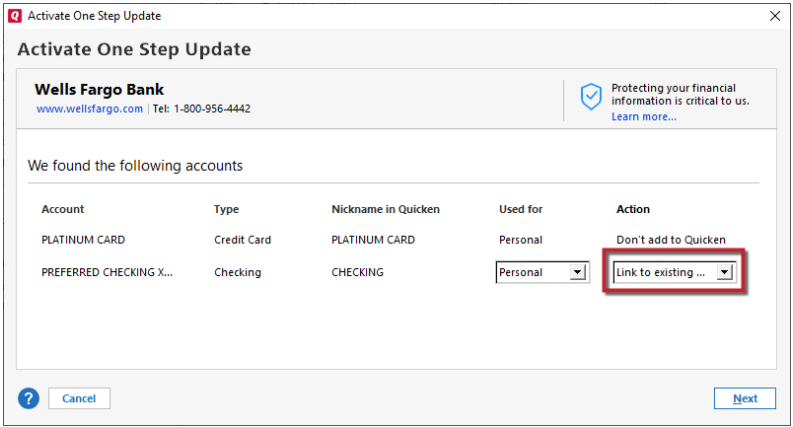
After completing these steps, close Quicken, reopen it, and run One Step Update. If the accounts update without errors, please proceed with reconnecting the second set of accounts using the same steps above.
Please let me know how it goes, and I’ll be happy to assist further if needed.
Quicken Laura
Make sure to sign up for the email digest to see a round up of your top posts.
0 - Select Tools > Account List
-
Hi @Tammy Van Buren,
I just wanted to follow up since I haven’t heard back from you. I’m checking in to see if you still need assistance.
Quicken Laura
Make sure to sign up for the email digest to see a round up of your top posts.
0 -
I have one assigned to Chase.com and another assigned to Chase investments and that seems to be working
0 -
Hi @Tammy Van Buren,
That's great news! I'm glad it's working now.
Don't hesitate to reach out if you have additional questions.
Quicken Laura
Make sure to sign up for the email digest to see a round up of your top posts.
0
