Schwab trouble with expired options and short stock sales.

For some reason, options that expire are not showing up in Quicken, and I have to manually enter those transactions. Quicken says that its holdings match the brokerage, but that is not true. A separate issue is that short stock sales are not registered as stock transactions, but are showing up as deposits. These must be manually edited to reflect and match reality. Does anyone else have this issue or know of a fix?
[Edited - Readability]
Comments
-
Hi @DRHayes,
Thank you for sharing what you’re experiencing.
I have a few questions that may help us better understand what might be causing the issue:
- Has Quicken ever downloaded the expiration transactions correctly, or has this behavior always occurred?
- Is this affecting only one Schwab account or multiple accounts?
- Do you see any placeholders in the affected account(s)?
- When you compare the account in Quicken with the holdings shown on the Schwab website, do the option positions appear closed on the Schwab website but still remain open in Quicken?
Once we have a bit more information, we’ll be in a better position to determine what may be happening.
I look forward to your response.
Quicken Laura
Make sure to sign up for the email digest to see a round up of your top posts.
0 -
The expiration transactions have been downloaded in the past correctly.
This seems to be just one Schwab account, but then that is where I do almost all of my option trading.
There are no noted placeholder entries.
The expired options do not show up in the Security Comparison Mismatch Window
The short-sell stock trades are still showing up as Deposits. Even after correction, some of these are still appearing in the Securities Comparison Mismatch Window. I reopened these transactions by editing them, but they still appear in the mismatch window.
[Edited Readability]
0 -
Hi @DRHayes,
Thank you for answering the earlier questions; that information is very helpful.
I have a few additional questions regarding the expired options that are not showing in Quicken:
- Is the option still listed in the Security List, but with zero shares?
- In the holdings view on the Schwab website, does the option appear to be completely gone?
- In the past, did Quicken download these transactions as Sold when the options expired?
Regarding the short-sell stock trades that you manually corrected but are still appearing in the Securities Comparison Mismatch window, please try the following steps (and make sure to create a backup first):
1. Check the security match
- Go to Tools.
- Select Security List.
- Choose one of the affected securities.
- Click Edit.
- Ensure the Matched with online security option at the bottom is selected.
- Click OK.
If the issue persists after confirming the match, please also check for hidden placeholder transactions:
2. Review hidden transactions
- Go to Edit.
- Select Preferences.
- Click Investments.
- Enable Show hidden transactions.
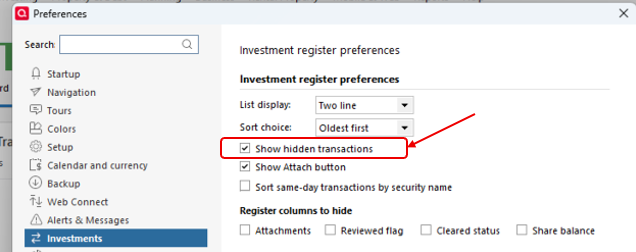
After enabling this setting, review the register again to see if any placeholder transactions appear.
Please let me know what you find. I look forward to your response!
Quicken Laura
Make sure to sign up for the email digest to see a round up of your top posts.
0 -
I did #1 above and the "Matched with online security" option was selected.
I did #2 and the "Show hidden transactions" box was checked. There are no Placeholder Entries according to the counter at the bottom of the register window that shows "Placeholder Entries (0)".
0 -
removed
0 -
Hi @DRHayes,
My apologies for the delayed response, and thank you for taking the time to try the previous recommendations.
At this point, I suggest validating your file. Before proceeding, please make sure to save a backup. Then follow these steps:
- Go to File
- Select Validate and Repair File, then choose Rebuild Investing Lots and Correct Investing Price History
- Select Validate File
- Click OK
Once that’s done, please update your account again and check whether the Security Comparison Mismatch window still appears.
If the issue persists, I recommend testing the account in a new file to see how it behaves from a fresh setup (this will not affect your current working file).
To create a test file:
- Go to File > New Quicken File
- Select New Quicken File, then click OK
- Enter a name for the file and click Save (avoid using special characters such as * ? < > | " : \ / and do not add the .qdf extension)
- Sign in with your Quicken ID (if prompted to create one, select Sign In instead)
- Choose whether to enable Mobile
- Click Add Account to begin adding your accounts
Please let me know how it goes. I’ll be happy to assist further based on your results.
Quicken Laura
Make sure to sign up for the email digest to see a round up of your top posts.
0
