CC-800 - Fidelity and credit cards [Edited]

I use Quicken Classic Deluxe for two different people, and one of them downloads from Fidelity and Chase credit cards just fine. The other one has not been able to download from Fidelity for several weeks and always gets an error message and requires a reset to get Chase and Amex to download. An option for the credit card accounts is to go directly to the Chase or Amex sites and download into Quicken from there. Fidelity, however, doesn't have a QFX transaction download as an option, only CSV. Importing a CSV file is tougher. And this person has 16 different Fidelity accounts with many transactions per week.
Quicken tried to tell me that it was Fidelity's problem, but obviously, it's not. I have an escalation number, but there has been no action on that yet.
Has anyone heard if Quicken is working on this issue? I've repaired the file several times to no avail. Is it by any chance related to the size of the file? This is a file that is almost 300 MB.
Thanks.
Answers
-
Hi @JBRWEM,
I'm sorry to hear that you have been experiencing this issue. I checked the ticket you mentioned, and it showed that you deactivated and reactivated the account and created a copy of the file, with no avail. We were having connectivity issues at that time, so probably that's why the account reset didn't work, but the issue has now been fixed, and your accounts are not showing the error message related to that issue either.
To troubleshoot the issue, I'll suggest you delete the copy file you created previously if you are no longer using it or disconnect the accounts in the copy file.
Then, please deactivate and reactivate the accounts in your main file with the steps below.
Step 1: Deactivate all affected accounts
- Select Tools > Account List
- If present, select the Show Hidden Accounts checkbox at the bottom of the Account List
- Select Edit on each account with this error and select the Online Services tab.
- Click Deactivate.
- Click Yes to the message confirming if you want to disable this service.
- When finished, close the Account List.
- Log in to your bank’s website and revoke Quicken’s third-party access (if applicable).
Step 2: Reactivate and link the accounts
- Go to Tools > Add Account.
- Search for and select Bank of America.
- If prompted, choose the appropriate connection method.
- Follow the on-screen instructions to sign in.
- When the list of found accounts appears, make sure to select Link to connect them to your existing accounts (do not choose Add, as that would create duplicates).
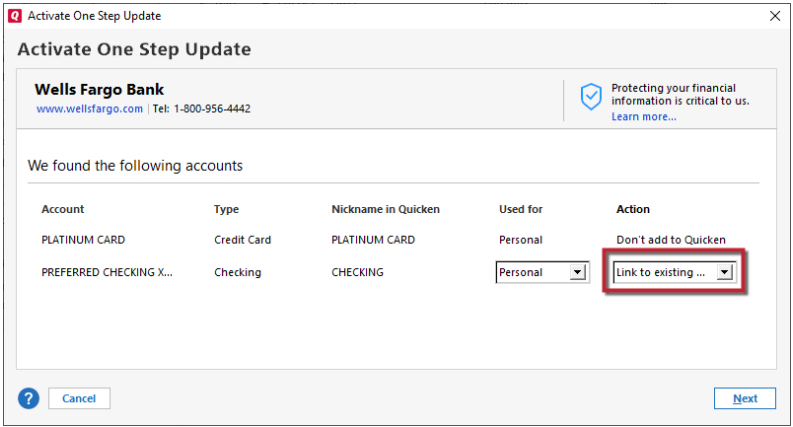
Please let me know how it goes. I’ll be here to assist if you run into any issues!
Quicken Laura
Make sure to sign up for the email digest to see a round up of your top posts.
0 -
Hi @JBRWEM,
I just wanted to follow up since I haven’t heard back from you. I’m checking in to see if you still need assistance.
Quicken Laura
Make sure to sign up for the email digest to see a round up of your top posts.
0
