CC-800 Needs Your Attention

Each time I update my 2 accounts at the same bank, I get CC800 “Need Your Attention.”
I tried multiple times to fix this, with Deactivating and Reactivating, but nothing changed. It still downloads my two accounts' transactions with no problem, so it’s not having a problem with that. It’s like it's giving a false error.
Comments
-
Hi @bc258,
Thank you for reaching out and for sharing the details of what you are experiencing.
After reviewing the accounts on our end, it appears that most of your accounts are syncing properly. However, the Genisys Credit Union account seems to be connected incorrectly.
Could you please confirm whether you are receiving any error messages when attempting to update or connect with Genisys Credit Union? If so, please share the exact error code or message you see, as that will help us better understand what may be causing the issue.
I look forward to your response. Thank you!
Quicken Laura
Make sure to sign up for the email digest to see a round up of your top posts.
0 -
CC800 “Need Your Attention.”
0 -
this is all i get
0 -
Hi @bc258,
Thank you for following up! To help resolve the error with Genisys Credit Union, we’ll go ahead and reset the connection. Please follow the steps below:
First, enable all account visibility:
- Click Tools.
- Open the Account List.
- Click on Options at the bottom left.
- Make sure the Show financial institution option is checked.
- Mark Show hidden accounts at the bottom left.
Next, deactivate all Genisys Credit Union accounts:
- - In the Account List, locate each account showing Genisys Credit Union in the Financial Institution column
- For each account:
- Click Edit
- Select the Online Services tab
- Click Deactivate next to the service
- Confirm by clicking Yes
- Then, please revoke Quicken’s third-party access directly from your financial institution’s website.
Finally, reactivate the accounts:
- Go to Tools > Add Account.
- Search for and select your financial institution.
- If prompted, choose the appropriate connection method.
- Follow the on-screen instructions.
- When the list of found accounts appears, be sure to select Link to connect them to your existing accounts (do not add duplicates).
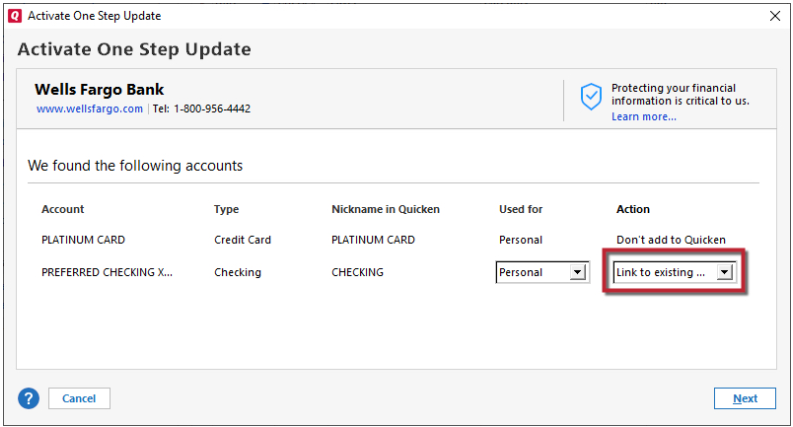
Please let me know how it goes!
Quicken Laura
Make sure to sign up for the email digest to see a round up of your top posts.
0 -
Did not work, and now I have multiple "Needs Your Attention" 2 with Fix it and one with reauthorize. Tried many times to resolve the error and still does not work.
[Edited Readability]
0 -
Hi @bc258,
Thank you for following the steps provided. I'm sorry to hear that it didn't work.
On our end, I'm still only seeing the Genisys Credit Union account as affected, which suggests it may not be syncing properly with the Quicken server. Let’s go ahead and reset the accounts once more, and this time we’ll also reset the Quicken Cloud. In many cases, this helps resolve connectivity issues.
Before you begin, please make sure to create a backup of your file.
Step 1: Deactivate all affected accounts
(Be sure to deactivate all accounts, including any hidden ones.)
- Go to Tools > Account List.
- In the Account List, select the account and click Edit.
- In the Account Details window, open the Online Services tab.
- Click Deactivate next to the online service.
- Confirm by clicking Yes.
- Repeat these steps for each affected account.
- Log in to your bank’s website and revoke Quicken’s third-party access (if applicable).
Next, Reset the Quicken Cloud.
- Select Edit > Preferences.
- In the left pane, select Mobile & Web.
- Under Quicken Mobile & Web, select Reset your cloud data.
- In Reset Your Cloud Data, choose one of these options:
- No, just reset my Cloud data
- Type "yes" to confirm reset.
- Select Reset.
Once completed, please follow the previously provided steps to reactivate your accounts.
Please let me know the results.
Quicken Laura
Make sure to sign up for the email digest to see a round up of your top posts.
0
