Account not showing in One Step Update Result

Here is the sequence I run for OSU.
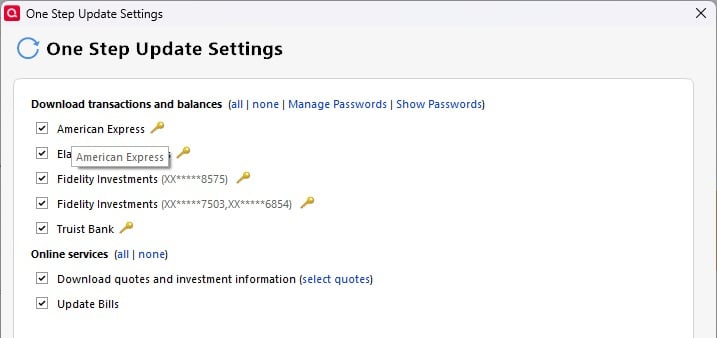
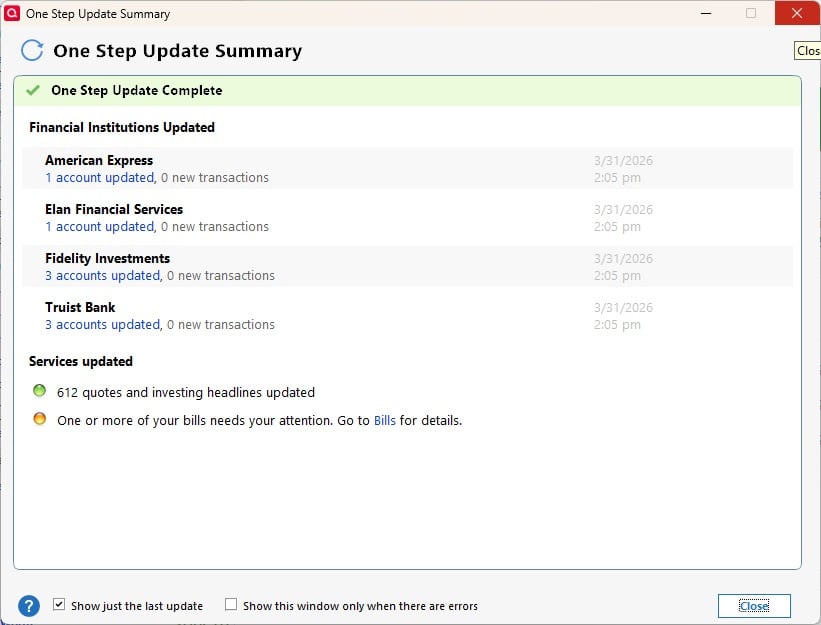
But the 8575 account does not show in the output screen though I do think it is being updated.
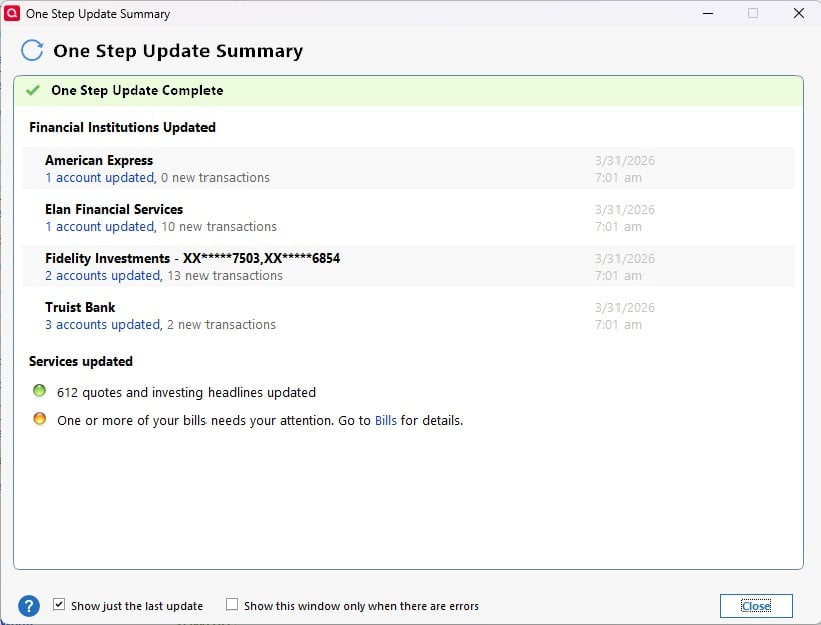
Any thoughts on this ?
Comments
-
Hi @Bione,
Thanks for contacting the Quicken Community, and thank you for the screenshots, they’re very helpful.
To help determine why the account may be missing from the One Step Update Summary, I’d like to ask a few questions:
- When did the issue start?
- Did you restore a backup file from before the issue started?
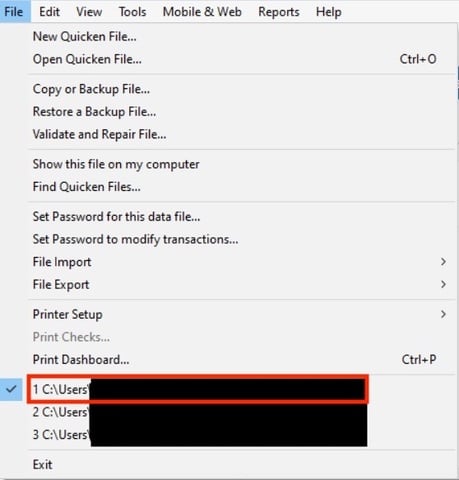
- Where is your Quicken data file located? To check, please open Quicken and go to File. At the bottom of the menu (just above the Exit option), the file with the check mark next to it is the one currently open. Please let me know the full file path shown there.
- Is your file being backed up or synced by any third-party services such as Carbonite, OneDrive, or Backblaze?
- Are you using a VPN, firewall, or antivirus software? If so, please let me know which one(s).
I look forward to your reply!
Quicken Carlos
Make sure to sign up for the email digest to see a round up of your top posts.
0 -
This started a couple of months ago when I had to delete and re-add the Fidelity accounts. I did not pick them all up in the first pass (2 accounts) and added the third as a separate operation. Personally, I am betting that if I closed online access to them again and added them back at the same time, they would all show up as one line in the OSU summary.
I have restored backup files but probably not around the time I had to re-add these accounts.
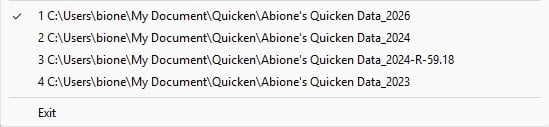
The file location is as shown which is normal.
No outside backup except for Norton and my backup flash drive. No VPN used.
As I mentioned, transactions for this account are being picked up but it just does not display in the OSU summary. Minor matter.
0 -
Hi @Bione,
Thanks for your reply and for sharing more details.
It’s possible that deactivating all the accounts and then adding them back at the same time might resolve the issue. Before doing that, I suggest following these steps:
- Create a backup of your Quicken file and close Quicken.
- Navigate to the following location on your computer:
C:\ProgramData\Quicken\Inet[folder with your data file name] - Rename the runtime.dat file found at C:\ProgramData\Quicken\Inet\FILENAME.
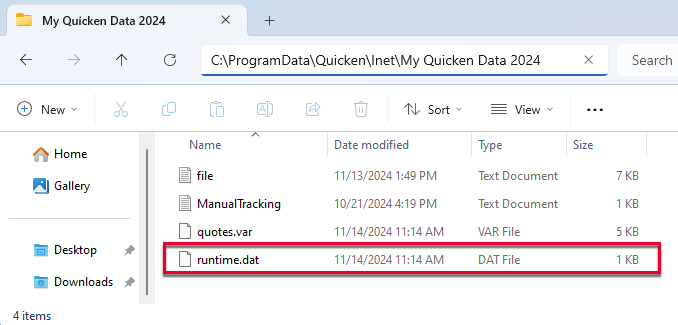
- Run a One Step Update (OSU) again to confirm the issue is resolved
These steps help reset certain settings safely before reactivating your accounts.
Let us know how it goes!
Quicken Carlos
Make sure to sign up for the email digest to see a round up of your top posts.
0 -
I went ahead and replaced the three files as once and it cleared up.
 0
0 -
Hi @Bione,
Thanks for your reply!
I’m glad to hear that your account is now back up and running. This might help other customers who encounter a similar issue.
If you have any further questions, please don’t hesitate to reach out to us.
Quicken Carlos
Make sure to sign up for the email digest to see a round up of your top posts.
0