Split transactions lost for one account

By accident, when I was doing my taxes using TurboTax, I discovered that the split transactions in my checking account had been removed and replaced by a single transaction in the split window.
Example.
Before: Amazon Purchase 100. Category: split; In the split: Assets:Personal Items 50; Sundry 50.
After: Amazon Purchase 100. Category Asset: Personal Items; In the split: Assets:Personal Items 100
I keep 30 days of backups. The error was present in all of the backups.
Is there any way to guard against this?
[Edited readability]
Comments
-
Hi @Thomas Calhoun,
Thank you for reaching out. I’m sorry to hear that you’ve lost the split information and were unable to recover it using a recent backup. You may want to try restoring a backup from earlier than the last 30 days to confirm whether the information was still correct at that time.
To help prevent this from happening again, here are a few things you can check:
Verify file location
Saving or syncing your Quicken file to a cloud service can sometimes lead to data corruption.- Open Quicken and go to File
- At the bottom under recent files, locate the file with the checkmark (this is the file currently in use)
- If the file is stored externally or in a cloud location, consider moving it to a local folder
Default recommended location
C:\Users\username\Documents\QuickenTo move the file:
- Close Quicken
- Open File Explorer and locate your current Quicken data file (.QDF)
- Right-click the file and select Copy (or Cut to move it)
- Navigate to the recommended folder above
- Right-click and select Paste
- Double-click the file from the new location to open it in Quicken
Validate your file
Once the file is stored locally, run a validation to check for and repair possible corruption:- Go to File
- Select Validate and Repair File
- Choose Validate File
- Click OK
Check the Memorized Payee List
- Go to Tools > Memorized Payee List
- Confirm your payees include the correct categories, amounts, and memos
- If multiple entries exist for the same payee, lock the correct one or delete any duplicates
To lock a payee:
- Right-click the payee
- Select Lock
Check auto-categorization settings
- Right-click the payee
- Ensure that “Never auto-categorize this payee during QuickFill of downloads” is not selected
When multiple payee rules exist
If there are multiple rules for the same payee (for example, one with details and one blank), Quicken may apply the most recently used rule, even if it’s incomplete. Locking the correct rule can help prevent this behavior.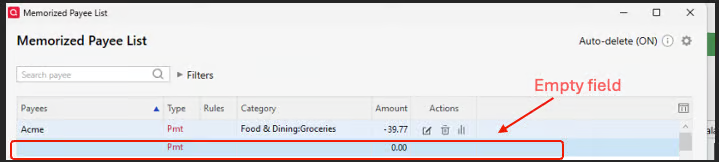
Please let me know how it goes!
Quicken Laura
Make sure to sign up for the email digest to see a round up of your top posts.
0
